Invoking a Python Script
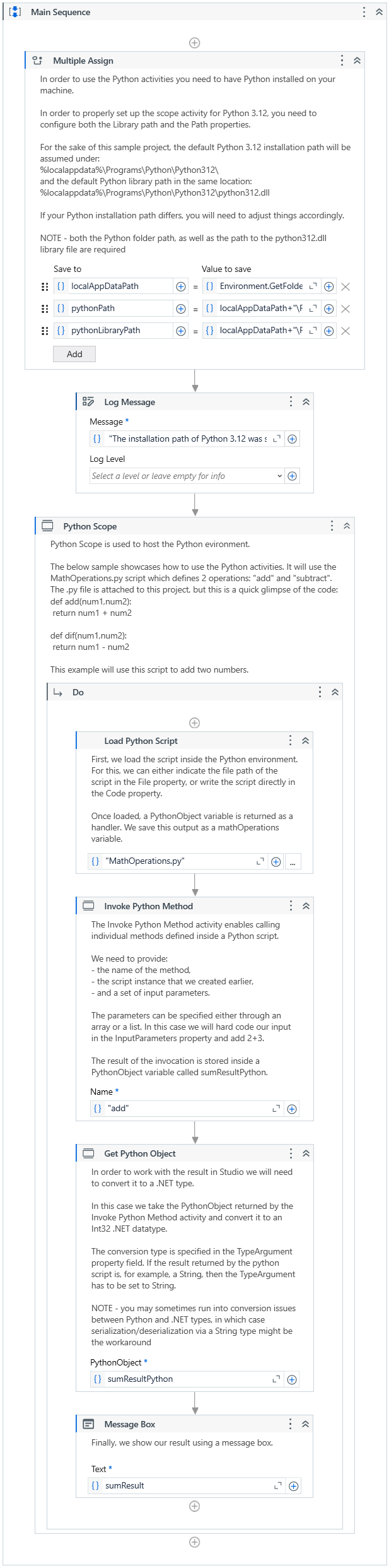
To exemplify how to use this activity package, we have built an automation process to invoke a Python script which defines two operations, Add and Subtract. One of the methods, Add, is then called from the script and given a list of integer variables as input parameters. The result, stored in a proprietary PythonObject variable, is then converted into a .NET data type to be further used in Studio.
The Python version you want to use has to be installed on the machine you want to run the process on. This step-by-step guide is based on a default installation path of Python 3.12.
This is how the demo can be built:
-
Open Studio and start a new Process.
-
Drag a Multiple Assign activity to the designer panel and add the following variables:
- Add the
localAppDataPathvariable with the value to saveEnvironment.GetFolderPath(Environment.SpecialFolder.LocalApplicationData). - Add the
pythonPathvariable with the value to savelocalAppDataPath+"\Programs\Python\Python312\". - Add the
pythonLibraryPathvariable with the value to savelocalAppDataPath+"\Programs\Python\Python312\python312.dll".
- Add the
-
Add a Log Message activity to the workflow.
- Add the
"The installation path of Python 3.12 was set as: " + pythonPathexpression in the Message field.
- Add the
-
Add a Python Scope activity. To properly set up the Python Scope activity for Python 3.12, it is required to configure both the Library path and the Path properties.
- Under the Library path property, enter the
pythonLibraryPathvariable created in the Multiple Assign activity. - Under the Path property, enter the
pythonPathvariable created in the Multiple Assign activity.
- Under the Library path property, enter the
-
Drag a Load Python Script activity in the Do section of the Python Scope.
- Add the file path to the
MathOperations.pyPython script in the File property. - Create a new
PythonObjectvariable, calledmathOperations, and add it into the Result property field.
- Add the file path to the
-
Add an Invoke Python Method activity and configure its properties as follows:
- Input Parameters - Add the
new Object() {2,3}expression to this property field. - Instance - Add the
mathOperationsvariable to this property field. - Name - Add the name of the method inside the script you want to use, in this case
add. - Result - Create a new
PythonObjectvariable, calledsumResultPython, and add it to this property field.
- Input Parameters - Add the
-
Add a Get Python Object activity and configure its properties as follows:
- PythonObject - Add the
SumResultPythonvariable to this property field. - TypeArgument - Select
Int32from the drop-down list. - Result - Create a new
Int32variable, calledsumResult, and add it to this property field.
- PythonObject - Add the
-
Add a Message Box activity at the end of the project and configure it to display the
sumResultvariable.Your project should look like this:
-
Run the process. The Message Box displays the result of the Add method.