WebAPI Language Detection
The following examples explain how to use activities such as HTTP Request or Deserialize Json for calling a public API, extracting information, and displaying the results. You can find these activities in the UiPath.WebAPI.Activities package.
There are three workflows for detecting languages in texts using Language Detection API. The first workflow creates a dictionary of languages, the second detects the language in a single text, and the third detects languages in multiple texts.
Creating the Languages Dictionary
The workflow creates a languages dictionary from a CSV file that contains language codes and names. This workflow is invoked in the two other workflows.
This is how the automation process can be built:
- Open Studio and create a new Process.
- Download the archive with the project in this example and copy the file languages.csv to your project folder.
- Drag a Sequence container in the Workflow Designer.
-
Create the following variable:
Variable Name Variable Type Default Value LanguagesDTDataTable
-
- Add a Read CSV activity inside the Sequence container.
- Add the expression
"languages.csv"in the FilePath field. - In the Properties panel, add the variable
LanguagesDTin the DataTable field.
- Add the expression
- Add an Assign activity after the Read CSV activity.
-
Add the expression
out_LanguagesDictionaryin the To field. -
Add the expression
LanguagesDT.AsEnumerable.ToDictionary(of string, string)(function(row) row("Code").ToString, function(row) row("Language").ToString)in the Value field.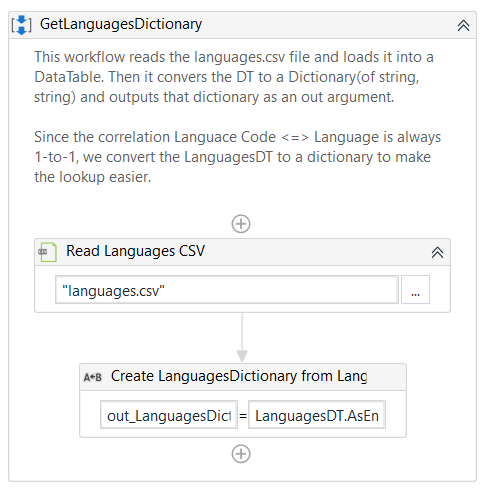
-
- Run the process to create the dictionary.
Detecting the Language in a Single Text
This is how the automation process can be built:
- Open Studio and create a new Process.
- Drag a Sequence container in the Workflow Designer.
-
Create the following variables:
Variable Name Variable Type Default Value APIKeyString TextString ResultString StatusCodeInt32 LanguagesDictionaryDictionary<String, String> LanguageCodeString ReliableBoolean ConfidenceDouble LanguageNameString
-
- Add an Assign activity inside the Sequence container.
- Add the variable
APIKeyin the To field. - Add the expression
"demo"in the Value field.
- Add the variable
- Add an Assign activity after the Assign activity.
- Add the variable
Textin the To field. - Add the expression
"Hello. This is a sample test."in the Value field.
- Add the variable
- Add an HTTP Request activity after the Assign activity.
-
Configure the wizard by adding the End point address, the Request Method, the form of the Accept response, and the Authentication method.

-
In the Properties panel, add the value
application/jsonin the BodyFormat field. NOTE: the workflow shows application/xml. -
Add the variable
Resultin the Result field. -
Add the variable
StatusCodein the StatusCode field.
-
- Add an If activity after the HTTP Request activity.
- Add the expression
StatusCode = 200in the Condition field.
- Add the expression
- Add a Sequence activity inside the Then field of the If activity.
-
Create the following variables:
Variable Name Variable Type Default Value ResultJSONJObject
-
- Add an Invoke Workflow File activity inside the Sequence container.
-
Add the expression
"GetLanguagesDictionary.xaml"in the Workflow Path field. -
Select the Edit Arguments button and add the following argument:
Argument Name Argument's Direction Argument Type Default Value out_LanguagesDictionaryOut Dictionary<String, String> LanguagesDictionary 
-
- Add a Deserialize JSON activity after the Invoke Workflow File activity.
- Add the variable
Resultin the Json String field.
- Add the variable
- Add an Assign activity after the Deserialize JSON activity.
- Add the variable
LanguageCodein the To field. - Add the expression
ResultJSON("data")("detections")(0)("language").ToStringin the Value field.
- Add the variable
- Add an Assign activity after the previous Assign activity.
- Add the variable
LanguageNamein the To field. - Add the expression
LanguagesDictionary(LanguageCode)in the Value field.
- Add the variable
- Add another Assign activity after the previous Assign activity.
- Add the variable
Reliablein the To field. - Add the expression
CBool(ResultJSON("data")("detections")(0)("isReliable").ToString)in the Value field.
- Add the variable
- Add an Assign activity after the previous Assign activity.
- Add the variable
Confidencein the To field. - Add the expression
CDbl(ResultJSON("data")("detections")(0)("confidence").ToString)in the Value field.
- Add the variable
- Add a Log Message after the Assign activity.
- Add the expression
"Detection for the text:" + vbCrLf + " Language is " + LanguageName+ vbCrLf +" Reliable detection: " + Reliable.ToString + vbCrLf + " Confidence level: " + Confidence.ToStringin the Message field.
- Add the expression
- Add a Log Message activity inside the Else field of the If activity.
- Select the Warn option from the Level drop-down list.
- Add the expression
"HTTP Request was not successful. Code: " + StatusCode.ToStringin the Message field.
- Add a Log Message activity after the previous Log Message activity.
-
Select the Warn option from the Level drop-down list.
-
Add the expression
"HTTP Request was not successful. Result: " + Resultin the Message field.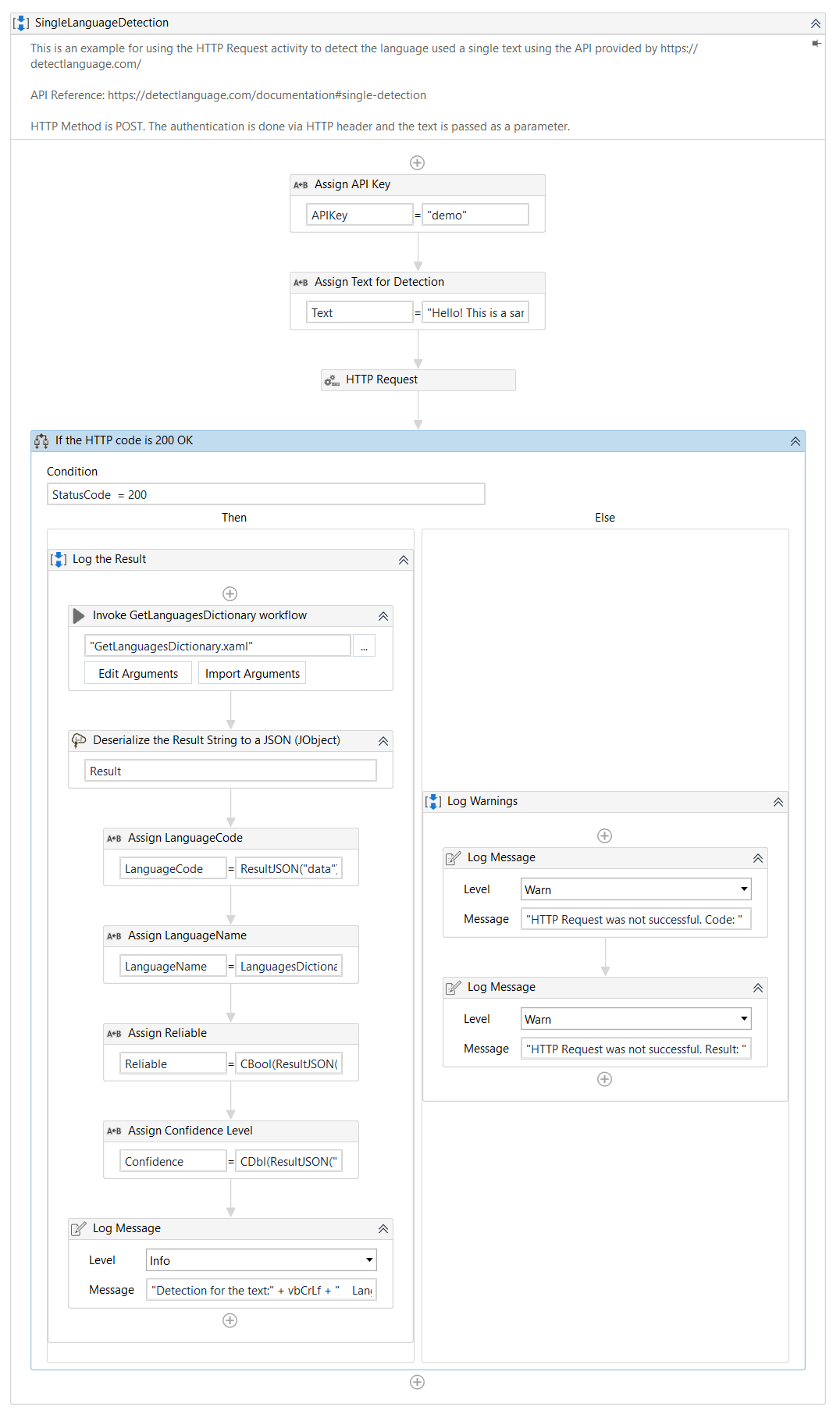
-
- Run the process to detect and log the language used in the text.
Detecting the Languages in a Batch of Texts
This is how the automation process can be built:
- Open Studio and create a new Process.
- Drag a Sequence container in the Workflow Designer.
-
Create the following variables:
Variable Name Variable Type Default Value APIKeyString TextsString[] ResultString StatusCodeInt32 HTTPRequestBodyJSONString
-
- Add an Assignactivity inside the Sequence container.
- Add the variable
APIKeyin the To field. - Add the value
"demo"in the Value field.
- Add the variable
- Add another Assign activity after the previous one.
- Add the variable
Textsin the To field. - Add the value
{"Hello world.", "Buenos dias, señor.", "Guten Tag.", "Buna ziua, tuturor."}in the Value field.
- Add the variable
- Add a new Assign activity after the previous Assign activity.
- Add the variable
HTTPRequestBodyJSONin the To field. - Add the value
Newtonsoft.Json.JsonConvert.SerializeObject(new with{ .q = Texts })in the Value field.
- Add the variable
- Add an HTTP Request activity after the Assign activity.
-
Configure the wizard by adding the End point address, the Request Method, form of the Accept response, and the Authentication method.

-
In the Properties panel, add the variable
HTTPRequestBodyJSONin the Body field. -
Add the value
application/jsonin the BodyFormat field. -
Add the variable
Resultin the Result field. -
Add the variable
StatusCodein the StatusCode field.
-
- Add an If activity after the HTTP Request activity.
- Add the expression
StatusCode = 200in the Condition field.
- Add the expression
- Add a Sequence activity inside the Then field of the If activity.
-
Create the following variables:
Variable Name Variable Type Default Value ResultJSONJObject LanguagesDictionarySystem.Collections.Generic.Dictionary<System.String, System.String> LanguageCodeString LanguageNameString ReliableBoolean ConfidenceDouble indexInt32 0
-
- Add an Invoke Workflow File activity inside the Sequence container.
-
Add the expression
"GetLanguagesDictionary.xaml"in the Workflow Path field. -
Select the Edit Arguments button and add the following argument:
Argument Name Argument's Direction Argument Type Default Value out_LanguagesDictionaryOut Dictionary<String, String> LanguagesDictionary
-
- Add a Deserialize JSON activity after the Invoke Workflow File activity.
- Add the variable
Resultin the Json String field.
- Add the variable
- Add a For Each activity after the Deserialize JSON activity.
- Add the expression
ResultJSON("data")("detections")in the Values field.
- Add the expression
- Add an Assign activity inside the Body of the For Each activity.
- Add the variable
LanguageCodein the To field. - Add the expression
item(0)("language").ToStringin the Value field.
- Add the variable
- Add an Assign activity after the previous Assign activity.
- Add the variable
LanguageNamein the To field. - Add the expression
LanguagesDictionary(LanguageCode)in the Value field.
- Add the variable
- Add another Assign activity after the previous Assign activity.
- Add the variable
Reliablein the To field. - Add the expression
CBool(item(0)("isReliable").ToString)in the Value field.
- Add the variable
- Add an Assign activity after the previous Assign activity.
- Add the variable
Confidencein the To field. - Add the expression
CDbl(item(0)("confidence").ToString)in the Value field.
- Add the variable
- Add a Log Message after the Assign activity.
- Add the expression `"Detection for the text #"+index.ToString +":" + vbCrLf + " Language is " + LanguageName+ vbCrLf +" Reliable detection: "
- Reliable.ToString + vbCrLf + " Confidence level: " + Confidence.ToString` in the Message field.
- Add the expression `"Detection for the text #"+index.ToString +":" + vbCrLf + " Language is " + LanguageName+ vbCrLf +" Reliable detection: "
- Add a Log Message activity inside the Else field of the If activity.
- Select the Warn option from the Level drop-down list.
- Add the expression
"HTTP Request was not successful. Code: " + StatusCode.ToStringin the Message field.
- Add a Log Message activity after the previous Log Message activity.
-
Select the Warn option from the Level drop-down list.
-
Add the expression
"HTTP Request was not successful. Result: " + Resultin the Message field.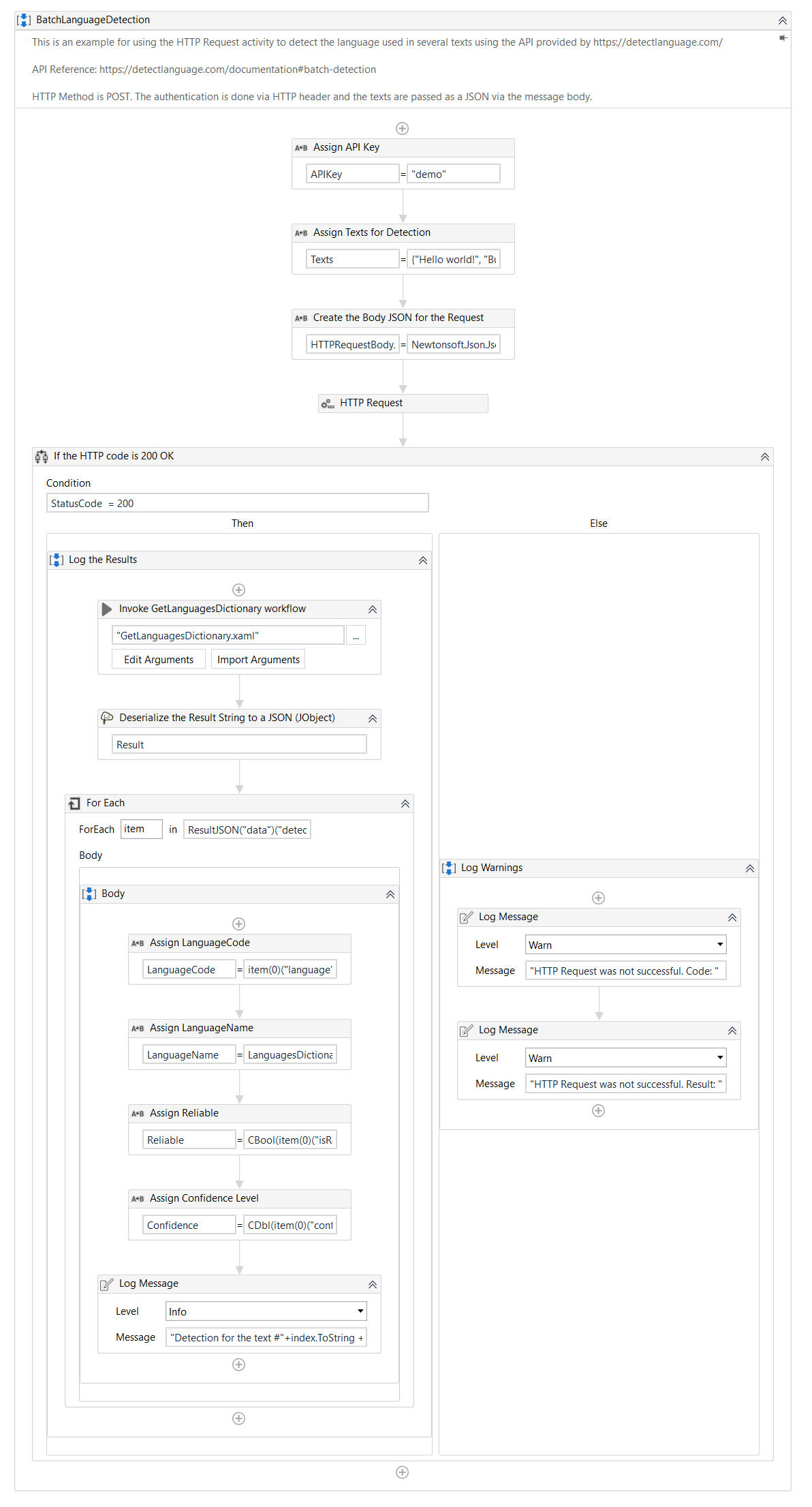
-
- Run the process to detect and log the languages used in the text
Here you can download an example.