Insert Record
UiPath.MicrosoftDynamics.Activities.InsertRecord
The Insert Record activity uses the Web API POST operation to insert a new record.
After inserting the record, the activity outputs the status of the request (success/failure information) in a ResponseStatus object (MicrosoftDynamicsStatus) that you can use in subsequent activities (e.g., conditional logic).
If the request is successful, the activity returns the String identifier assigned to the new record. For example, if you want to insert an Account, you can output the AccountId value by adding a String variable using the configure button (see example below).
How it works
The following steps and message sequence diagram is an example of how the activity works from design time (i.e., the activity dependencies and input/output properties) to run time.
- Complete the Setup steps.
- Add the Microsoft Dynamics Application Scope activity to your project.
- Add the Insert Record activity inside the Microsoft Dynamics Application Scope activity.
- Click the Configure button inside the Insert Record activity (this opens the Object Wizard).
- Select the Object you want to insert and add the fields (with values) that you want to populate.
- Create and enter a
ResponseStatusvariable for the Output property.-
Your input property values are sent in the POST operation request.
-
The operation returns the
Stringidentifier andResponseStatusvalues to your output property variables.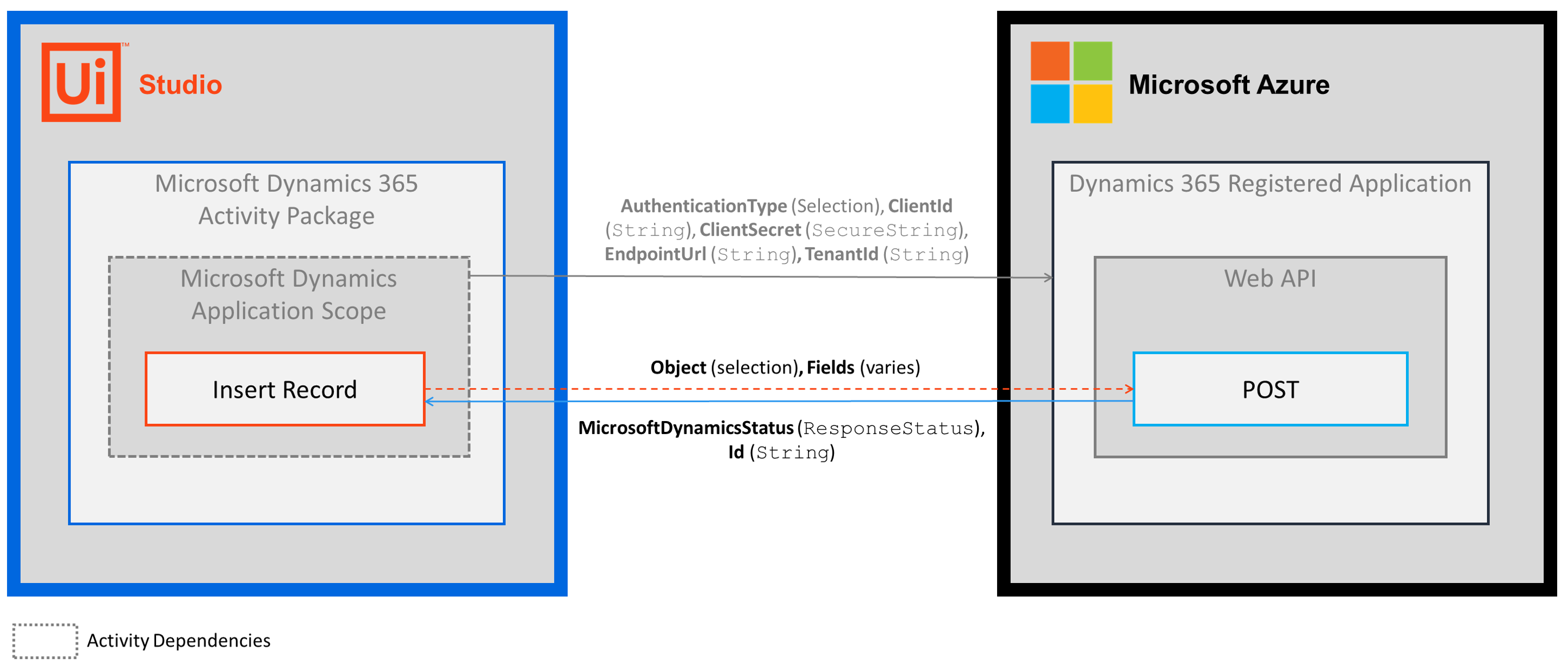
-
Configure
To enter your Insert Record property values, you must use the Object Wizard by clicking the Configure button.
When you select an Object using the Object Wizard, you can add the fields that you want to include in the new record. For a complete list of the available fields for each object, see the Web API EntityType Reference in the Microsoft documentation.
Properties
Advanced
- AdditionalFields - A
DataRowthat includes the columns and values that you want to insert. Enter aDataRowvariable.- To determine/validate your
DataRowcolumn names, click the Configure button, select your Object, and review the names shown in the Field column; yourDataRowcolumn names must match the shown value. - If you enter a value for a field in both the Object Wizard and the AdditionalFields property, the value entered in the Object Wizard takes precedent (overwriting the AdditionalFields value).
- To determine/validate your
Common
- DisplayName - The display name of the activity. This field supports only
StringsorStringvariables.
Misc
- Private - If selected, the values of variables and arguments are no longer logged at Verbose level.
Output
- ResponseStatus - The status of the request (success/failure information). Enter a
ResponseStatusvariable (UiPath.BAF.Models.ResponseStatus). TheResponseStatusobject includes three properties that you can use in other activities.- Success -
Boolean- Specifies whether the API request was successful. - ErrorCode -
String- The response error if the API request is unsuccessful (Success=False). - Message -
String- The error message.
- Success -
Example
The following image shows an example of the activity dependency relationship and input/output property values.
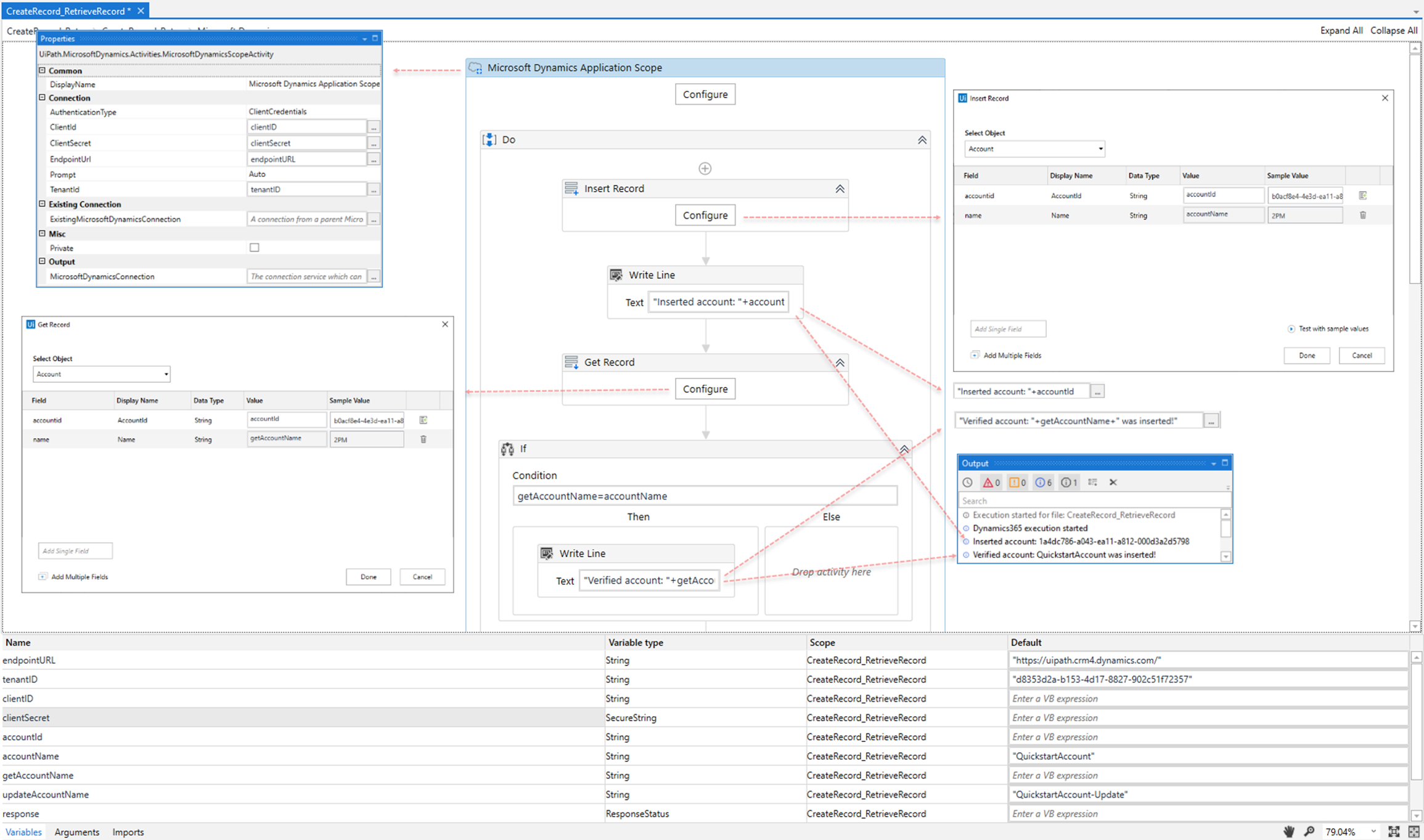
For step-by-step instructions and examples, see the Quickstart guide.