Create Team From Group
UiPath.Teams.Activities.Teams.CreateTeamFromGroup
The Create Team from Group activity calls the Microsoft Graph CreateTeamFromGroup API to create a new team based on an existing group in your Azure directory (GroupId). The new team is created using a standard template, the name of the specified group, and it includes all group members.
After the activity creates your new team, it outputs its properties a Team object (Team) that you can use input variables in subsequent activities (e.g., Team.Id in Get Channels, Update Channel, etc.).
How It Works
The following steps and message sequence diagram is an example how the activity works from design time (i.e., the activity dependencies and input/output properties) to run time.
- Complete the Setup steps.
- Add the Microsoft Teams Scope activity to your project.
- Add the Create Team from Group activity inside the Microsoft Teams Scope activity.
- Enter values for the Input properties.
- Create and enter a
Teamvariable for your Output property. - Run the activity.
-
Your input property values are sent to the CreateTeamFromGroup API.
-
The API returns the
Teamvalue to your output property variable.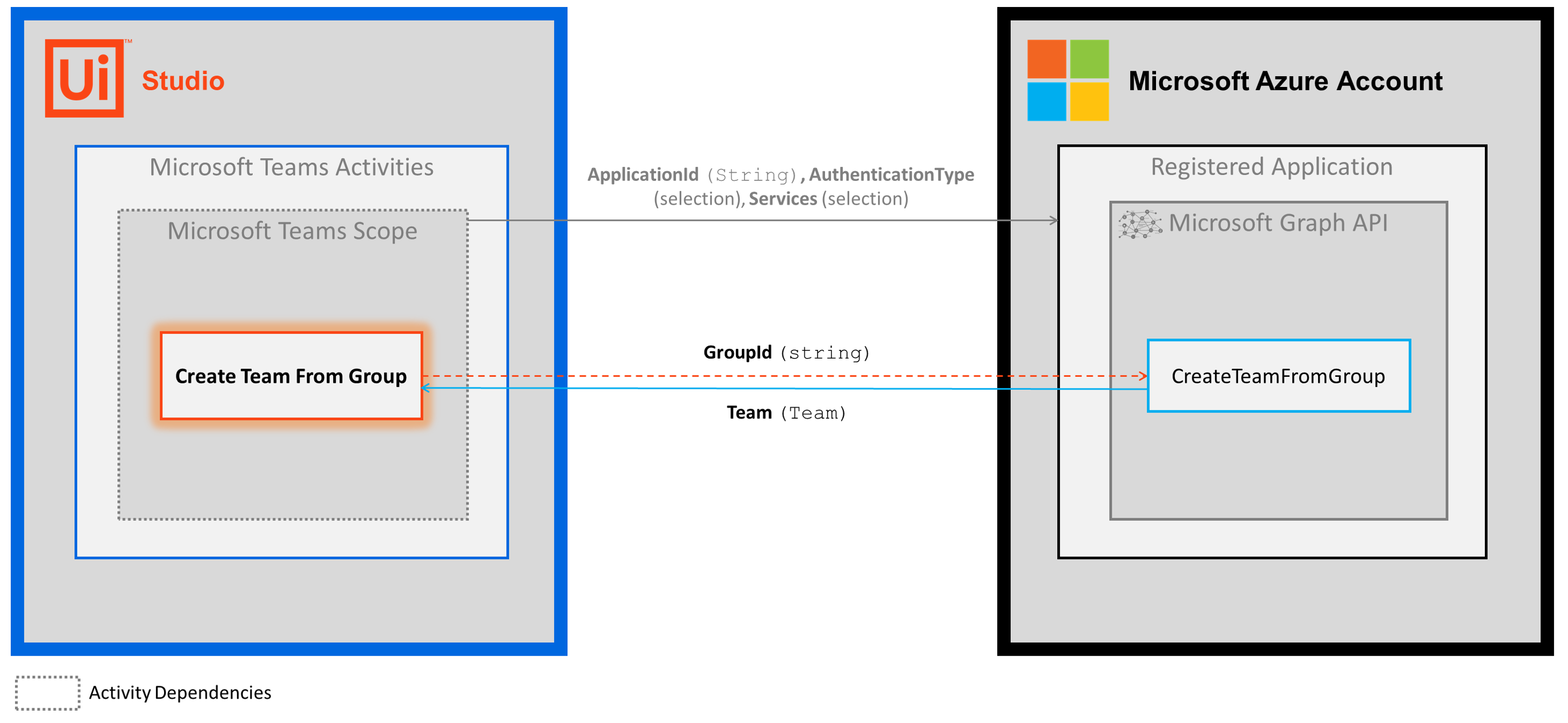
-
Properties
The values for the following properties are specified when adding this activity to your project in UiPath Studio.
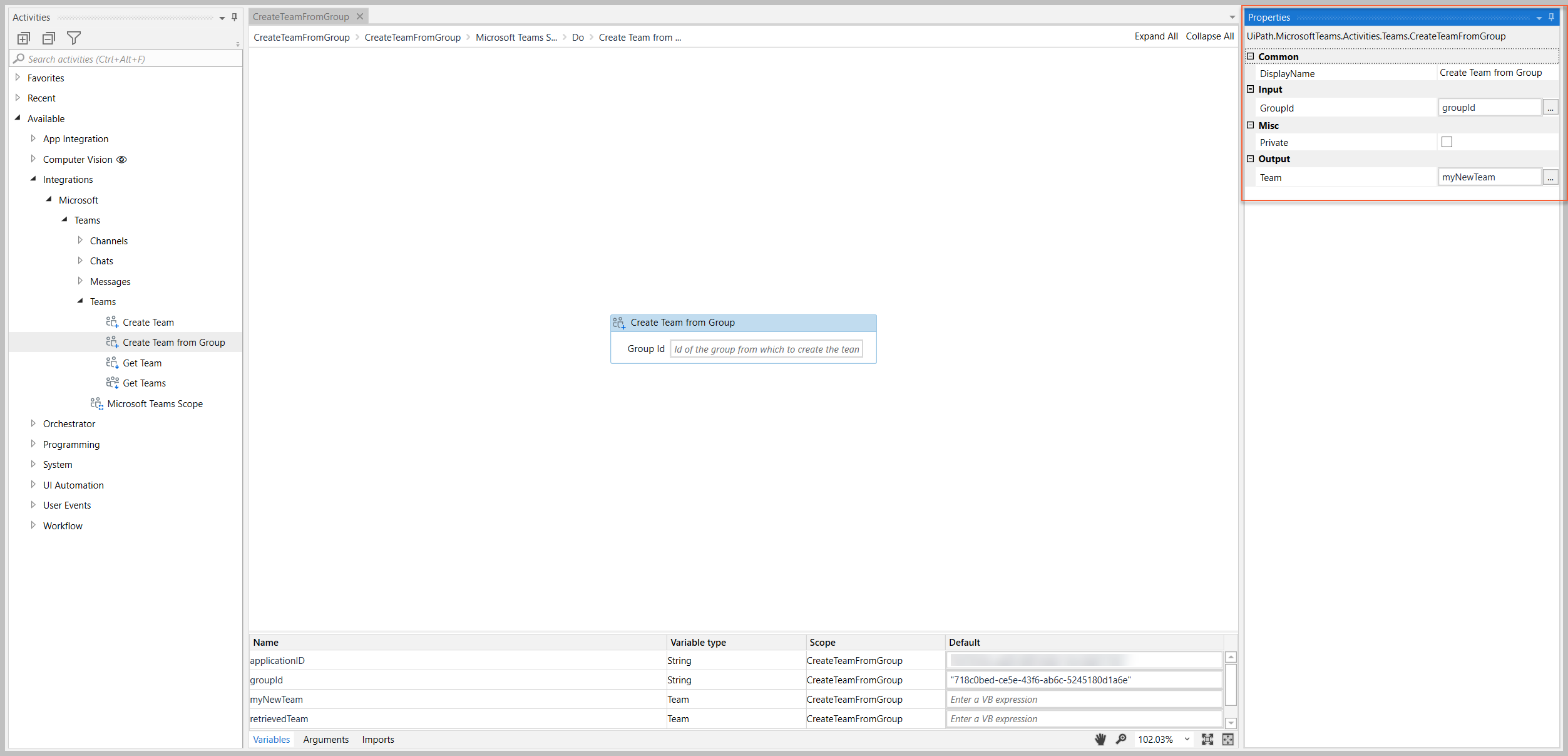
Common
DisplayName
The display name of the activity.
| Attributes | Details |
|---|---|
| Type | String |
| Required | Yes |
| Default value | Create Team From Group |
| Allowed values | Enter a String or String variable. |
| Notes | N/A |
Input
GroupId
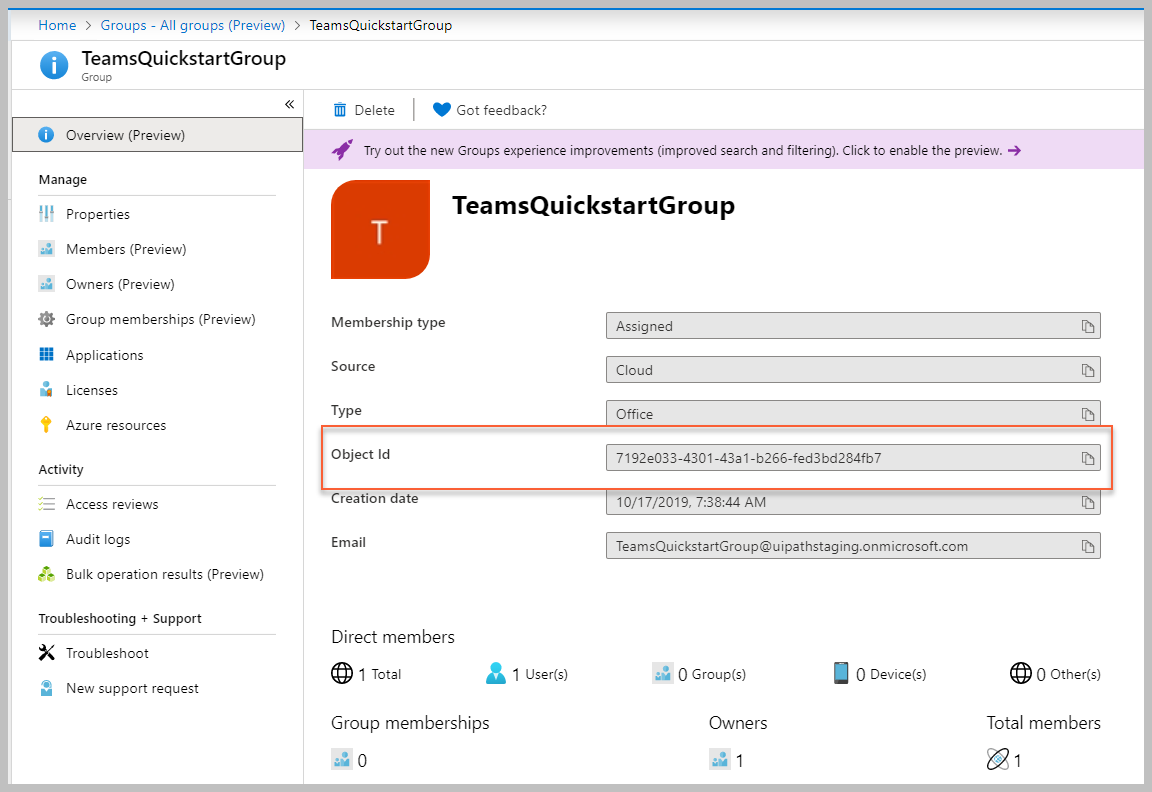
The Object Id of the Azure directory group that you want to use to create your team.
| Attributes | Details |
|---|---|
| Type | String |
| Required | No |
| Default value | Empty |
| Allowed values | Enter a String or String variable. |
| Notes | Enter the Object Id of your group. You can find your Object Id in your Azure Directory > Groups - All Groups > "Group" (see image below). |
Output
Team
The Team object that represents your created team.
| Attributes | Details |
|---|---|
| Type | Team |
| Required | No (required if you plan to use the output data in subsequent activities) |
| Default value | Empty |
| Allowed values | Enter a Team variable. |
| Notes | The variable you create for this property can be used as an input variable in subsequent activities(e.g., Team.Id in Get Channels, Update Channel, etc.). The Team object includes multiple properties and relationships that you can use in other activities.The example image below shows some of the properties that you can return. Note - some properties listed in the designer are not applicable to the Team object (e.g., Template). For a list of the applicable Team properties, visit the links above. |
Example
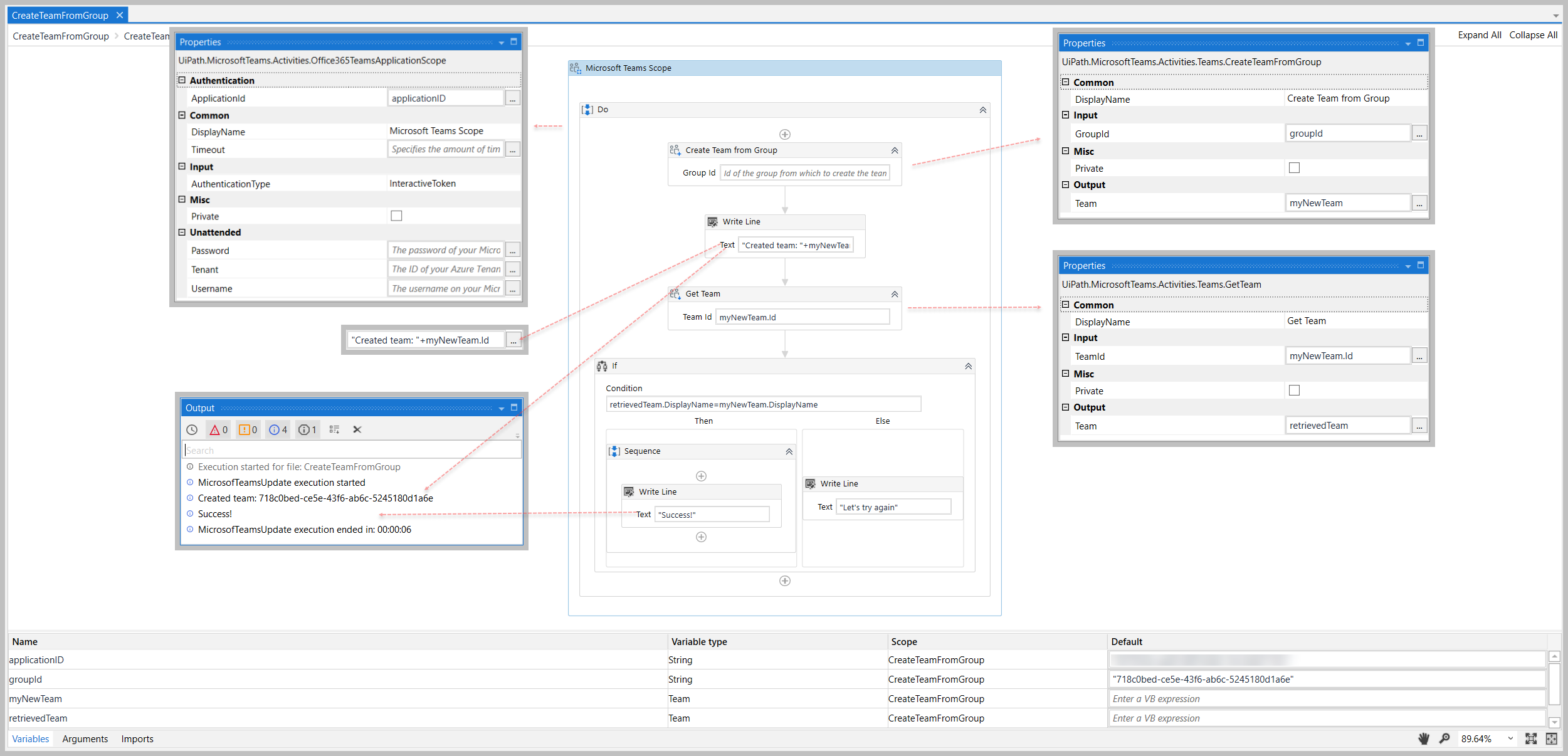
The following image shows an example of the activity dependency relationship and input/output property values.
For step-by-step instructions and examples, see the Quickstart guides.