Get Teams
Overview
Using your search parameters (QueryOptions) and specified team list type (Filter - AllTeams or MyJoinedTeams), the Get Teams activity calls the Microsoft Graph ListAllTeams or ListJoinedTeams APIs to retrieve the teams that match your query.
After retrieving the teams, the activity outputs their properties and relationships in Team[] object that you can use as input variables in subsequent activities (e.g., `Team(0).Id in Get Channels, Update Channel, etc.).
How It Works
The following steps and message sequence diagram is an example how the activity works from design time (i.e., the activity dependencies and input/output properties) to run time.
- Complete the Setup steps.
- Add the Microsoft Teams Scope activity to your project.
- Add the Get Teams activity inside the Microsoft Teams Scope activity.
- Enter values for the Input properties.
- Create and enter a
Team[]variable for your Output property. - Run the activity.
-
Your input property values are sent to the ListAllTeams or ListJoinedTeams APIs.
-
The API returns the
Team[]value to your output property variable.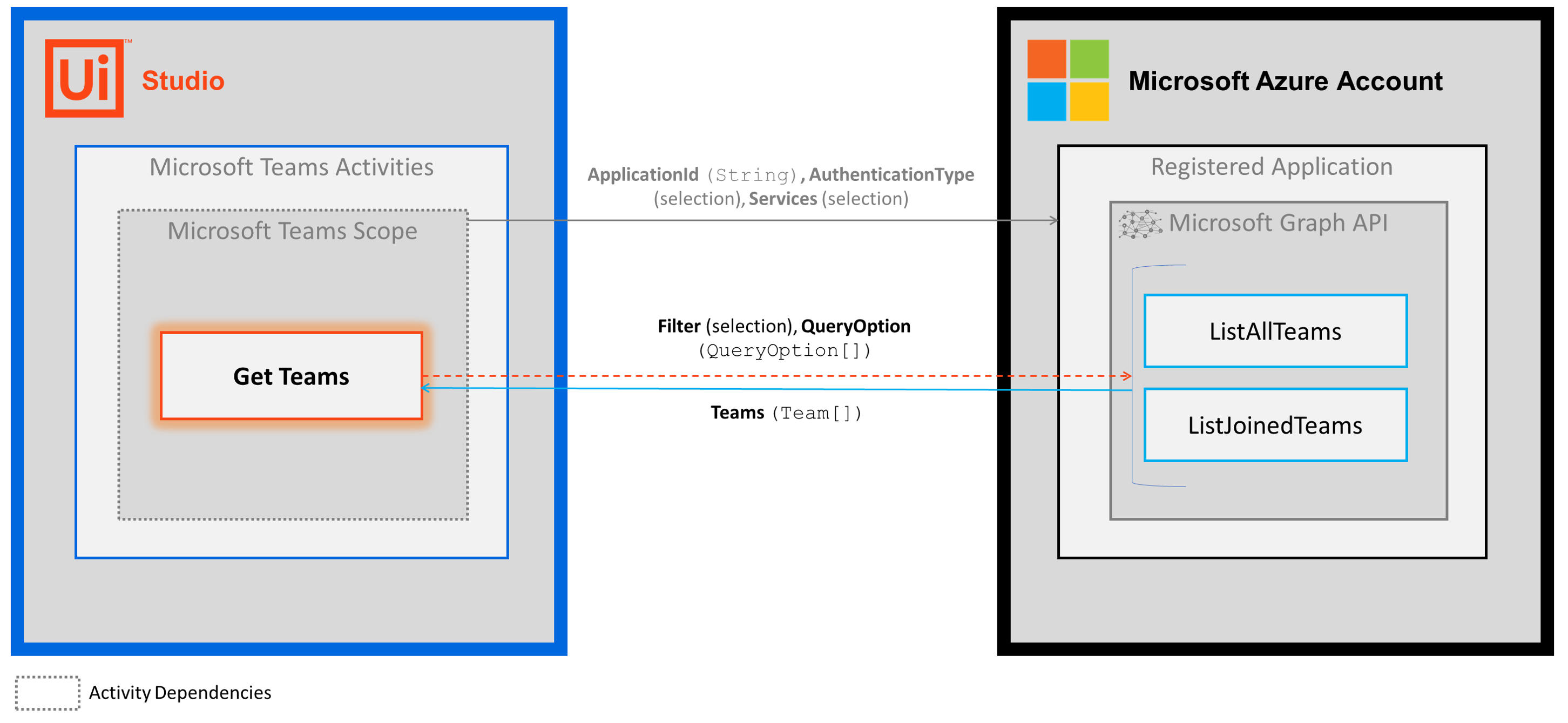
-
Properties
The values for the following properties are specified when adding this activity to your project in UiPath Studio.
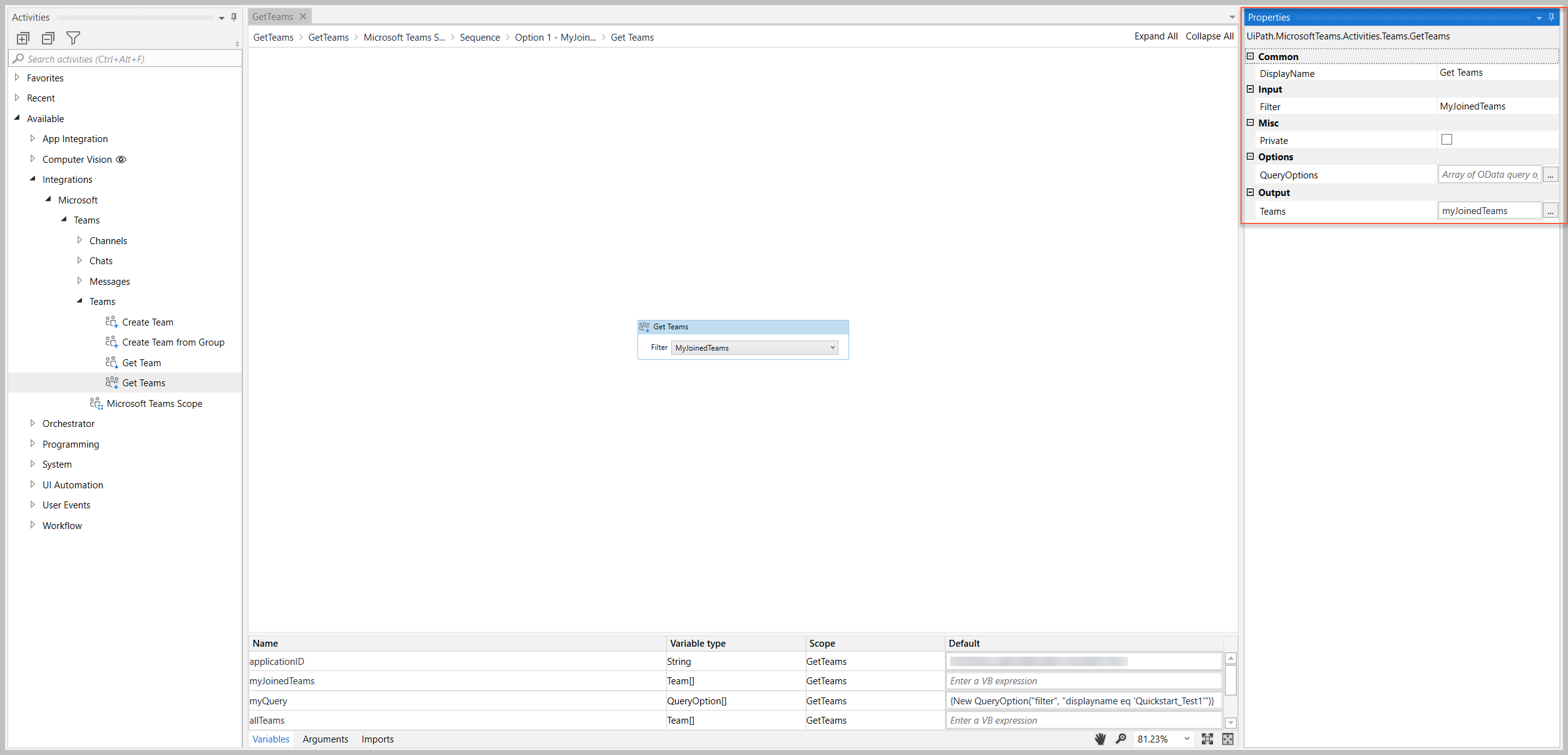
Common
DisplayName
The display name of the activity.
| Attributes | Details |
|---|---|
| Type | String |
| Required | Yes |
| Default value | Get Teams |
| Allowed values | Enter a String or String variable. |
| Notes | N/A |
Input
Filter
The type of teams that you want to retrieve.
| Attributes | Details |
|---|---|
| Type | Drop-down list |
| Required | Yes |
| Default value | AllTeams |
| Allowed values | Select from two options: AllTeams - Returns all teams in your organization. MyJoinedTeams - Returns only the teams that you're a member of. |
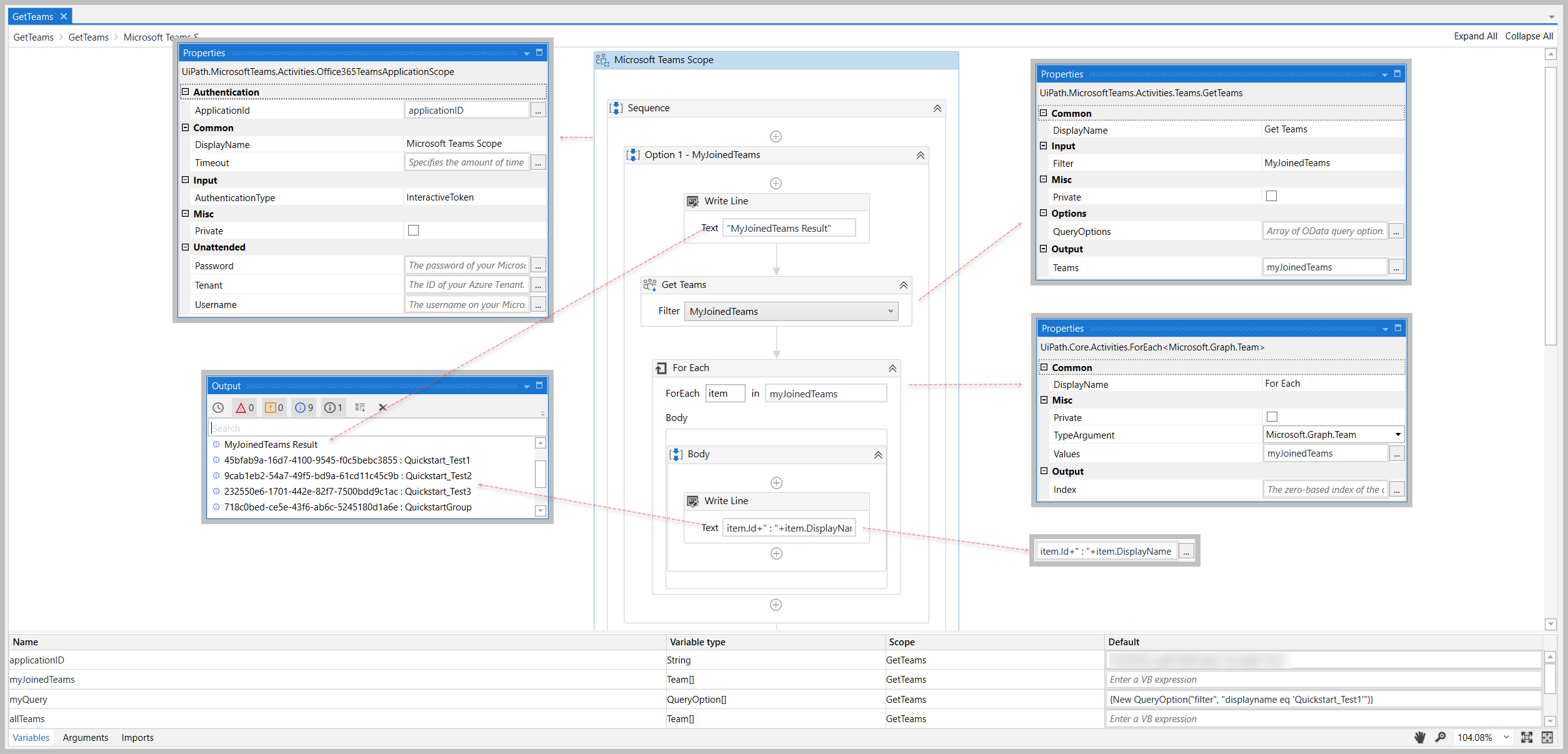
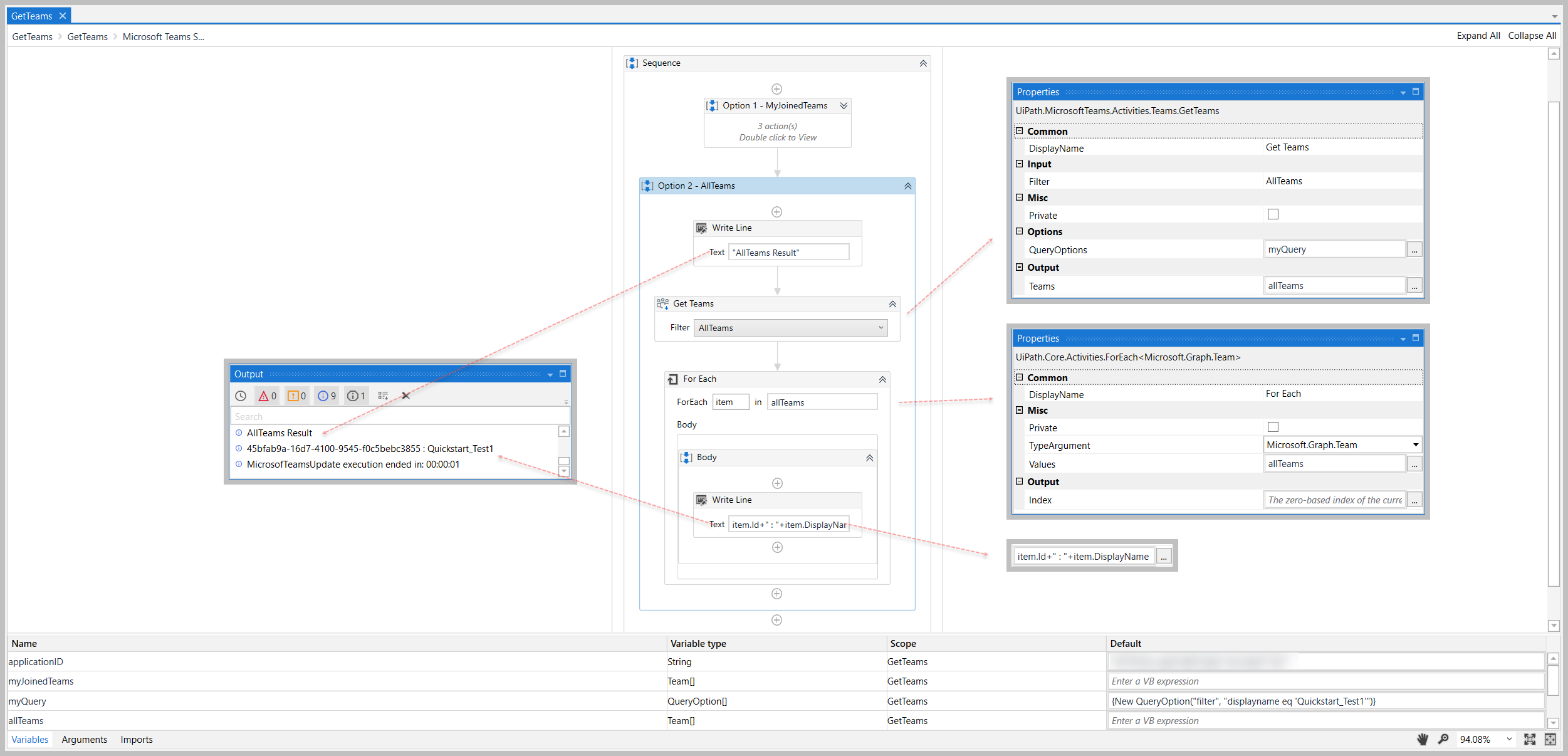
| Notes | The example sequence image below shows the output of both options. |
Options
QueryOptions
The search parameters that you want to apply when retrieving your list of teams.
| Attributes | Details |
|---|---|
| Type | QueryOption[] (OData syntax) |
| Required | No |
| Default value | Empty |
| Allowed values | Enter a QueryOption[] or QueryOption variable. |
| Notes | Enter your value using an OData system query option); the format is as follows: _{New QueryOption("Option", "OptionParameter") |
Misc
Private
If selected, the values of variables and arguments are no longer logged at Verbose level.
| Attributes | Details |
|---|---|
| Type | Checkbox |
| Required | No |
| Default value | Not Selected |
| Allowed values | Selected or Not Selected |
| Notes | N/A |
Output
Teams
An array of teams (Team[] object) that match your ListType and QueryOptions values.
| Attributes | Details |
|---|---|
| Type | Team[] |
| Required | No (required if you plan to use the output data in subsequent activities) |
| Default value | Empty |
| Allowed values | Enter a Team[] variable. |
| Notes | The variable you create for this property can be used as an input variable in subsequent activities (e.g., Team(0).Id in [Get Channels](https://docs.uipath.com/activities/other/latest/legacy-integrations/microsoft-teams-get-channels#get-channels), [Update Channel](https://docs.uipath.com/activities/other/latest/legacy-integrations/microsoft-teams-update-channel#update-channel), etc.). * When using this variable as an input property value, specify the item in the array that you want to use (e.g., *myTeams(0)*). The Teamobject includes multiple [properties](https://docs.microsoft.com/en-us/graph/api/resources/team?view=graph-rest-beta#properties) and [relationships](https://docs.microsoft.com/en-us/graph/api/resources/team?view=graph-rest-beta#relationships) that you can use in other activities.The example image below shows some of the properties that you can return. Note - some properties listed in the designer are not applicable to theTeamobject (e.g.,Template). For a list of the applicable Team` properties, visit the links above. |
Example
The following image shows an example of the activity dependency relationship and input/output property values.
For step-by-step instructions and examples, see the Quickstart guides.