Search
UiPath.Slack.Activities.Channels.Search
Overview
The Search activity uses the Slack search.all API to find the messages and files that match your search parameters (Query). The search parameters follow the same modifiers that you use when searching in the Slack application (e.g., "in:#channel-name, in:@user.name, keyword"). For more information, see Search in Slack in the Slack help documentation.
After performing the search, the activity returns the matching Message objects (FirstMessage and Messages) and SlackFile (FirstFile and Files) objects that you can use as input variables in subsequent activities (e.g., Download File).
How it works
The following steps and message sequence diagram is an example how the activity works from design time (i.e., the activity dependencies and input/output properties) to run time.
- Complete the Setup steps.
- Add the Slack Scope activity to your project.
- Add the Search activity inside the Slack Scope activity.
- Enter values for the Input properties.
- Create and enter the following variables for your Output properties.
SlackFileandSlackFile[]MessageandMessage[]
- Run the activity.
-
Your input property values are sent to the search.all API.
-
The API returns the
SlackFile,SlackFile[],Message, andMessage[]values to your output property variables.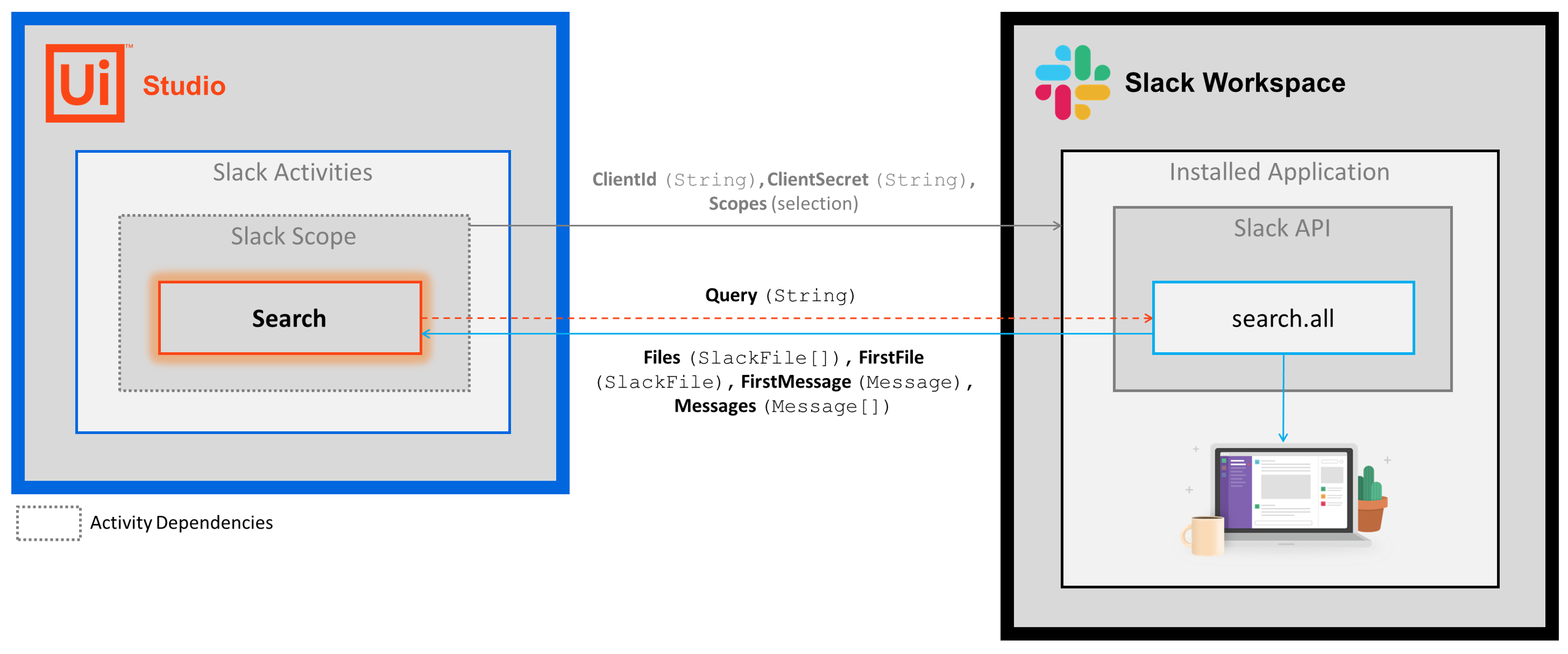
-
In the Body of the Activity
- Query - Your search parameters (e.g., channel, user, keywords). This field supports only
StringsorStringvariables. - MaxResults - The maximum number of results that you want returned in the
MessageandSlackFilearrays. This field supports onlyInt32orInt32variables. - SortBy - Specifies how you want the results sorted when they're returned. Select from three options: Relevance, Newest, Oldest. The three options are sorted accordingly:
- Relevance - The messages and files that contain content that most matche your query.
- Newest - The most recent messages and files that contain content matching your query.
- Oldest - The oldest messages and files that contain content matching your query.
- Files - The files that contain content matching your Query value. Enter a
File[]variable. - Messages - The messages that contain content matching your Query value. Enter a
Message[]variable.- If no messages are found, an empty array is returned.
- The Message object contains file information as well. You can download files using the Message object by getting its File property (e.g. item.File(0))
- If you plan to use the activity to process the array output, select UiPath.Slack.Models.Message as the TypeArgument.
Properties
Common
- DisplayName - The display name of the activity. This field supports only
StringsorStringvariables.
Misc
- Private - If selected, the values of variables and arguments are no longer logged at Verbose level.
Output
- ResponseStatus - The status of the request (success/failure information). Enter a
ResponseStatusvariable (UiPath.BAF.Models.ResponseStatus). TheResponseStatusobject includes three properties that you can use in other activities.- Success -
Boolean- Specifies whether the API request was successful. - ErrorCode -
String- The response error if the API request is unsuccessful (Success=False). - Message -
String- The error message.
- Success -
Example
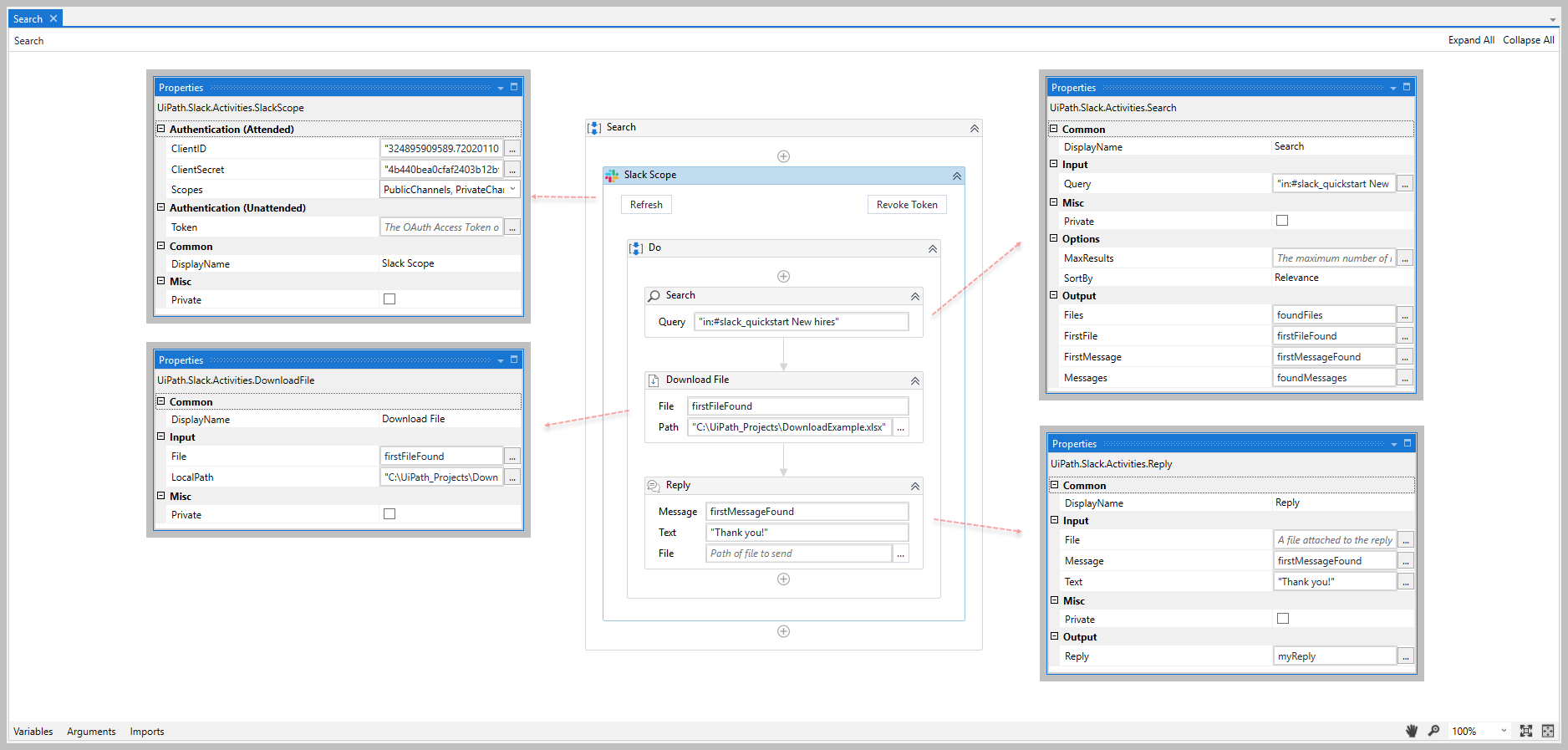
The following image shows an example of the activity dependency relationship and input/output property values.
For step-by-step instructions and examples, see the Quickstart guides.