Quickstart: Working With rows
Overview
The purpose of this guide is to walk you through several examples of how to work with Rows on a Sheet in Smartsheet. We will use the following activities:
This working sample enables you to Get a list of rows then iterate through that list of rows, first getting any attachments for that row and then updating a value in that row.
After completing the steps in this guide, you'll have an automation sequence that does the following:
- Establishes a connection to your Smartsheet instance (Smartsheet Scope).
- Gets a list of rows from a sheet (List Rows).
- For each row retrieved, do the following:
- Get the attachments for that row (List Rows).
- Downloads any attachments on that row Get Attachment.
- Updates the value of that row Update Rows.
For item 4 above, we could instead opt to create a Row[] object and make a single Update call, but for the purposes of this demo will will call it once for each Row that we want to update.
Below is a screenshot of what our sample Sheet looks like.
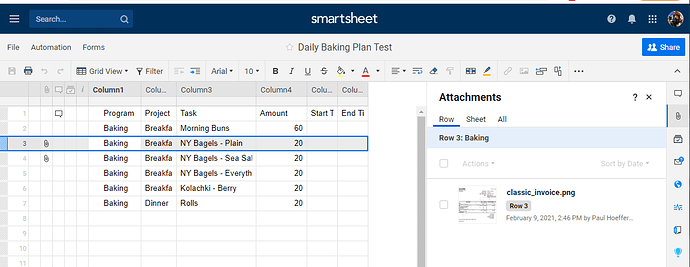
To get your Sheet ID go to File->Properties and see the SheetID. It should look something like 5903706102228868.
Prerequisites
Before you begin:
- Complete the Smartsheet Setup steps.
- A local folder path to download attachments to.
Steps
Build your project
- Create and enter a
Stringvariable for your API Token value (e.g., apiToken). - Add the Smartsheet Scope.
- For Authentication Type, choose API Token.
- Enter your apiToken variable as the value for the API Access Token value.
Create and set variables that will be used in several activities
- Create and enter an
Int64variable for your SheetId value (e.g., sheetId). - Create and enter a
Stringvariable for your Download Path value (e.g., downloadPath).
Get a List of Rows that we want to get attachments for and also update, and set up a for each loop.
-
Add the List Rows activity.
-
Click the Configure button inside the List Rows activity.
-
For the field Sheet Id, enter your sheetId in to the Value column.
-
For the field Rows, create a
Row[]variable (e.g., rowsRetrieved). -
Click the Done button.
-
Add a For Each activity after the List Rows activity.
-
For the Values property, enter your rowsRetrieved variable.
-
For the Type Argument property, use
Smartsheet.Api.Models.Row. -
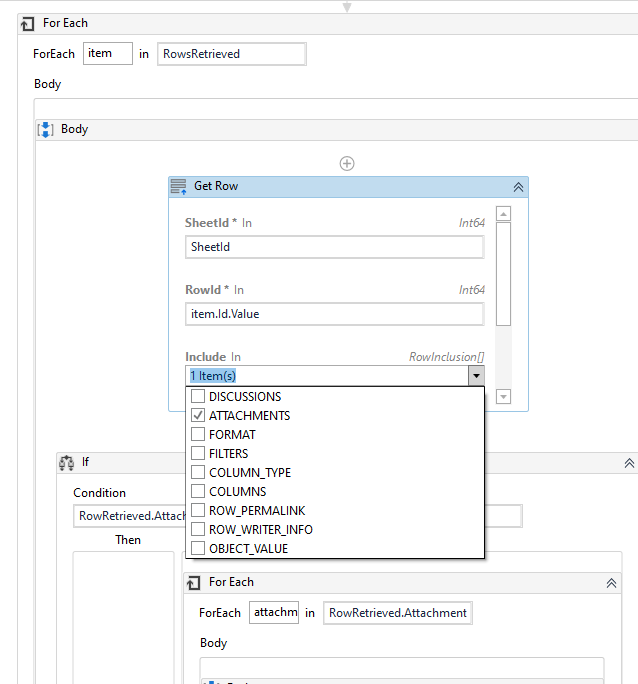
In the body of the For Each activity, add a List Rows activity.
-
For SheetId enter your sheetId variable.
-
For RowId enter "item.Id.value".
-
For Include choose "Attachments" as an option.
-
For Row, create and enter a
Rowvariable (e.g., rowRetrieved)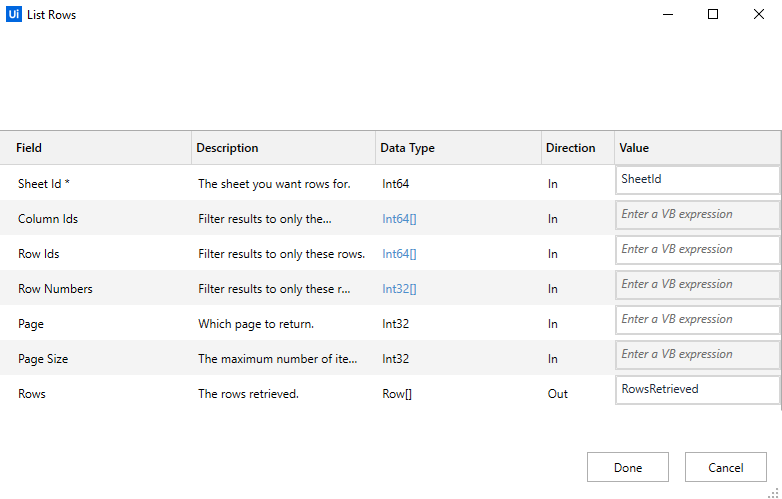
Set up an If condition check
- Add an If* Activity after the Get Row activity.
- For the Condition use the value "RowRetrieved.Attachments is Nothing".
- In the Else section of the If activity, add a For Each Activity
- In the For Each activity, set the following properties:
- For Values, set it to rowRetrieved.Attachments (presuming you are using rowRetrieved as your output variable per 7d above).
- For TypeArgument set it to "Smartsheet.Api.Model.Attachment"
- Rename the ForEach variable from item to attachment.
For each row with an attachment, download the attachment and update a value on that row
-
Add a Get Attachment activity.
-
For SheetId, enter your sheetId variable.
-
For AttachmentId, enter "attachment.Id.Value"
-
For Download Folder Path, enter your downloadPath variable.
-
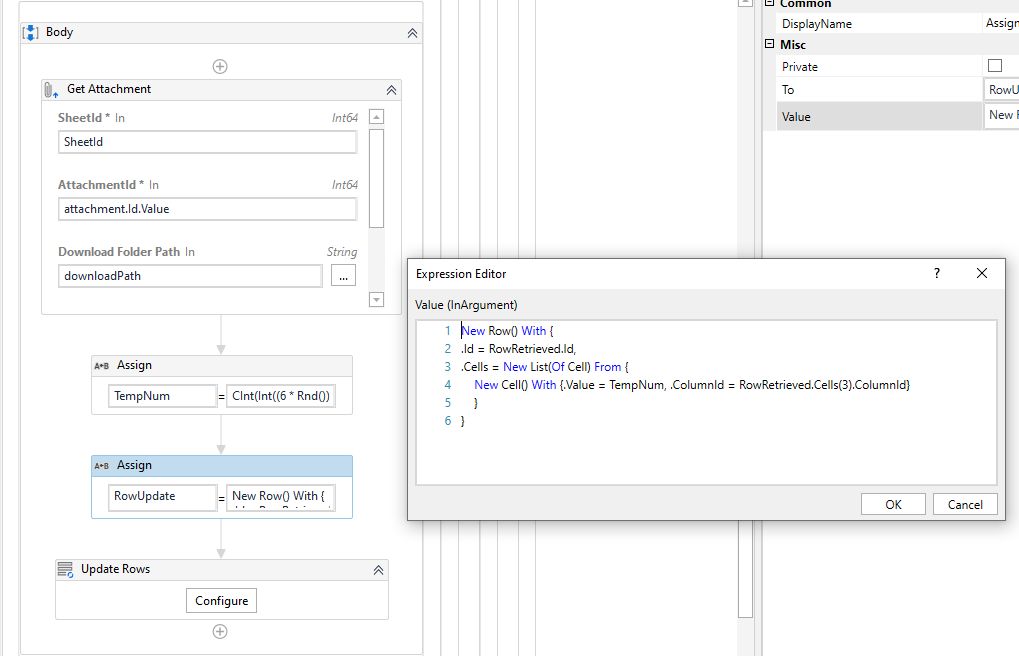
Add an Assign activity after the Get Attachment activity
-
For To, create a
Rowvariable (e.g., rowUpdate). -
For Value, create a new
Rowobject and set it using code similar to the pattern below.New Row() With {
.Id = RowRetrieved.Id,
.Cells = New List(Of Cell) From {
New Cell() With {.Value = '100', .ColumnId = RowRetrieved.Cells(3).ColumnId}
}
}
-
Add an Update Rows activity after the Assign activity.
-
Click the Configure button.
-
For the Sheet Id field, use the sheetId variable.
-
For the Rows field, click on the Row link button.
-
Click on the Add button
-
Enter the rowUpdate variable that you created earlier.
-
Click the Done button
You're done!
To learn more about the Smartsheet activities (including example property inputs/outputs), see the Activities page for a complete activity list and links to the activity detail pages.
You can download a copy of this robot at the following link: