Quickstart - Send an SMS
Overview
The purpose of this guide is to help you create a working sample that uses the Send Message activity.
This working sample enables you to quickly verify the connection to your Twilio resources and get familiar with the activity's input/output datatypes.
After completing the steps in this guide, you'll have an automation sequence that does the following:
- Establishes a connection to your Twilio resources (Twilio Scope).
- Sends an SMS message (Send Message).
Prerequisites
Before you begin:
- Complete the Twilio Setup steps.
Steps
- First, add an Twilio Scope activity and set the values for the input parameters like in the screenshot below. In the sample workflow above, you can see that I got the values for these parameters from variables. Here's a short description of the activity’s parameters:
-
Account Sid (
String) - Your Account SID from your project dashboard. -
API Key Sid (
String) - API Key SID to work with your Twilio project. API Keys can be provisioned and revoked through the Twilio Console. -
API Key Secret (
String) - API Key Secret to work with your Twilio project. API Keys can be provisioned and revoked through the Twilio Console.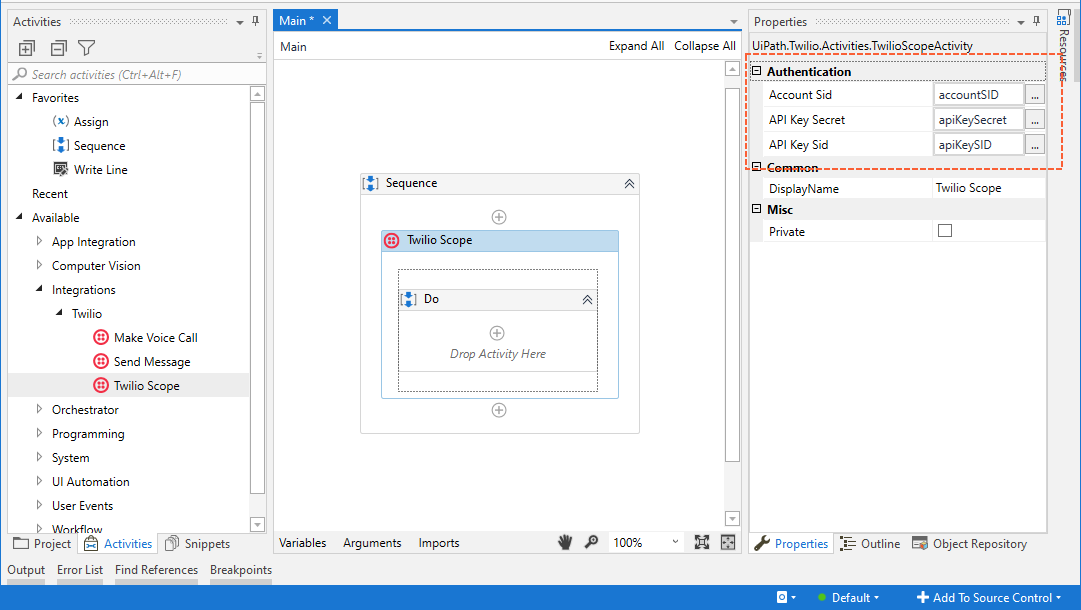
-
- Add the Send Message activity which can be used to send an SMS message. The parameters of this activity are:
-
From (
String) - The Twilio phone number in E.164 format. -
To (
String) - The phone number to call, in E.164 format, e.g. +15558675310. -
Body (
String) - The text of the message you want to send. Can be up to 1,600 characters in length. -
Media (
String[]) - List of media (up to 10) to send with the message.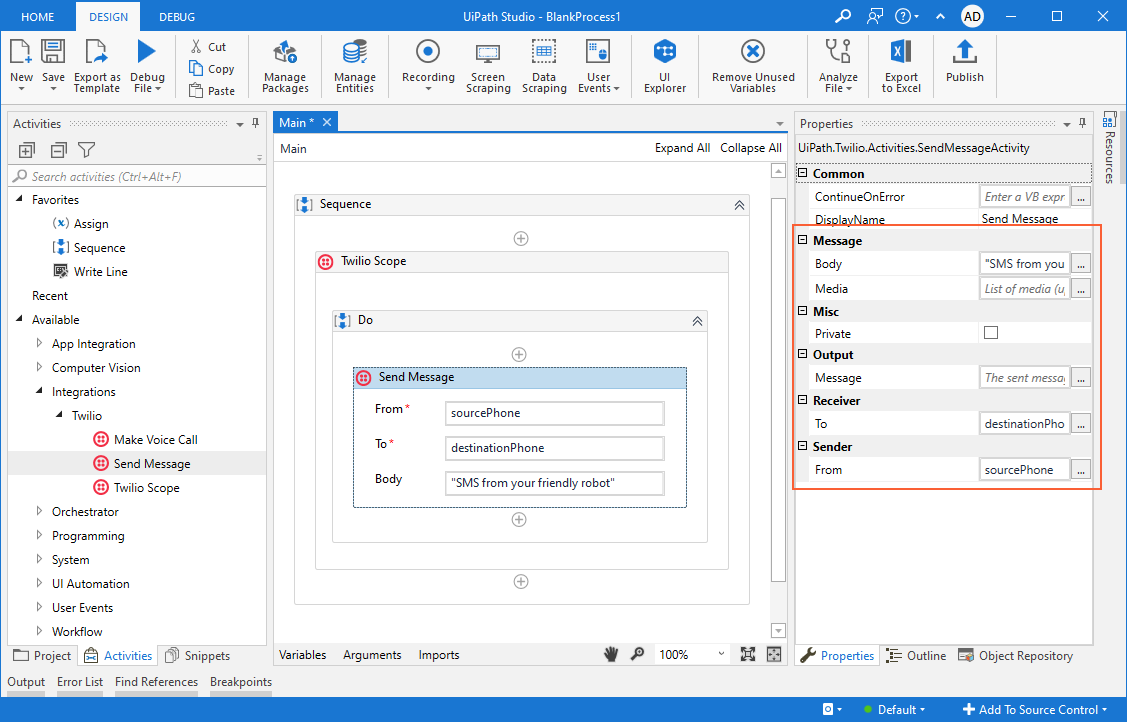
-
- Click Run and verify the SMS goes through.
A sample of this workflow can be found here.