How to retrieve spreadsheet IDs
About
Spreadsheet IDs are used in the following Google Workspace activities:
- Add Sheet
- Delete Sheet
- Read Range
- Read Cell
- Rename Sheet
- Write Cell
- Write Range
- For Each Row in Spreadsheet
The easiest way to use this field is by clicking the Folder icon to browse Google Drive folders and select a spreadsheet.
You can also use the Plus button menu to switch to Use variable or Url or ID input modes.

If you select Use variable, you can use the output variable from other activities, such as Create Spreadsheet.
If you select Url or ID, you must provide the URL or ID. Learn how to retrieve the ID from the section below.
How to retrieve the spreadsheet ID
Navigate to your desired spreadsheet in Google Drive. Its ID is available in the URL:
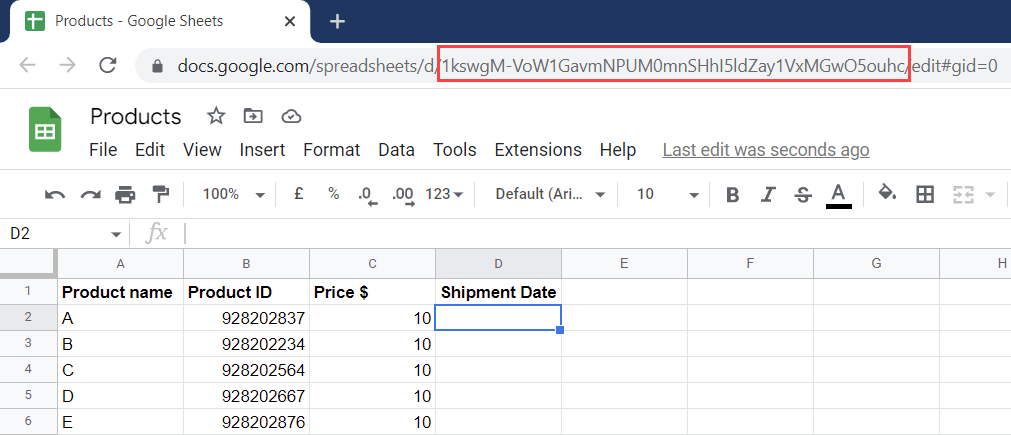
Copy it and paste it in any activity which uses the Spreadsheet property. See below how this would look like in a Rename Sheet activity:
