Trigger activities
The following trigger activities are available in the Google Workspace activity package:
- Drive: File Created, Folder Created, File Updated
- Gmail: Email Sent, Email Received
- Calendar: Calendar Event Created, Calendar Event Received, Calendar Event Updated, Calendar Event Replied
- Sheets: Sheet Created, Cell in Sheet Updated, Row Added to the Bottom of a Sheet
Overview
Trigger activities allow an automation to start when a certain external event occurs.
When you create a process with a trigger activity, the trigger is automatically created in Integration Service, on the selected connection. For example, using the Calendar Event Created activity creates a trigger on the corresponding Gmail connection in Integration Service.
Unlike standard Integration Service triggers, trigger activities have an output object, which you can use in other activities.
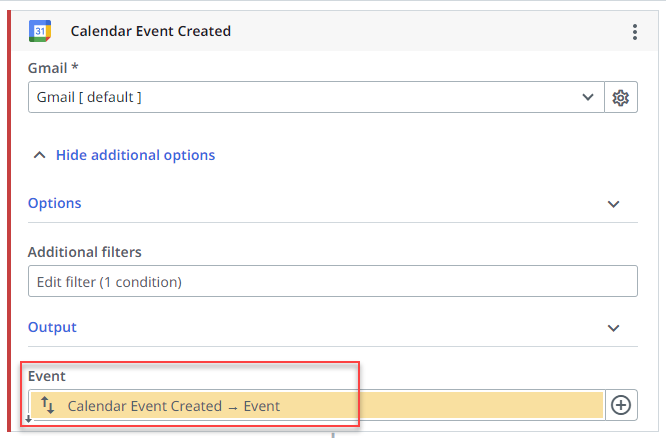
An advantage of triggers, both activities and those found in Integration Service directly, is that you don't need a robot to constantly run in the background and check for events. Integration Service checks for events on the selected connection and triggers the workflow when an event is found.
Shared Drives
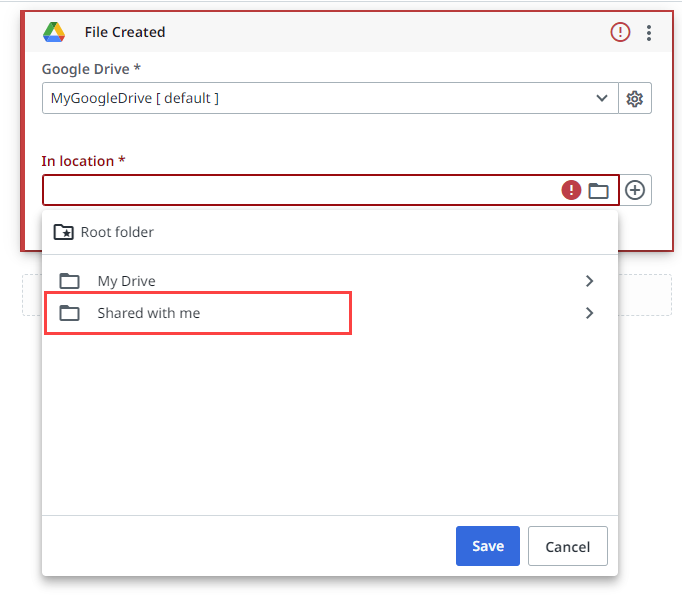
The Google Workspace trigger activities support shared Drives.
Shared Drives can be identified by using the following event filters: In location, Parent drive ID, and Shared.
Any shared Drive that the connection has access to is represented in each of those event filters, should you intend to set events for files/folders in shared Drives.
Working with trigger activities
- Add the trigger to your workflow. The trigger activity must be the first activity in your workflow. It represents the event which sets in motion the automation.
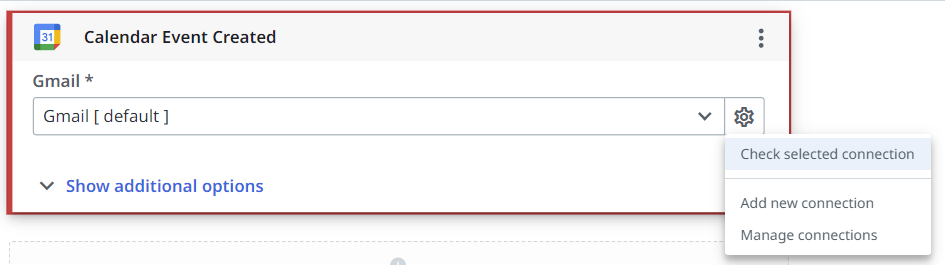
- Configure the connection used by the trigger activity.
- If you don't have an existing connection, click Connect to set up the Integration Service connection, e.g., to the Gmail connector.
- If you already have an existing connection to the Integration Service connector, the default connection is automatically selected. Click the Settings icon to manage your connection or add a new one.
 3. Configure the trigger options by using the filter builder.
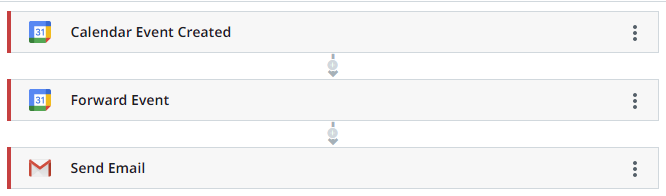
4. Build your workflow by adding more activities. For example, when an event is created, you want to Forward the event and then Send an email.
3. Configure the trigger options by using the filter builder.
4. Build your workflow by adding more activities. For example, when an event is created, you want to Forward the event and then Send an email.
Troubleshooting
If your workflow isn't triggered or the trigger activity throws an error, check and fix your connection in the trigger activity.