Append Range
UiPath.MicrosoftOffice365.Activities.Excel.AppendRange
Description
Uses the Microsoft Graph Update range API to write a range of cell data (DataTable) to a specified workbook (Workbook) worksheet (SheetName).
If the specified worksheet does not exist in the specified workbook, a new worksheet is created with the name you enter in the SheetName property. If the worksheet does exist, the DataTable is added to the last row/column of cells that contain data.
Scopes
This activity requires the following scopes:
- Files.ReadWrite
OR
- Files.ReadWrite.All
OR
- Sites.ReadWrite.All
Project compatibility
Windows - Legacy | Windows
Configuration
Properties
Common
- DisplayName - The display name of the activity. This property supports
Stringvariables and string formatted values.
Input
- DataTable - The table to insert. To get the
DataTablevariable, create a table using the Build Data Table or Generate Data Table) activity and use its output property variable. If the sheet specified in the Sheet Name exists, the DataTable is added to the last row/column of cells that contain data. - Sheet Name - The name of the sheet to which the data is appended. If the name you enter in this property does not match a sheet name in the specified Workbook, a new sheet is created.
- Workbook - The
DriveItemof the document to modify. This object can be retrieved using the Find Files And Folders activity. Use the output property variable from either the Find Files and Folders (First or Results) or Create Workbook (Workbook) activities. When using the Results output property from the Find Files and Folders activity, be sure to specify which item in the array that you want to use (e.g., myWorkbooks(0)).
Misc
- Private - If selected, the values of variables and arguments are no longer logged at Verbose level. This field supports Boolean values.
How it works
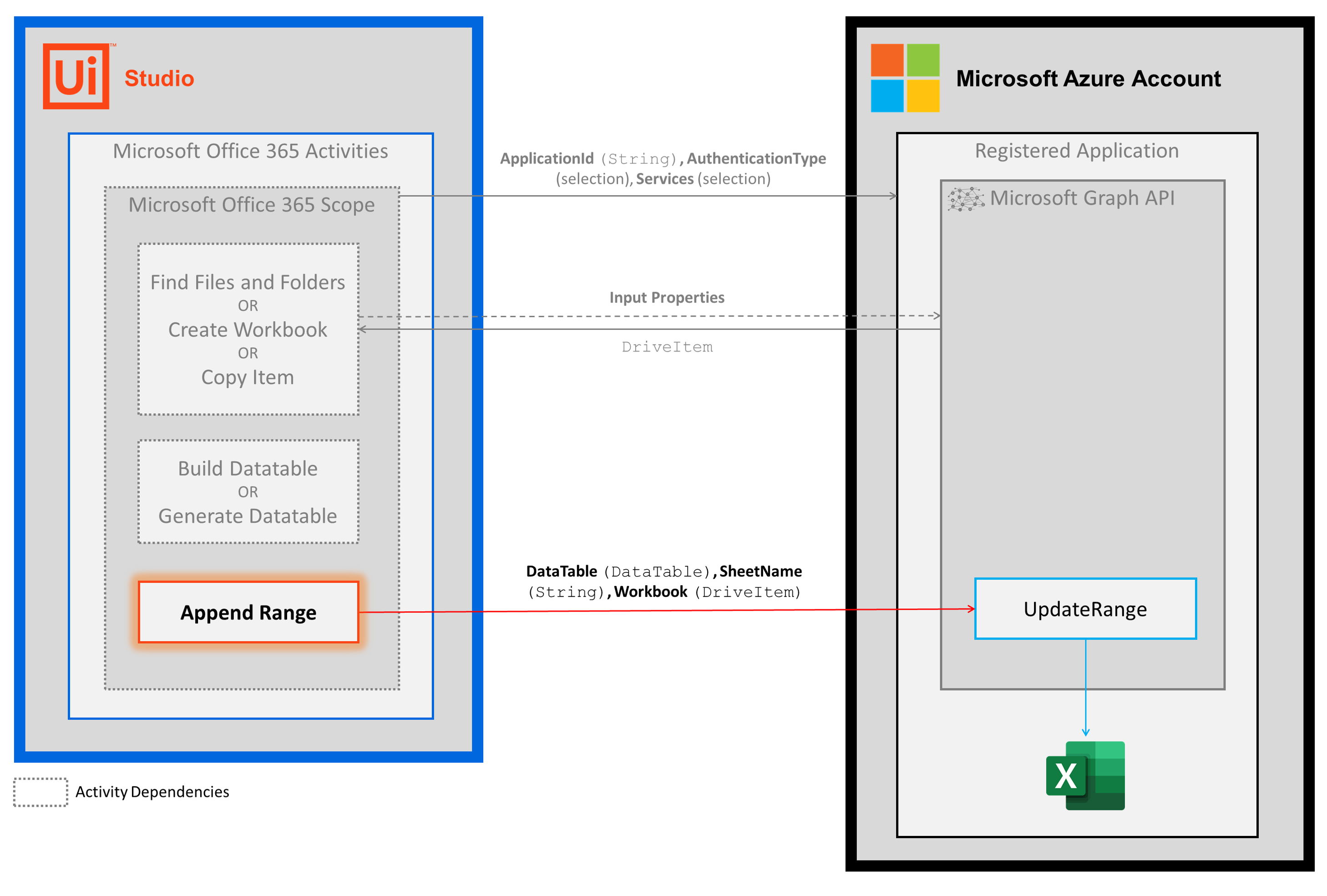
The following steps and message sequence diagram is an example of how the activity works from design time (i.e., the activity dependencies and input/output properties) to run time.
- Complete the steps.
- Add the Microsoft Office 365 Scope activity to your project.
- Add an activity or run an external process that outputs a
DriveItemobject (e.g., Find Files and Folders, Create Workbook, Copy Item). - Add an activity that outputs a
DataTableobject (e.g., Build Data Table, Generate Data Table). - Add the Append Range activity inside the Microsoft Office 365 Scope activity.
- Enter values for the Input properties.
- Run the activity.
- Your input property values are sent to the UpdateRange API.