Create Event
UiPath.MicrosoftOffice365.Activities.Calendar.CreateEvent
Description
Uses the Microsoft Graph Create event API to create a new event in a specified calendar (Calendar).
When creating your event, you specify the date and time (Start Time, End Time, and Time Zone) and the content that you want to include (Body and Subject). Additionally, you have the option to assign this event a category from your specified calendar (Categories).
After creating the event, the activity outputs an Event object that you can use as an input variable in subsequent activities (e.g., Add Attendee, Add Location, etc.).
Scopes
This activity requires the following scopes:
- Calendars.ReadWrite
OR
- Calendars.ReadWrite.Shared
Project compatibility
Windows - Legacy | Windows
Configuration
Properties
Common
- DisplayName - The display name of the activity. This property supports
Stringvariables and string formatted values.
Event Content
- Body - The body of the event. If the Is Body HTML option is selected, then the body needs to be specified in HTML format. This property supports
Stringvariables and string formatted values. - Is Body HTML - If selected, the body is interpreted in HTML format. This field supports Boolean values.
- Subject - The subject of the event. This property supports
Stringvariables and string formatted values.
Event Scheduling
-
End Time - The end time for the event. This field supports only
DateTimevariables. -
Start Time - The start time for the event. This field supports only
DateTimevariables.note- Your
DateTimevalues must be formatted as MM/DD/YYYY Hour:Minute:Seconds (e.g., 10/31/2019 12:00:00). - The
DateTimeformat is auto-corrected if you enter enough details. For example, if you enter 10/31/19 3pm it auto-corrects to 10/31/2019 15:00:00.
- Your
-
TimeZone - The time zone in which the Start Time and End Time are interpreted. The default value is Your system's time zone (not displayed). Enter a valid
String(e.g., "Pacific Standard Time").
Input
-
Account - (Optional) The email address with which to interact. This may include any shared mailbox to which the current user has access rights. If left blank, the current user's account is assumed. This property supports
Stringvariables and string formatted values.noteAccount field is mandatory for ApplicationIdAndSecret and ApplicationIdAndCertificate authentication types.
-
Calendar - The calendar that you want to use to create the event. This can be retrieved using the Get Calendars activity. If you don't provide a value, your default calendar is used. This field supports only
Calendarvariables. If entering a value, use an output property variable from the Get Calendars activity (Calendar or Default Calendar). If you're using the Calendar output property variable, specify the item in the array that you want to use (e.g., myCalendar(0)).
Misc
- Private - If selected, the values of variables and arguments are no longer logged at Verbose level. This field supports Boolean values.
Options
- Categories - The categories associated with the event. This field supports only
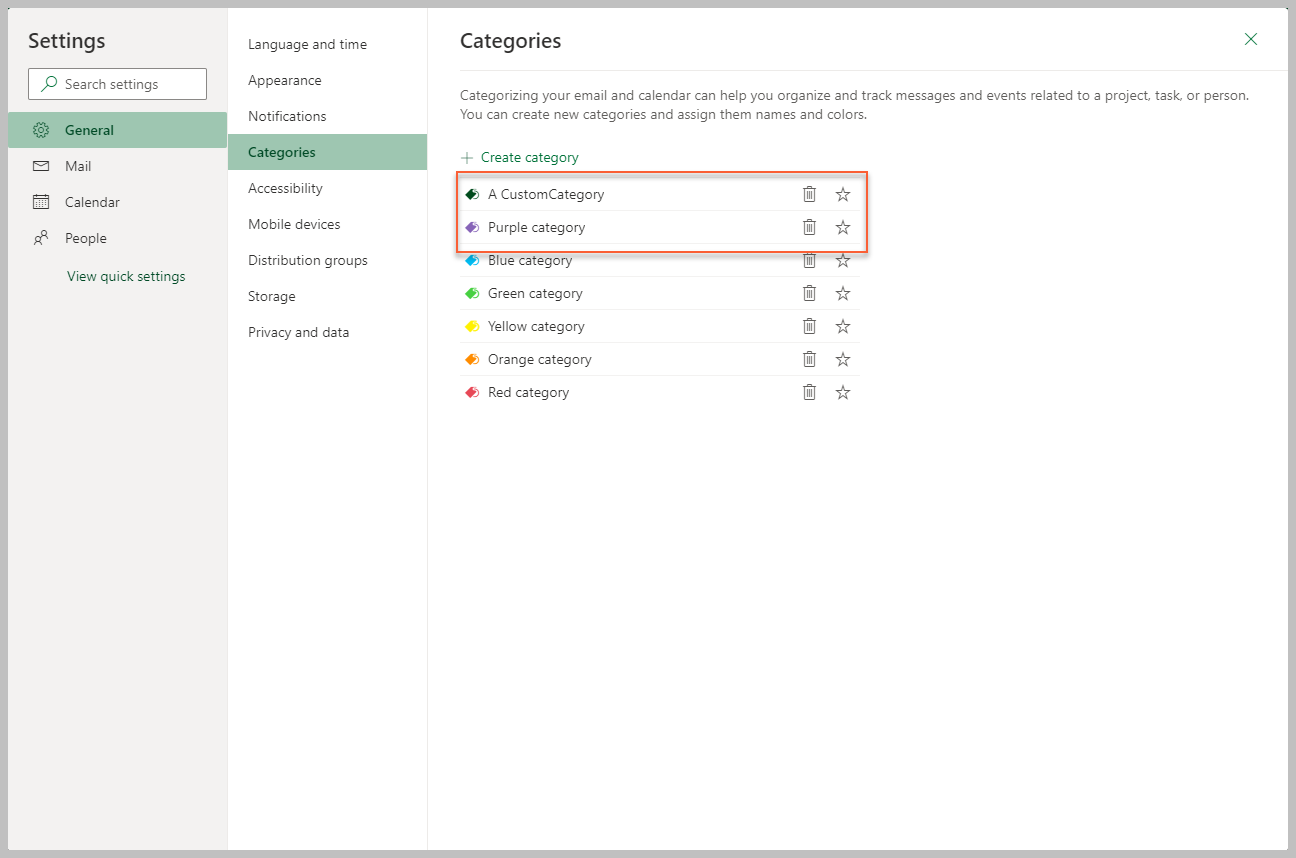
String[]variables. Your value must match a name from your specified Calendar list of categories (see example image below). To enter one category, include it between { } and declare it with " " (e.g., {"Purple category"}). To enter multiple categories, include all between { }, declare each with " ", and separate each by a comma (e.g., {"A CustomCategory", "Purple category"}).
- Is All Day - If selected, the event is scheduled for the entire day. If selected, the values that you enter in the Start Time and End Time properties are overwritten. Entering values in the Start Time and End Time properties is required even when you select this property. This field supports Boolean values.
- Show As - The user's availability during the event. Select one of the six options: Unknown, Free, Tentative, Busy, Oof or WorkingElsewhere. The default value is Free.
Output
- Event - The created event. Other activities can use this object in order to add attendees or modify information. This field supports only
Eventvariables. Required if you plan to use the output data in subsequent activities. You can use this variable as an input variable in other activities, such as Add Attendee, Add Location, etc.
How it works
The following steps and message sequence diagram is an example of how the activity works from design time (i.e., the activity dependencies and input/output properties) to run time.
- Complete the steps.
- Add the Microsoft Office 365 Scope activity to your project.
- (Optional) Add an activity or run an external process that outputs a
Calendarobject (e.g., Get Calendars). - Add the Create Event activity inside the Microsoft Office 365 Scope activity.
- Enter values for the Event Content and Event Scheduling properties.
- Create and enter a
Eventvariable for the Output property. - Run the activity.
- Your input property values are sent to the CreateEvent API.
- The API returns the
Eventvalue to your output property variable.
