Upload File
UiPath.MicrosoftOffice365.Activities.Files.UploadFile
Description
Uses the Microsoft Graph Resumable upload API to upload a local file to your OneDrive or SharePoint account.
Scopes
This activity requires the following scopes:
- Sites.ReadWrite.All
Project compatibility
Windows - Legacy | Windows
Configuration
In the body of the activity
- File to upload - The file to be uploaded. Click Browse
 next to the field, and then browse to and select the file. This property supports
 Stringvariables and string formatted values.noteStarting with v2.0.1, the (
&) and (#) characters in file names are replaced with an underscore (_). This behavior is caused by the Graph API. - Destination folder - The folder where to upload the filer. If left blank, the file is uploaded in the OneDrive root folder. This property supports
Stringvariables and string formatted values. - New name (optional) - The new name of the file or folder after it is uploaded. This property supports
Stringvariables and string formatted values. - Conflict behavior - Indicates the conflict resolution behavior in case a file with the same name already exists. Select one of three options: Replace, Fail, Rename. The default value is Replace.
note
You can save files or folders for later use in the automation using the Get File/Folder activity.
Properties panel
Common
- DisplayName - The display name of the activity in the Designer panel. This property supports
Stringvariables and string formatted values.
Input
- Checkin - Indicates whether to checkin the file after upload. If you use SharePoint libraries with version control, the uploaded file becomes visible only if you enable this checkbox. Boolean value.
- Metadata - The metadata to associate with the uploaded file (it works only for a file stored in a SharePoint Document Library). It should contain two columns, the first one representing the display name of the field (String) and the second its value. This field only supports
DataTablevalues. - Check the rest of the options in the body of the activity.
note
You must use the display name of the Document Library column in the
DataTableobject passed to the Metadata parameter.
Misc
- Private - If selected, the values of variables and arguments are no longer logged at Verbose level. This field supports Boolean values.
Options
- Account - The ID or User Principal Name for the user who owns the OneDrive. This parameter must be set for ApplicationIdAndSecret and ApplicationIdAndCertificate authentication types.
Output
- Reference as - The uploaded file as a
DriveItem. Required if you plan to use the output data in subsequent activities. Enter aDriveItemvariable that is different than the one used in the Destination property.
How it works
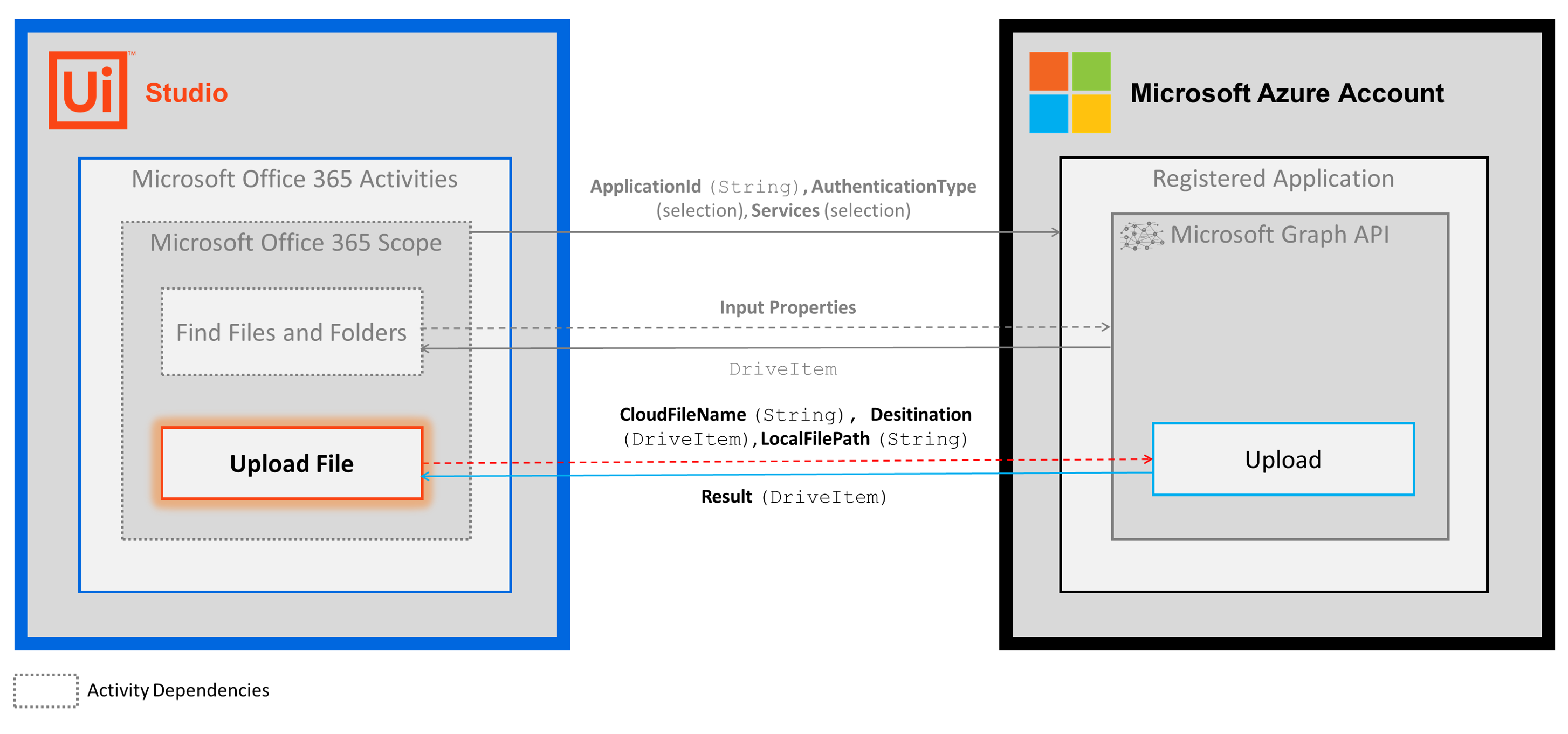
The following steps and message sequence diagram is an example of how the activity works from design time (i.e., the activity dependencies and input/output properties) to run time.
- Complete the steps.
- Add the Microsoft Office 365 Scope activity to your project.
- Add an activity or run an external process that outputs a
DriveItemobject (e.g., Find Files And Folders). - Add the Upload Item activity inside the Microsoft Office 365 Scope activity.
- Enter values for the Input properties.
- Create and enter a
DriveItemvariable for your Output property. - Run the activity.
- Your input property values are sent to the Upload API.
- The API returns the
DriveItemvalue to your output property variable.