Verify Excel Workbook Data
The example below explains how to use Excel activities for analyzing and verifying stock, and informing the user about restocking needs. It presents activities such as Read Row,Read Cell, or Read Cell Formula. You can find these activities in the UiPath.Excel.Activities package, under the Workbook section.
Download and extract the archive with the project in this example and copy the file "stock.xlsx" to your project folder.
This is how the automation process can be built:
-
Open Studio and create a new Process.
-
Drag a Sequence container in the Workflow Designer.
- Create the following variables:
Variable Name Variable Type Default Value headerSystem.Collections.Generic.IEnumerable<System.Object> N/A productSystem.Collections.Generic.IEnumerable<System.Object> N/A orderListDataTable N/A indexInt32 N/A -
Drag a Read Row activity inside the Sequence container.
- Add the expression
"stock.xlsx"in the Document path field. - Add the value
"Bucharest"in the Sheet Name field. - Add the value
"A1"in the Starting Cell field. - In the Properties panel, add the variable
headerin the Result field.
- Add the expression
-
Drag another Read Row activity below the previous Read Row activity.
- Add the expression
"stock.xlsx"in the Document path field. - Add the value
"Bucharest"in the Sheet Name field. - Add the value
"A2"in the Starting Cell field. - In the Properties panel, add the variable
productin the Result field.
- Add the expression
-
Drag an Assign activity below the Read Row activity.
- Add the variable
indexin the To field. - Add the value
2in the Value field.
- Add the variable
-
Drag a While activity below the Assign activity.
- Add the expression
product.First.ToString.Length > 0in the Condition field. - Select the Sequence container and create the following variable:
Variable Name Variable Type Default Value requiredAmountDouble N/A - Add the expression
-
Drag a Read Cell activity inside the Sequence container of the While activity.
- Add the expression
"stock.xlsx"in the Document path field. - Add the value
"Bucharest"in the Sheet Name field. - Add the value
"D" + index.ToStringin the Starting Cell field. - In the Properties panel, add the variable
requiredAmountin the Result field.
- Add the expression
-
Drag an If activity below the Read Cell activity.
- Add the expression
requiredAmount > 0in the Condition field.
- Add the expression
-
Drag a Sequence container in the Then field of the If activity.
- Create the following variables:
Variable Name Variable Type Default Value amountFormulaString N/A index2String N/A -
Drag a Read Cell Formula activity inside the Sequence container from the Then field.
- Add the expression
"stock.xlsx"in the Document path field. - Add the value
"Bucharest"in the Sheet Name field. - Add the value
"D2"in the Starting Cell field. - In the Properties panel, add the variable
amountFormulain the Result field.
- Add the expression
-
Drag a Message Box activity below the Read Cell Formula activity.
- Add the expression
"According to the formula (" + amountFormula + ") you have to order " + requiredAmount.ToString + " more " + product.ElementAt(0).ToString + " from " + product.ElementAt(1).ToStringin the Text field.
- Add the expression
-
Drag an Assign activity below the If activity.
- Add the variable
indexin the To field. - Add the expression
index + 1in the Value field.
- Add the variable
-
Drag a Read Row activity below the Assign activity.
- Add the expression
"stock.xlsx"in the Document path field. - Add the value
"Bucharest"in the Sheet Name field. - Add the value
"A" + index.ToStringin the Starting Cell field. - In the Properties panel, add the variable
productin the Result field.
This is how your workflow should look:
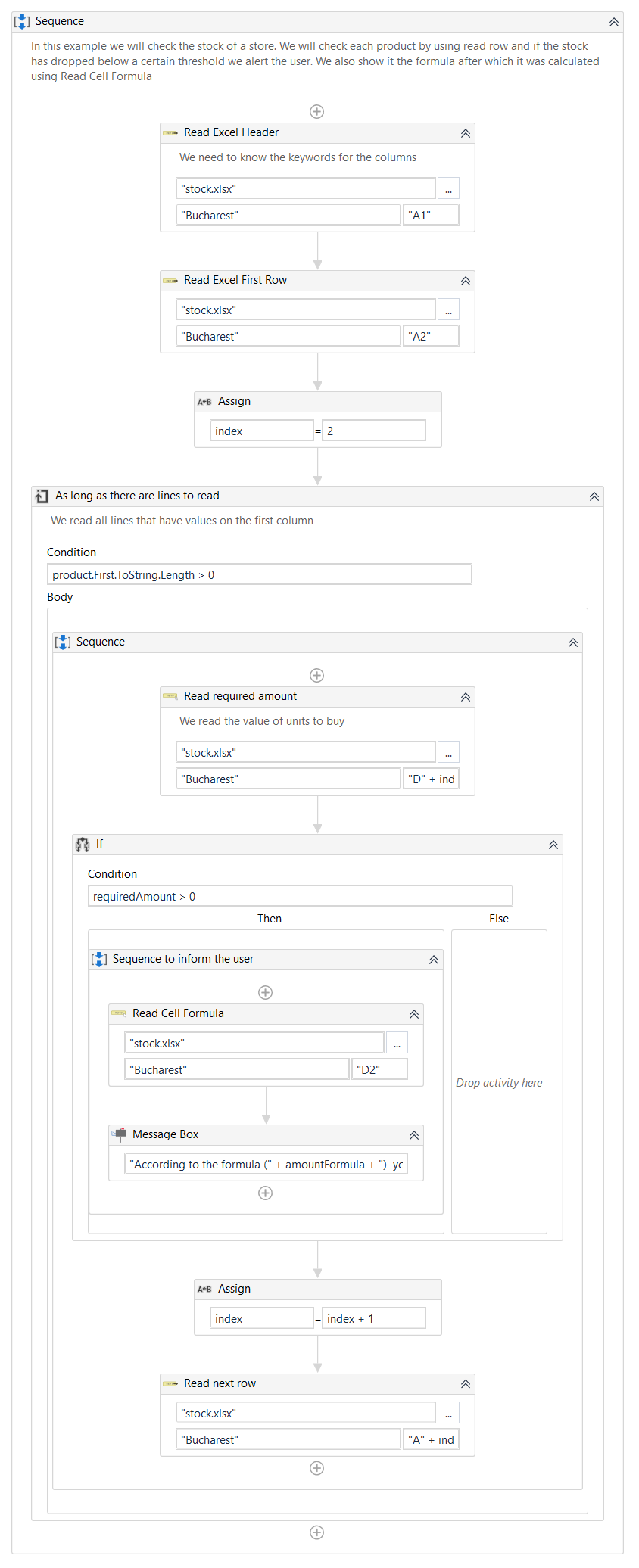
- Run the process. The Excel file is analyzed, verified, and a message is displayed, informing the user about the needed changes.