Managing applications
Manage your applications individually by configuring settings or firing up on your devices.
Application Capabilities
- For web applications, both Google Chrome and Safari are supported for Android and iOS respectively.
- Native tablet application support.
Navigation in Applications Panel
You can filter your applications using one or all of the following criteria:
- By native applications: Click the Androidor the Apple buttons to filter individually. Click the Gridded Square button to filter for both Android and iOS.
- By web application: Click the Web button and choose from the dropdown. By default is set to All.
You can reorder your devices by dragging and dropping a device card in a new position in the list.
Adding applications
-
Open MDM from Studio.
-
In the left navigation panel go to Applications.
-
Click Add a new application and enter a name for your application.
-
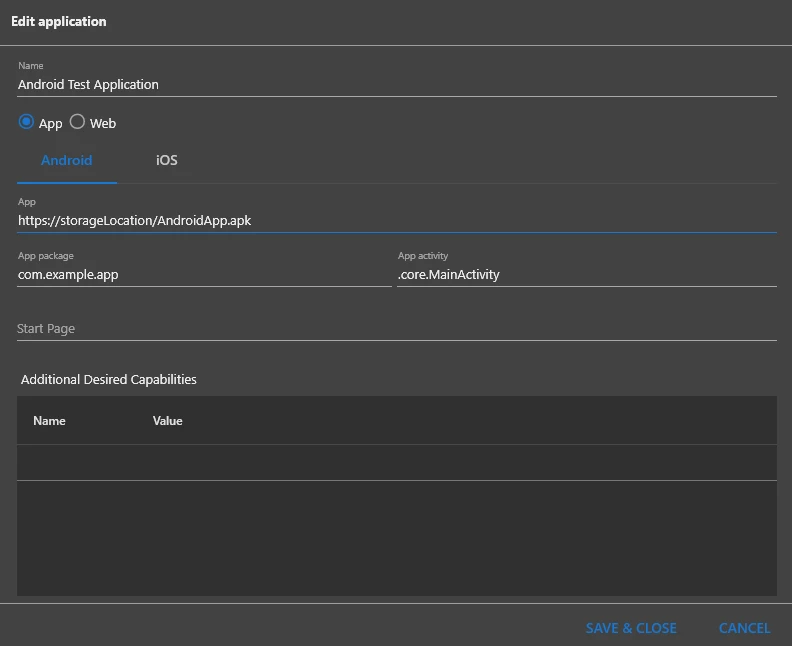
Choose between native or mobile web applications and configure your application main settings according to this table:
App Web Android App: Enter the app location. You can download and use the UiPath® Android Demo Application. App Package (Optional): Add your mobile application package. App Activity (Optional): Add an activity instance. Start Page (Optional): Set a startup page. Browser Name: Select a browser from the dropdown. Start Page: Set a startup page. iOS App: Enter the app location. Bundle ID (Optional): Add your app's unique identifier. Start Page (Optional): Set a startup page. Browser Name: Select a browser from the dropdown. Start Page: Set a startup page. note- For a preconfigured app, you can download and use the UiPath® demo application.
- To configure Additional Desired Capabilities to customize your automation session, see Appium Desired Capabilities.
-
Click Save & Close to add your application.
Managing Applications
The following table lists the actions that you can take to manage your applications.
| Action |
Description |
Procedure |
|---|---|---|
| Edit |
Configure application settings. |
|
| Clone |
Create an application clone. |
|
| Delete |
Delete the selected application. |
|
| Start application |
Choose a device on which to run the application. |
|