Configuration Steps
Enabling SAP GUI Scripting
In order to enable Studio to interact with SAP GUI for Java, you need to perform the following configurations steps on the server side and the client side. This enables the default and recommended element detection framework SAP for interactive selection.
In relation to any security concerns, the SAP server sees no difference between SAP GUI for Java communication generated by a script and the one generated by a user. The script has the same rights to run SAP transactions and enter data, just like a user would.
On the Server Side
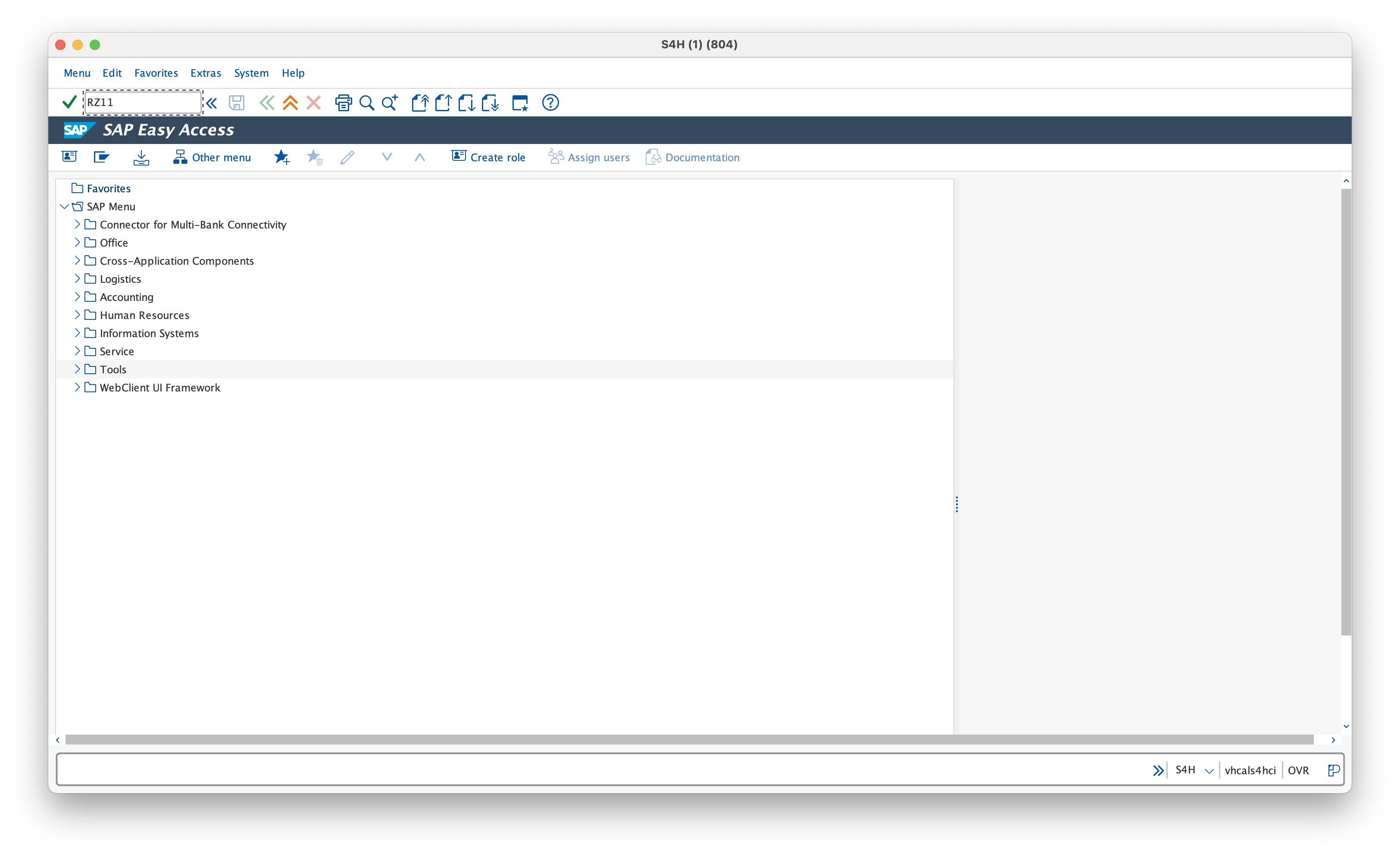
- Launch SAP GUI for Java, log in to your SAP server using your credentials. The SAP Easy Access window is displayed.
- Run transaction
RZ11. Specify the parameter namesapgui/user_scriptingand press Enter on the keyboard or Display in the SAP interface.
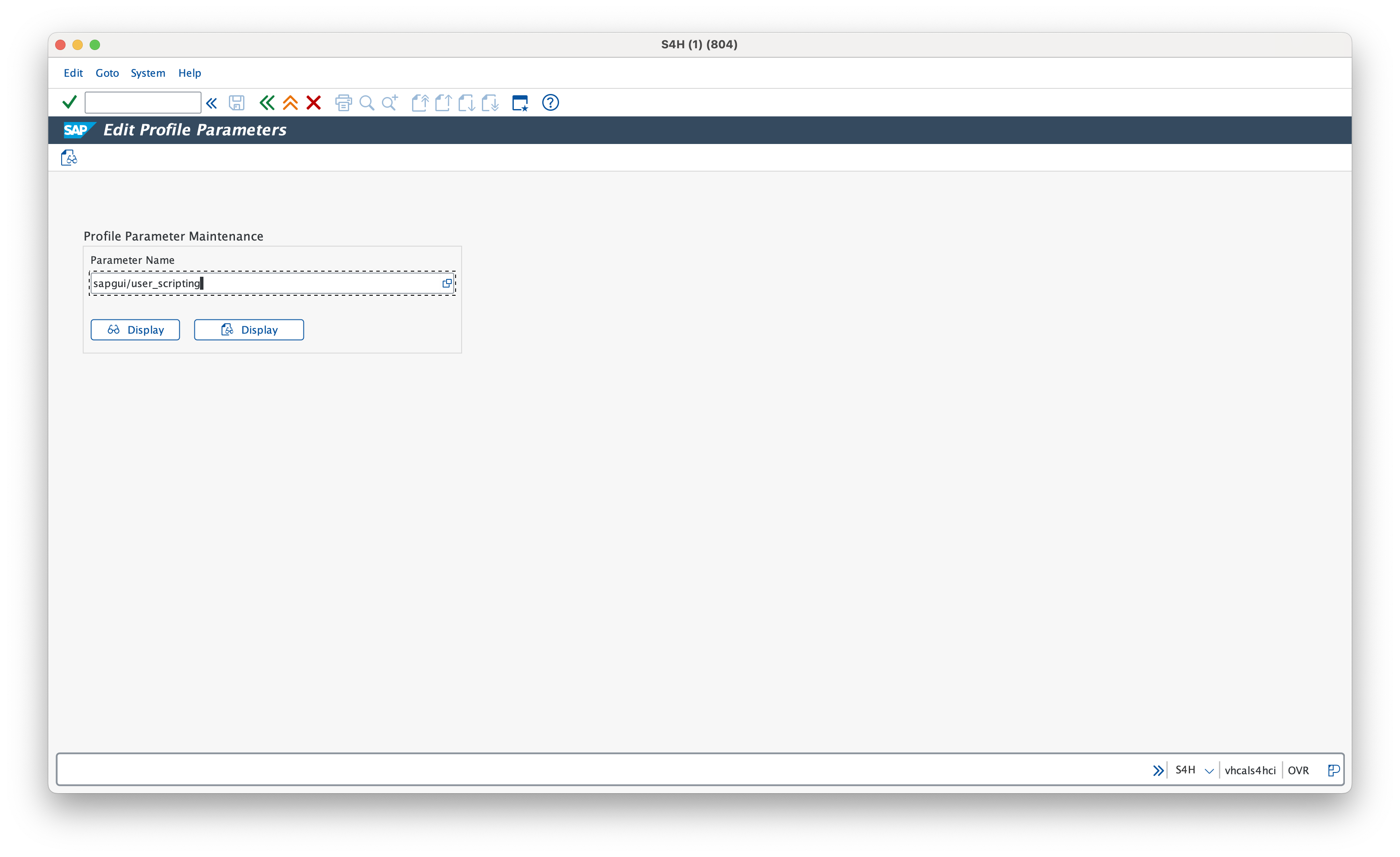 3. In the Display Profile Parameter Attributes window, select the Change Value button on the toolbar and set the New value of
 sapgui/user_scripting to TRUE. Save the changes.
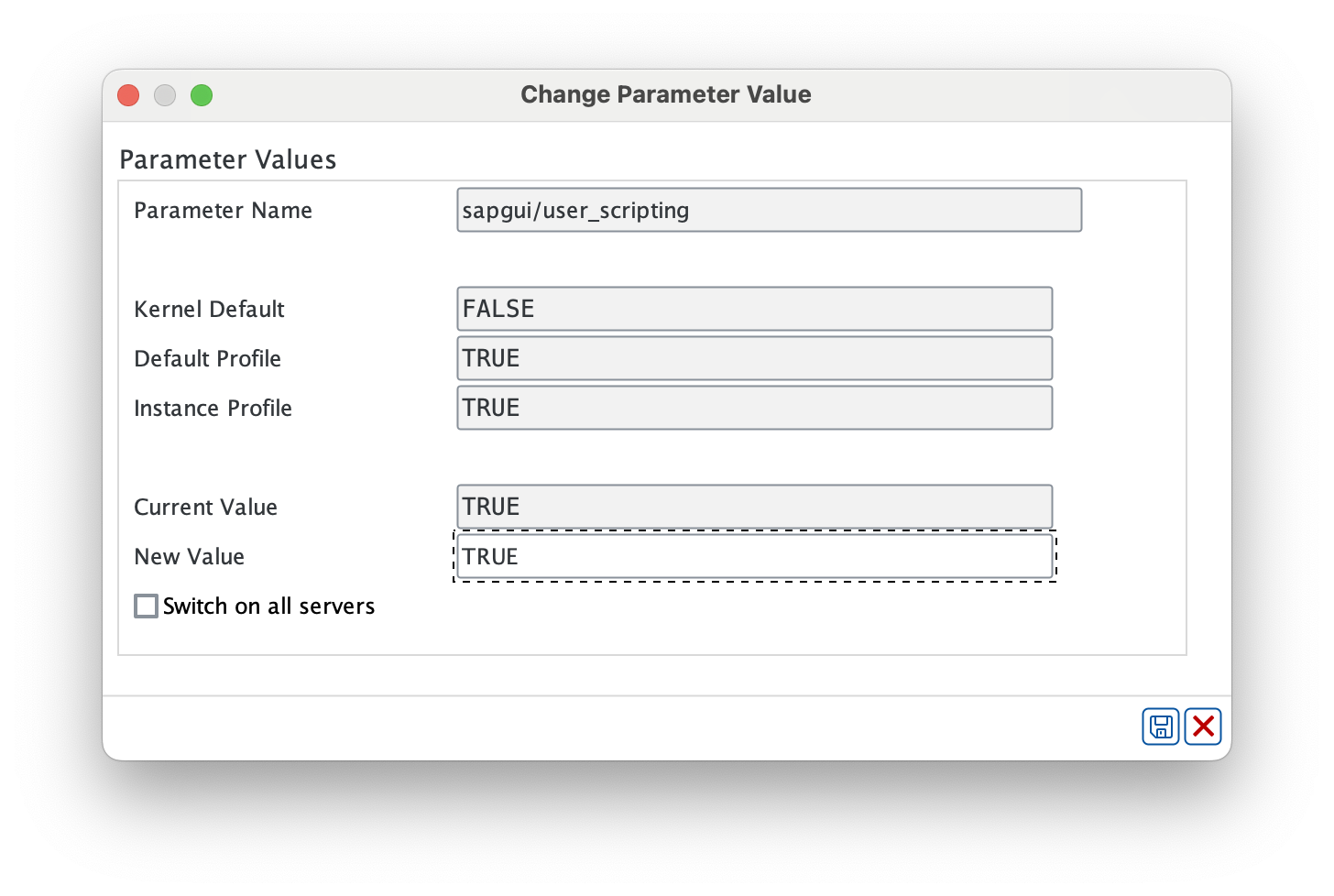
In case your organisation is using more than 1 instance of an SAP system, do not forget to activate the checkbox “Switch on all servers” to ensure a proper activation of SAP scripting across all servers.
Depending on the SAP server version, the following parameters may be set to TRUE by default. In this case, change their value to FALSE.
sapgui/nwbc_scriptingsapgui/user_scripting_disable_recordingsapgui/user_scripting_force_notificationsapgui/user_scripting_per_usersapgui/user_scripting_set_readonlyLog off, then log on again for the changes to take effect.importantAll changes to parameters in transaction
RZ11are applied with immediate effect and are lost when the system restarts. For changes to be permanent, please contact your SAP System Administrator and use transactionRZ10.
On the Client Side
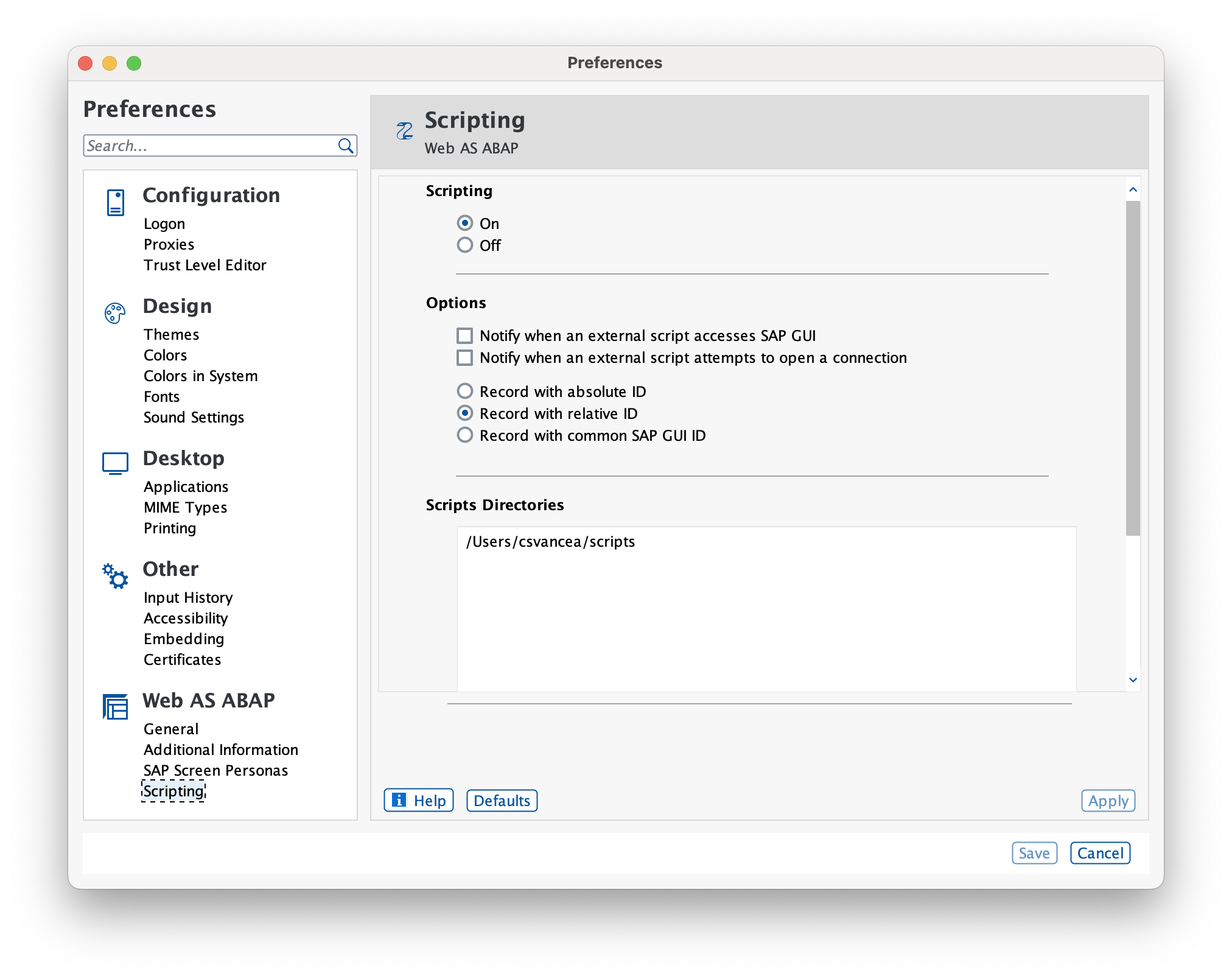
- From the Main SAP Logon window, access the File > Preferences menu (on Windows) or SAPGUI > Settings (on Mac OS**)**.
- Go to Web AS ABAP and click on Scripting.
- Check the Enable scripting option.
- Clear the checkboxes for the following options:
- Notify when an external script accesses SAP GUI
- Notify when an external script attempts to open a connection
- Save the changes by clicking OK. The SAP GUI for Java scripting is now enabled.
Enable Modal Dialog Boxes
Control (amodal) display options are not supported by SAP scripting. In this case, you must enable Dialog (modal) display options.
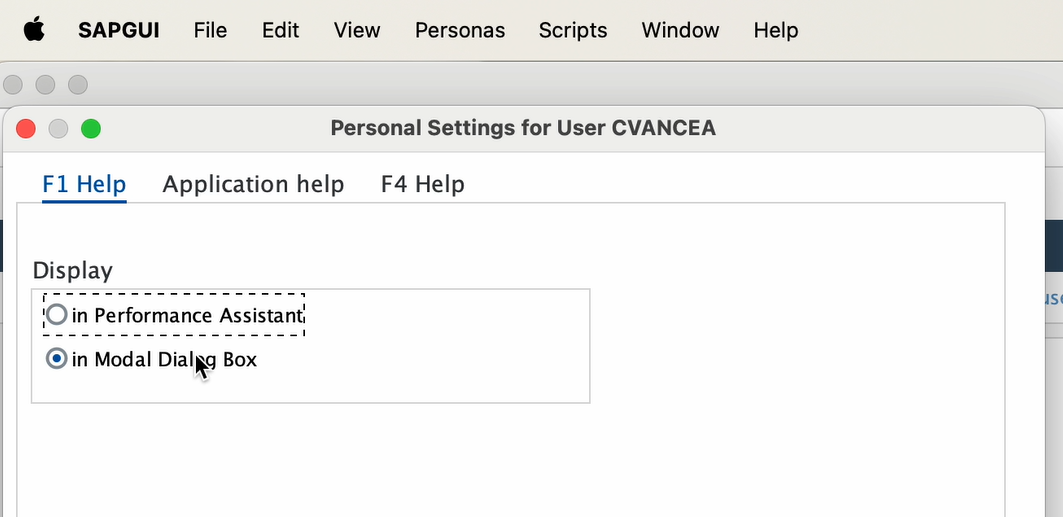
- From the SAP Easy Access window, select Settings under the Help menu. The Personal Settings for User window is displayed.
- Access the F1 Help tab and select the in Modal Dialog Box option from the Display section.
- Access the F4 Help tab and select the Dialog (modal) option from the Display section.
- Select the Apply button to save changes, and close the Personal Settings for User window.
note
This is a per-user setting. This configuration needs to be set for each client which creates a SAP automation. The default setting to Dialog (modal) for the entire system can be configured by the system administrator.
Authorization Rights
The authorization rights verification or settings need to be performed only if the sapgui/user_scripting_per_user parameter is set to True.
SAP GUI Scripting is only available for those users that have the authorization for the Execute(16) action of the authorization object S_SCR in class BC_A.
Please speak to your SAP System Administrator and ensure that the user has appropriate authorization rights.