Supported SAP WebGUI Elements
The SAP interfaces contain a variety of specific controls with which you can interact, as exemplified in this page.
You can use the entire range of activities from the UiPath.UIAutomation.Activities package to create your automation projects.
SAP Buttons
Represents any button found in the SAP WebGUI windows. There are several types, each defined by a particular element:
Icons
Icons are interactive buttons which do not display text labels.
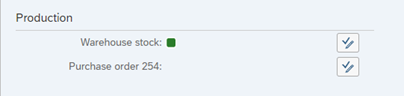
Push Buttons
A push button is a simple UI element which gives you direct access to a command in the application.
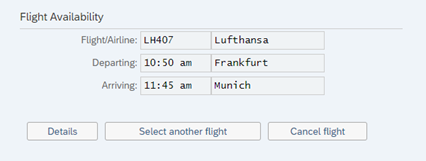
Radio Buttons
Radio buttons present a set of options. There are at least two radio buttons in a list, and you can only select one.
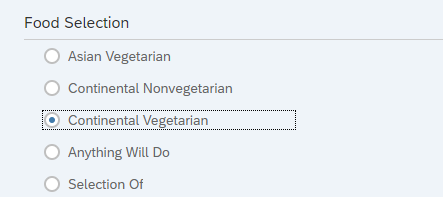
Flushing Radio Buttons
When you select a button, a new field becomes available.

You can use the Click, Get Text or Get Attribute (modern and classic) activities to interact with buttons.
SAP Input Field
Represents a specialized field which accepts user input.

You can use the Type Into activity to interact with input fields.
SAP Dropdown Lists
Dropdown lists allow you to select items from predefined lists.

You can use the Select Item activity to interact with list items.
SAP ABAP Lists
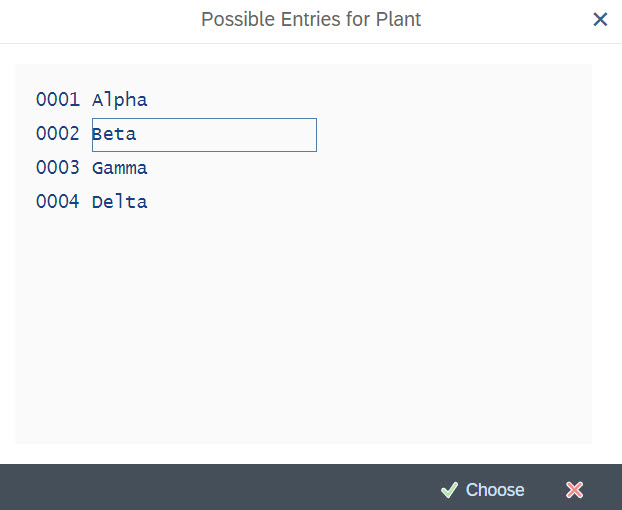
You can use the Click activity to interact with ABAP list items.
SAP Checkbox
Checkbox elements represent a list of multiple choices. One, more, or no options can be selected.
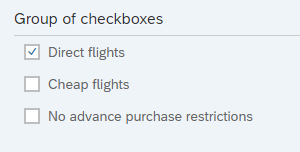
You can use the Click activity to interact with checkboxes.
SAP Menu
Allows you to select items from the SAP Menu.
You can use the SAP Select Menu Item activity to get the list of all available SAP Menu Items on the screen. To automate menus, sub-menus, or the toolbar, the entire container element must be indicated, not individual controls.
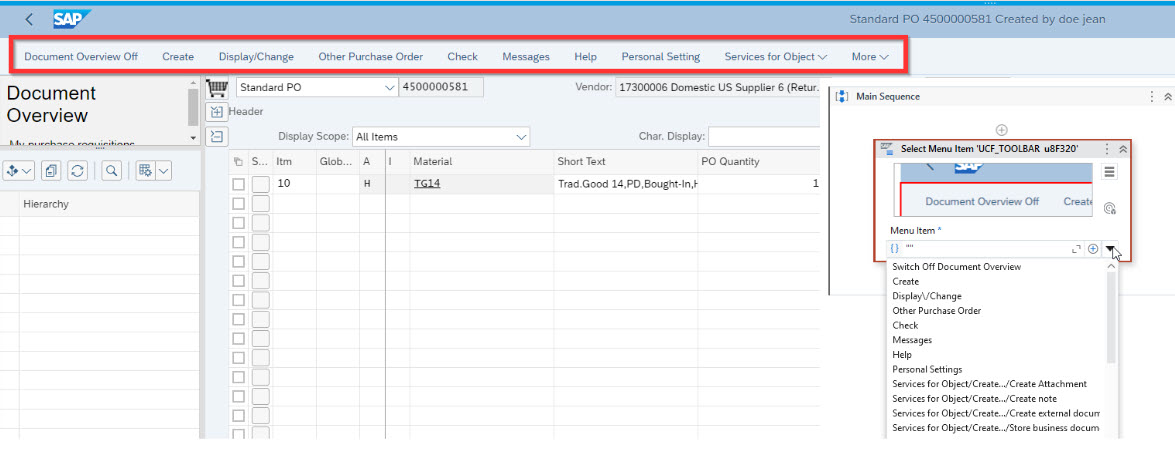
SAP Tree
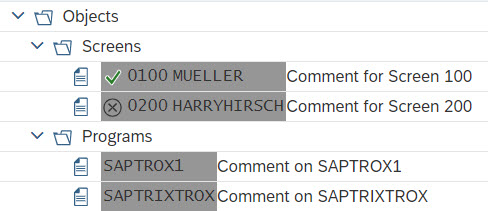
The SAP Tree represents a list of elements organized in a tree structure. Several types of SAP Tree controls are available:
-
Simple Tree
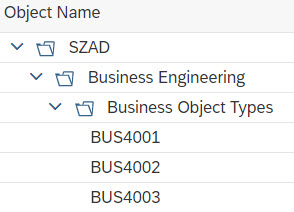
-
List Tree
-
Column Tree

You can use the Click or the Get Text activity to interact with a node or an item in any of the SAP Tree control types.
Use the Expand Tree activity to expand SAP WebGUI trees to a specified cell.
SAP Toolbar
The SAP Toolbar represents a set of buttons which you can interact with.
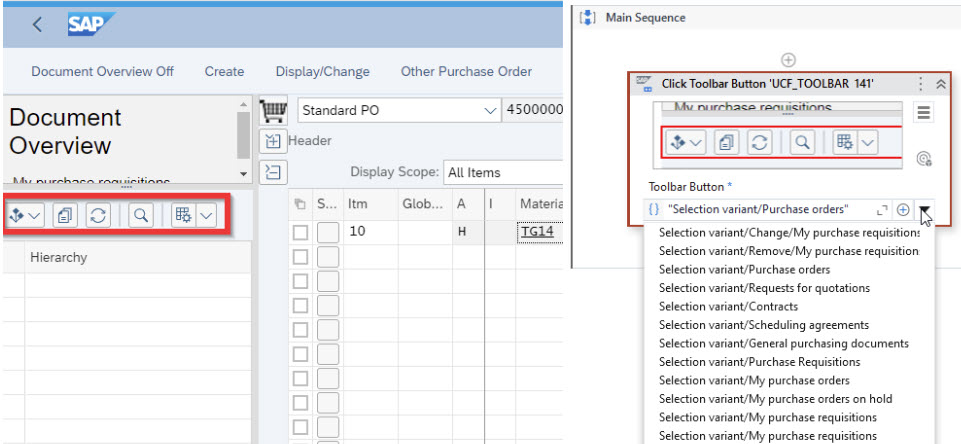
In SAP, there are multiple types of toolbars. The following types are currently supported:
-
SAP System Toolbar

-
SAP Generic Object Services
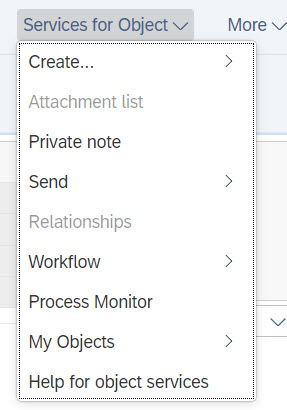
You can use the Click Toolbar Button activity to interact with buttons inside the toolbars.
For SAP GOS, you can also use SAP Select Menu Item.
SAP Context Menu
Represents a list of items inside a context menu. Note that multiple child context menus can be available in a parent context menu.
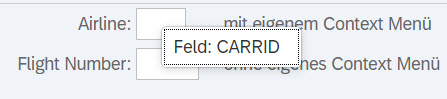
You can use the Click activity to interact with the SAP Context Menu.
SAP Picture
Displays a picture in the SAP WebGUI.
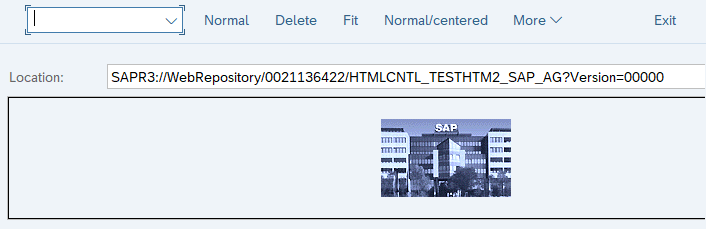
You can use the Click activity to interact with pictures.
SAP Textedit
The SAP Textedit control represents an editable text field/editor.
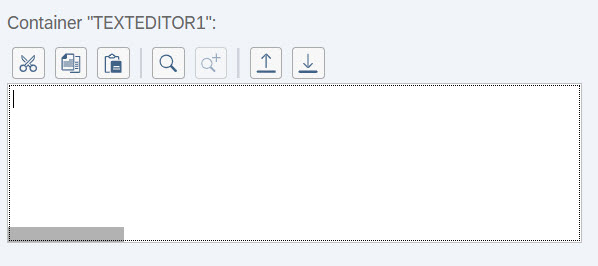
You can use the following activities to interact with this control:
- The Type Into activity for text fields.
- The Send Hotkey activity for buttons which support hotkeys, and Select Menu Item or Click activity for buttons.
SAP Dialog Box
Represents a pop-up window which can hold different types of other SAP controls such as buttons or text messages.
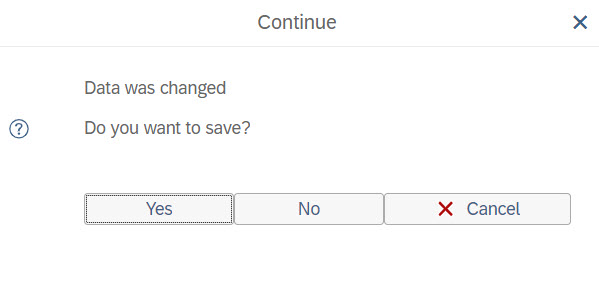
Selectors inside a dialog box are generated according to the element they represent.
If you want to close a dialog box using the Close button, you need to use the AA element detection framework.
You can use the Click activity to interact with dialog boxes.
SAP F4 Edit button
In the SAP interface, the F4 key enables you to obtain information about the possible input values for a certain field on the screen, and acts as Edit button.

You can use the Send Hotkey activity to interact with this control.
The Modern Keyboard Shortcuts activity doesn’t work on disabled controls.
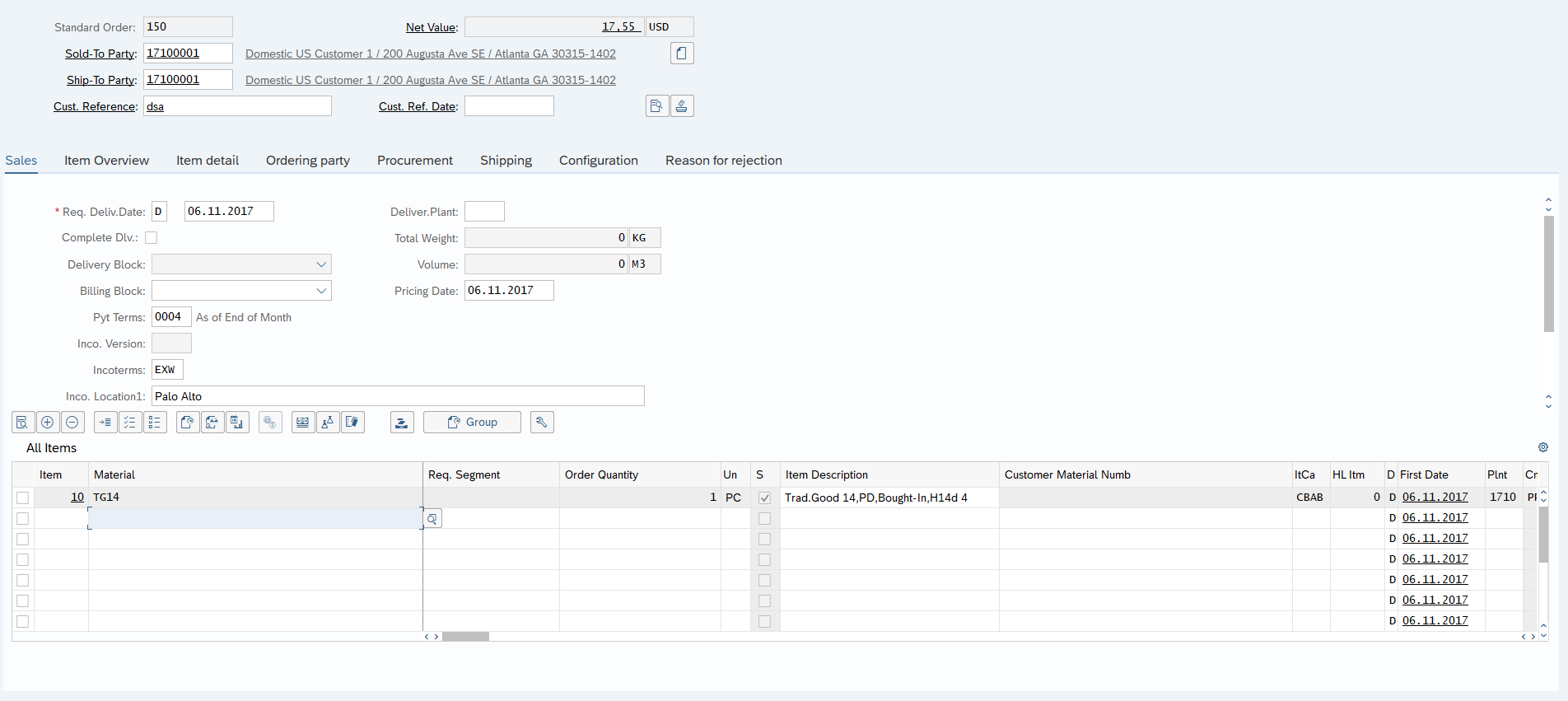
SAP Table Controls
In SAP, there are multiple types of tables available. The most common used are Standard (default) tables. You can use the following activities to interact with SAP Tables and their content: Click, Get Text, Type Into, Check.
SAP Statusbar
Represents a section at the bottom of the SAP WebGUI window which displays messages.

You can use the SAP Read Statusbar activity to extract the message type and text from the SAP Statusbar.