Adding and consuming test data queue items
This tutorial shows you how to work with the test data queue activities.
In the given scenario, we generate random values, add them as items to a test data queue, and use them to fill out loan application forms in the UiBank app. Let's break down the process that this tutorial guides you on:
- Generate the data used to fill in the Apply for a loan form in the UiBank app:
- Enter the number of test data queue items you want to add.
- Generate the necessary random values for a loan application.
- Add these values as items to a test data queue.
- Retrieve the items from the test data queue and use them to fill in the form:
- Retrieve these items from the test data queue.
- Use these items to fill in the Apply for a loan form in the UiBank app with the help of UIAutomation activities.
Prerequisites
- The Test Automation module in Orchestrator, used as the Testing tab.
- Testing.Activities
- UIAutomation.Activities
- System.Activities
1. Generate the loan data
Start by deciding the number of items you want to add to the test data queue. For each item generate random values for various parameters such as first name, last name, age, yearly income, and loan amount.
-
Create a test data queue in Orchestrator. Go to the Testing tab, select Test Data Queues, and create a queue called
TMDTQueue. -
Open your project in Studio and create a new Workflow. Name it
GenerateLoanData. -
Add an Input Dialog activity with the following settings:
- Input Label:
"Records". - Dialog Title:
"Enter the records". - Input Type: Text Box.
- In the Value entered field, create a variable for saving the number of records entered. For this example, name the variable
records_new.
- Input Label:
-
Add an Assign activity to convert the string variable you previously created to
Int32. Create anInt32variable namedcountand assign it the following expression:Convert.ToInt32(records_new). -
Add another Assign activity to initialize a counter. Create an
Int32variable callednumRecand assign it the value1. It acts as your counter for the upcoming While loop.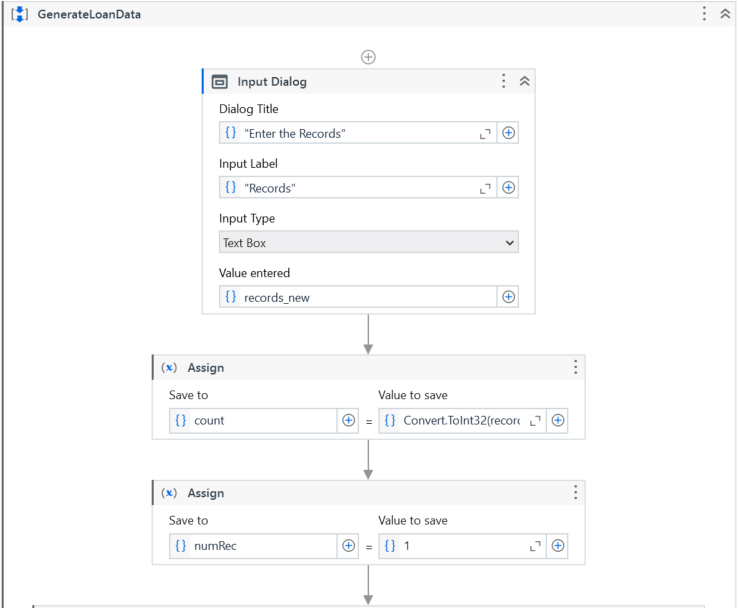
-
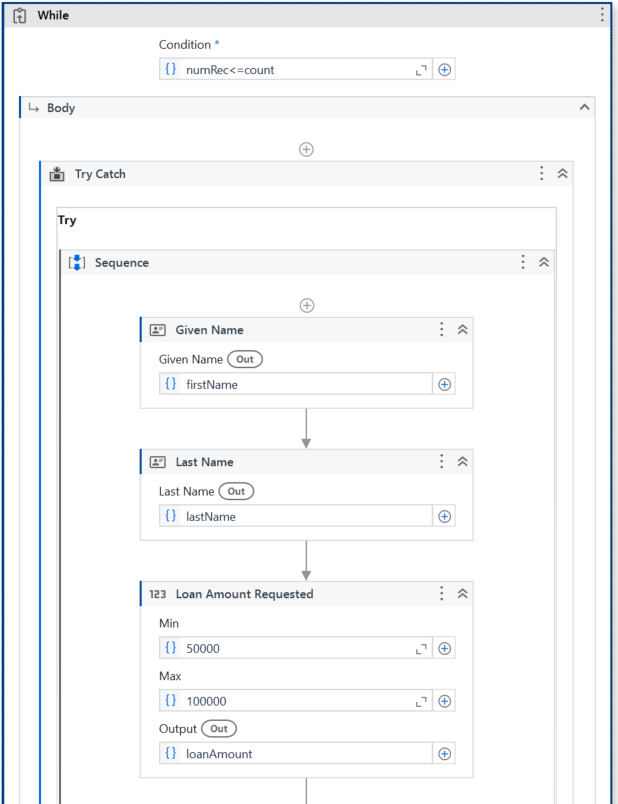
Add a While activity and set the Condition as
numRec <= count. This ensures that the loop executes as long asnumRecis less than or equal tocount. -
Add a Try Catch activity within the While loop. This helps managing any errors during execution.
-
Inside the Try block, add activities to generate random first name, last name, loan amount, age, yearly income, and loan term.
-
Use the Given Name activity to generate a random first name. Store the generated value within a variable named
firstName. -
Use the Last Name activity to generate a random last name. Store the generated value within a variable named
lastName. -
Use four Random Number activities to generate random
Decimalvalues for parameters like loan amount, age, yearly income, and loan term.Parameter Min value Max value Output variable Loan amount 5000100000loanAmountAge 18100ageYearly income 1000001000000yearlyIncomeLoan term 55loanTerm
-
-
Add an Assign activity to generate an email address based on the first names and last names generated previously. Within a
Stringvariable (namedemail), save the following value:firstName+lastName+"@gmail.com". -
Add an Add Test Data Queue Item activity to add the generated values as items into the queue.
-
Input a Queue Name. For this example, input
TDMTQueue. -
In the Items dictionary, add key-value pairs for each parameter generated previously. The value for each pair will be the variable where you store the corresponding generated value. For this example, add the following key-value pairs:
Key Type Value loanAmount System.DecimalloanAmountage System.DecimalageyearlyIncome System.DecimalyearlyIncomeemail Stringemailterm System.Decimaltermid Int32idIntegerfirstName StringfirstNamelastName StringlastName
-
-
Add an Assign activity to increment the counter variable value by 1:
numRec = numRec + 1.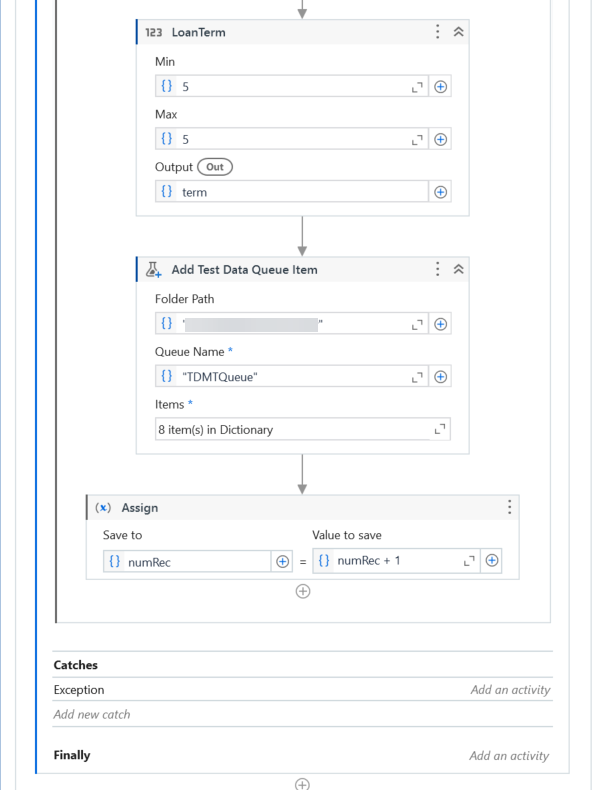
2. Fill in the loan form
Now let's use the random values stored in the queue to fill out a loan application form in the UiBank app.
-
Create another Workflow within your Studio project. Name it
LoanApplication. -
Add an Get Test Data Queue Item activity to retrieve the queue items you previously added. Provide the same Queue Name. For this example, input
TDMTQueueand save the queue items within aDictionary(<String,Object>)variable, nameddata. -
Add Assign activities to store the values you want to retrieve from the queue items. For this example, add five activities, for the following values: email, loan amount, term, yearly income, and age. Make sure each value corresponds to its key in the
datadictionary.Save to Value to save emaildata.Item("email")loanAmountdata.Item("loanAmount")termdata.Item("term")yearlyIncomedata.Item("yearlyIncome")agedata.Item("age")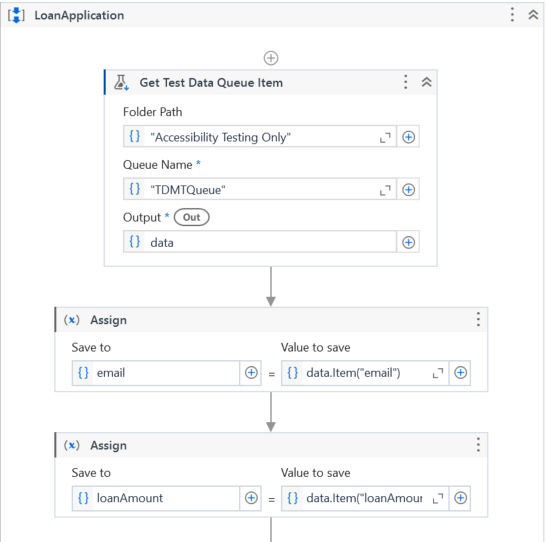
-
Add an Use Application/Browser activity to automate the UiBank app. In the browser URL field input the login page of the UiBank app:
"https://uibank.uipath.com/welcome".- Add two Type Into activities, to insert the username and password. Input your credentials as plain text.
- Use a series of Click activities to automate the following:
- Click the Sign in button.
- Consent to the Privacy Policy by clicking I agree.
- Navigate to the loan application form by clicking Products, then Loans, and lastly, Apply for a Loan.
- Add five Type Into activities to input the test data queue values. Use the
.toStringmethod because these fields only acceptStringvariables. - Lastly, add a Click activity, to click the Submit Loan Application button.
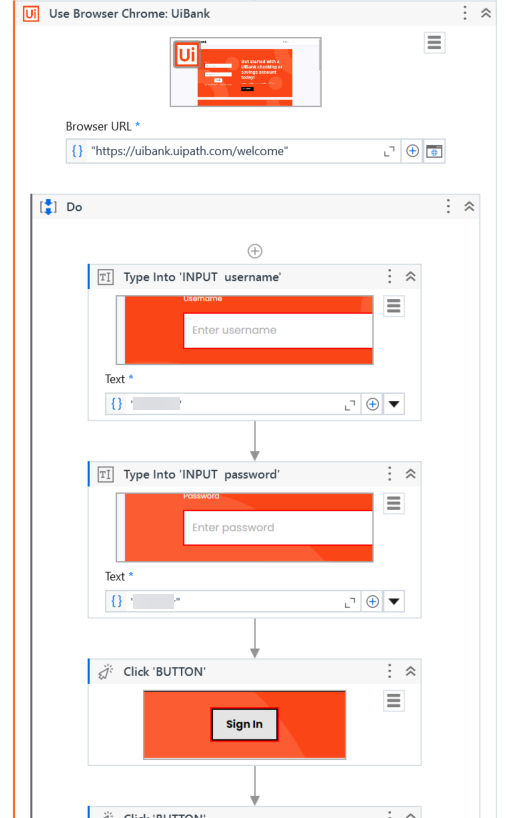
Sample workflow
To follow the steps of this tutorial and try it out yourself, download the following sample project: TestDataQueuesActivitiesSample.