Building Your First Data Grid
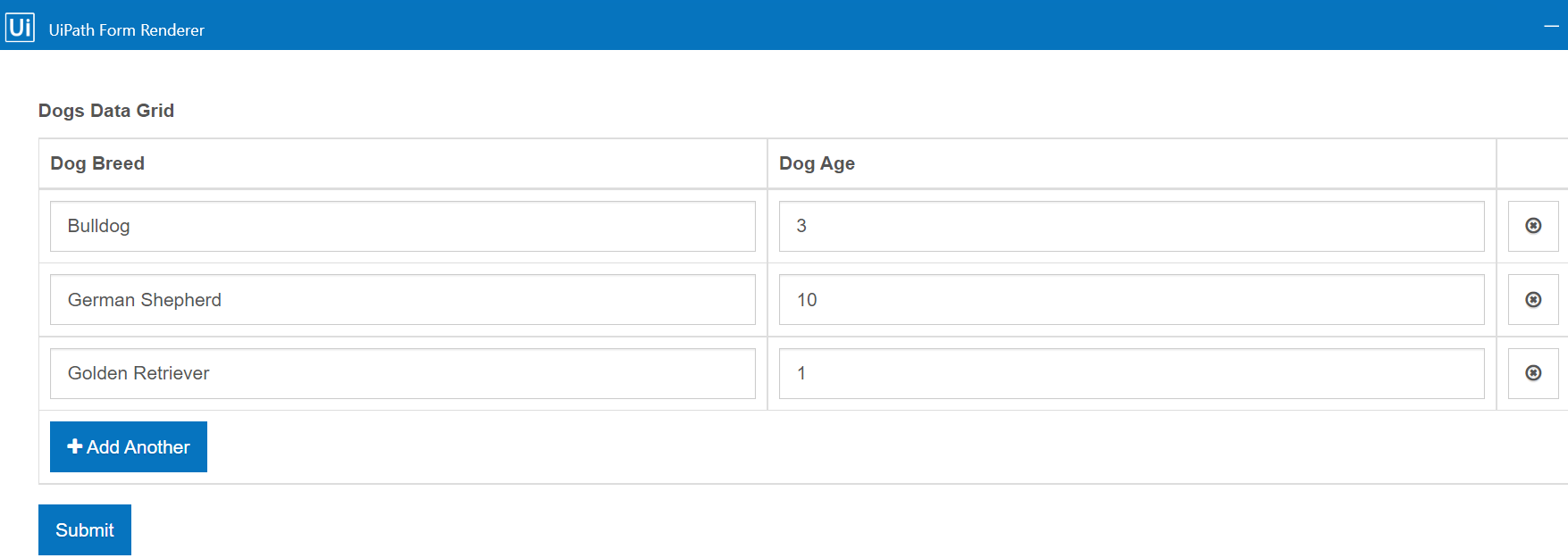
This tutorial is an example of a Data Grid that displays data about the breeds and ages of certain dogs. The Data Grid shows the data through a Text Field and a Number component.
Tutorial
To work with the Data Grid component:
-
Drag and drop a Sequence activity into your workflow.
-
Drag and drop a Build Data Table activity into the Sequence.
- Go to the DataTable property and press
ctrl + Kon your keyboard. WhenSet var:appears in the Datatablefield, type in a name for the data table. For this example, type indogBreedDataTableThis creates a DataTable variable in which you store the data table. - Click
 . The Build Data Table window opens.
 - Rename
Column1asBreed.2.4. RenameColumn2asAge.
Remember the names of the table and columns, because you will use them as the Property Names for the components inside your form.
- Go to the DataTable property and press
-
Drag and drop a Create Form activity into the Sequence.
- In the Properties panel, uncheck GenerateInputFields. If left checked, a component will be automatically added in the Form Designer, based on the argument type.
- For the FormFieldsCollection property click ellipsis
 . The FormFieldsCollection window opens.
 - Create an argument named
dogBreedTable. Set the Direction as In/Out, choose the type System.data.DataTable and set the value as the data table you created, nameddogBreedDataTable.
-
In the Create Form activity, click Open Form Designer.
-
Drag and drop a Data Grid component in the form.
- In the Display tab, rename the label of the component as
Dogs Data Grid. - In the Field Key tab, input the name of the data table argument created in the FormFieldsCollection property. This binds the data to the form. For this example, input
dogBreedTablein the Property Name field.
- In the Display tab, rename the label of the component as
-
Drag and drop a Text Field component inside the Data Grid.
- In the Display tab, rename the label of the component as
Dog Breed. - In the Field Key tab, input the name of the String column in the data table. For this example, input
Breedin the Property Name field.
- In the Display tab, rename the label of the component as
-
Drag and drop a Number component.
- In the Display tab, rename the label of the component as
Dog Age. - In the Field Key tab, input the name of the Int32 column in the data table. For this example, input
Agein the Property Name field.
- In the Display tab, rename the label of the component as
-
Save the form and run the workflow to test the capabilities of the Data Grid.
Sample Workflow
To check the complete workflows or to have a future reference, download the XAML example