Dynamic Dropdowns
You can add dynamic dropdown lists in your form, using the Drop-down List component in the Form Designer. These tutorials describe how to create a dynamic dropdown list with elements that represent countries.
Tutorial
To create a dynamic dropdown list:
- Drag and drop a Sequence activity into your workflow. For this example, name it
DynamicDropdowns. - Create two variables:
- Create a
Stringvariable type and set the scope as the Sequence activity. For this example, name the variablecountryand set the scope toDynamicDropdowns. - Create a
List<String>variable type and set the scope as the Sequence activity. For this example, name the variablecountryListand set the scope toDynamicDropdowns.
- Create a
- Inside the Default field of the
List<String>variable, create a new List of type String, that holds the names of the countries. For example, inside the Default field of thecountryListvariable, type in the following expression:New List (Of String) From {
"US",
"India",
"Romania"
} - Drag and drop a Create Form activity in your Sequence.
- In the FormFieldsCollection property menu bind the variables to your form:
- Create an argument of Type String with the Direction In/Out and set the value as the
Stringvariable. For this example, set the value as thecountryvariable. Name the argumentcountry - Create an argument of Type List<String> with the Direction In and set the value as the
List<String>variable. For this example, set the value as thecountryListvariable. Name the argumentcountry_dropdown.noteThe
country_dropdownargument makes the dropdown list dynamic and populates it with the elements from theList<String>variable.
- Create an argument of Type String with the Direction In/Out and set the value as the
- Open the Form Designer.
- Drag and drop a Drop-down List component in the Form Designer.
- In the Field Key tab, input the name of the
Stringargument in the Property Name field. For this example, inputcountry. - Save the component.
- Save the form.
Result: The Drop-down List component shows as options the list of Strings created at step 3.
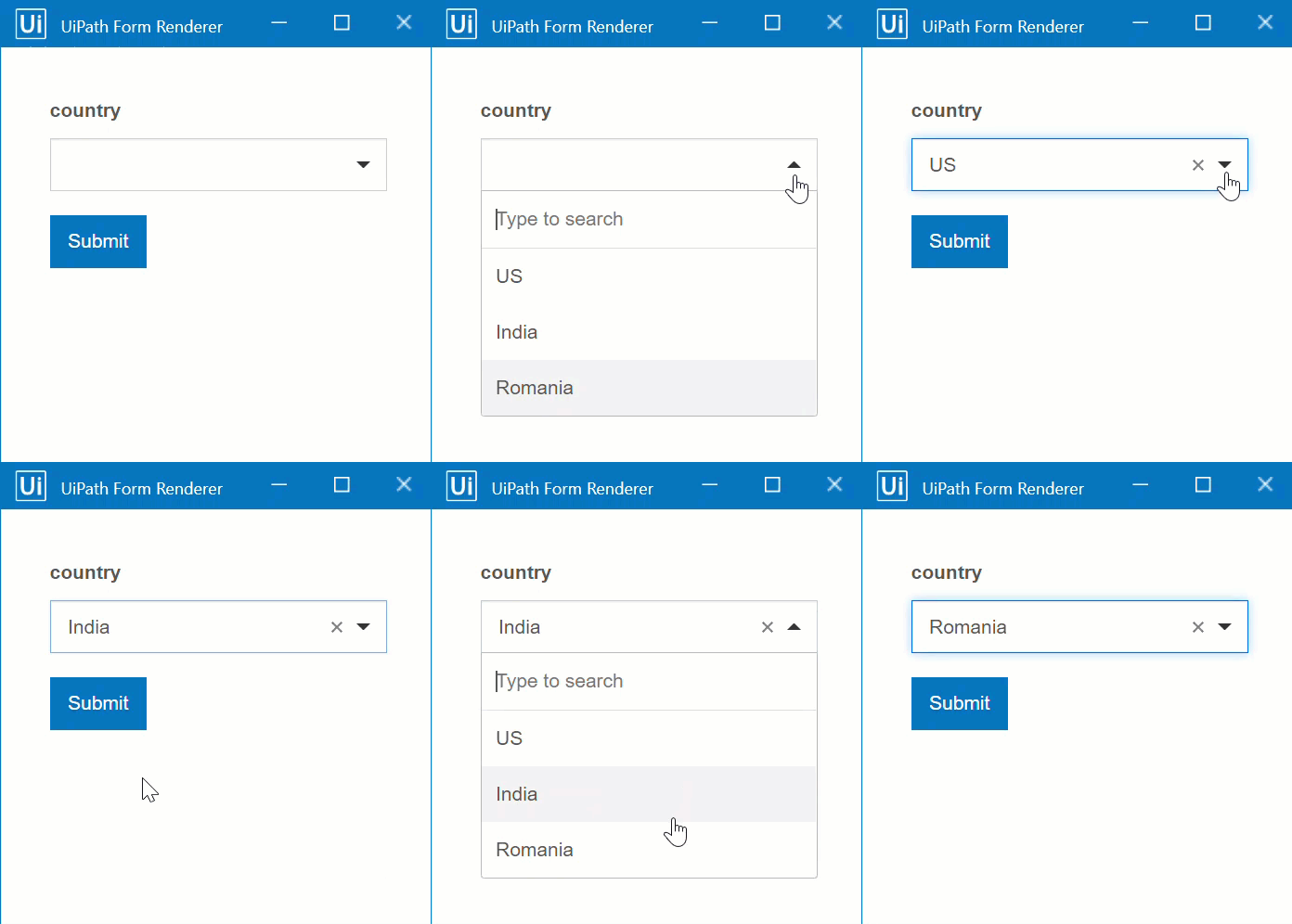
Creating a dynamic dropdown inside a Data Grid
This tutorial demonstrates how to create a dynamic dropdown inside a Data Grid. The Data Grid component displays, inside the form, data that comes from a Data Table previously created. To create a dynamic dropdown inside a Data Grid:
-
Create a Data Table using the Build Data Table activity. For this example, save the data table as a variable named
sampleDataTable.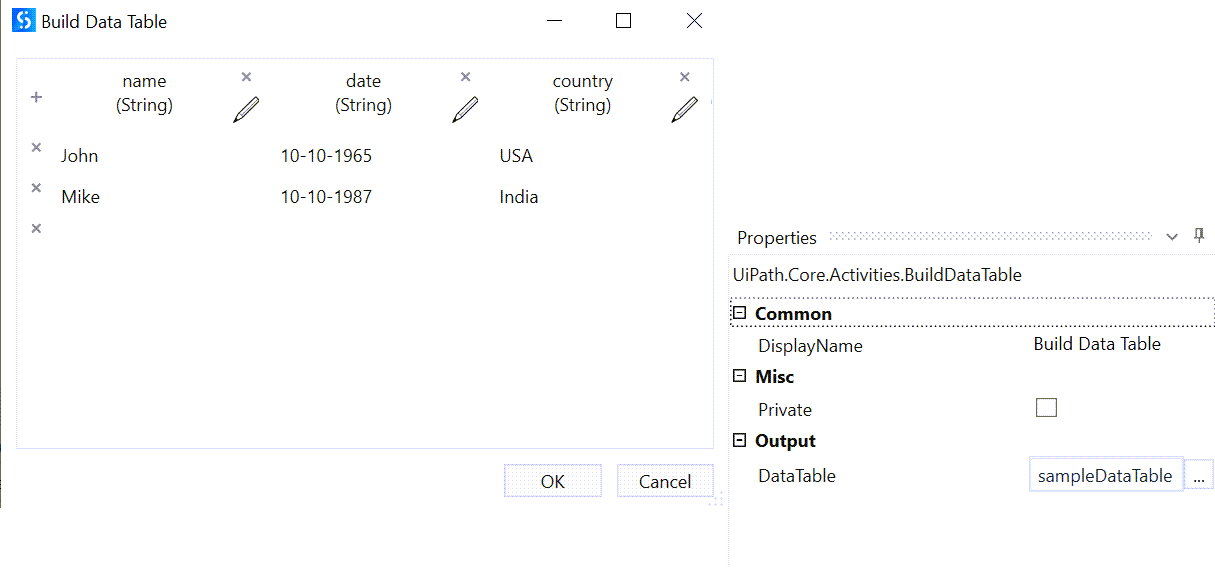
-
Add a Invoke Code activity into your workflow and set the Language to CSharp.
-
Select Edit Code and create a list of Strings, where you add the options that you want to display dynamically in the dropdown list. For example, add the code below inside the Code Editor:
countryListInitialized = new List<string>();
countryListInitialized.Add("USA");
countryListInitialized.Add("India");
countryListInitialized.Add("Romania");
countryListInitialized.Add("Dubai"); -
Select Edit arguments and create an argument that will store the list of Strings created inside a variable that you can later use inside your workflow. The name of the argument must have the same name as the list created in the Code Editor. For this example, create an argument named
countryListInitialized, with the directionIn/Out, the typeList<String>, that has the value set as aList<String>variable. For this example, name the variablecountryListVariable.
-
-
Add a Create Form activity into your workflow.
- Add a Data Grid component.
- Add a Text Field component inside the Data Grid.
- Add a Drop-down List component inside the Data Grid.
-
Open the FormFieldsCollection and create the following arguments, to bind data to the form:
Name Direction Type Value Description dataGridSample In/Out DataTable sampleDataTableThis argument binds the data from the Data Table to the Data Grid component inside the form. For this example, the Data Table is stored inside the sampleDataTablevariable.countryList_dropdown In/Out List<String> countryListVariableThis argument binds the data from the list of Strings to the Drop-down List* component inside the form. The _dropdownsuffix makes the dropdown dynamic. For this example, the list of Strings is stored inside thecountryListVariablevariable.countryList_parent In String "dataGridSample"This argument binds the dynamic dropdown to the Data Grid component, through the _parentsuffix, and through inputting the Field Key of the Data Grid component inside the Value column. For this example, thedataGridSampleis the Field Key of the Data Grid component. -
Open the Form Designer.
- Set the Field Key of the Data Grid component as the argument that binds the Data Table to the form. For this example, set the Field Key of the Data Grid component as
dataGridSample. - Set the Field Key of the Text Field component as the name of the Data Table column that represents text. For this example, set it as
name. - Set the Field Key of the Drop-down List component as the name of the argument that binds the list of Strings to the form. For this example, set it as
countryList.
- Set the Field Key of the Data Grid component as the argument that binds the Data Table to the form. For this example, set the Field Key of the Data Grid component as
-
Save each component and the form.
Result: The Drop-down List component shows as options the list of Strings created at step 2, inside the column of a Data Grid.
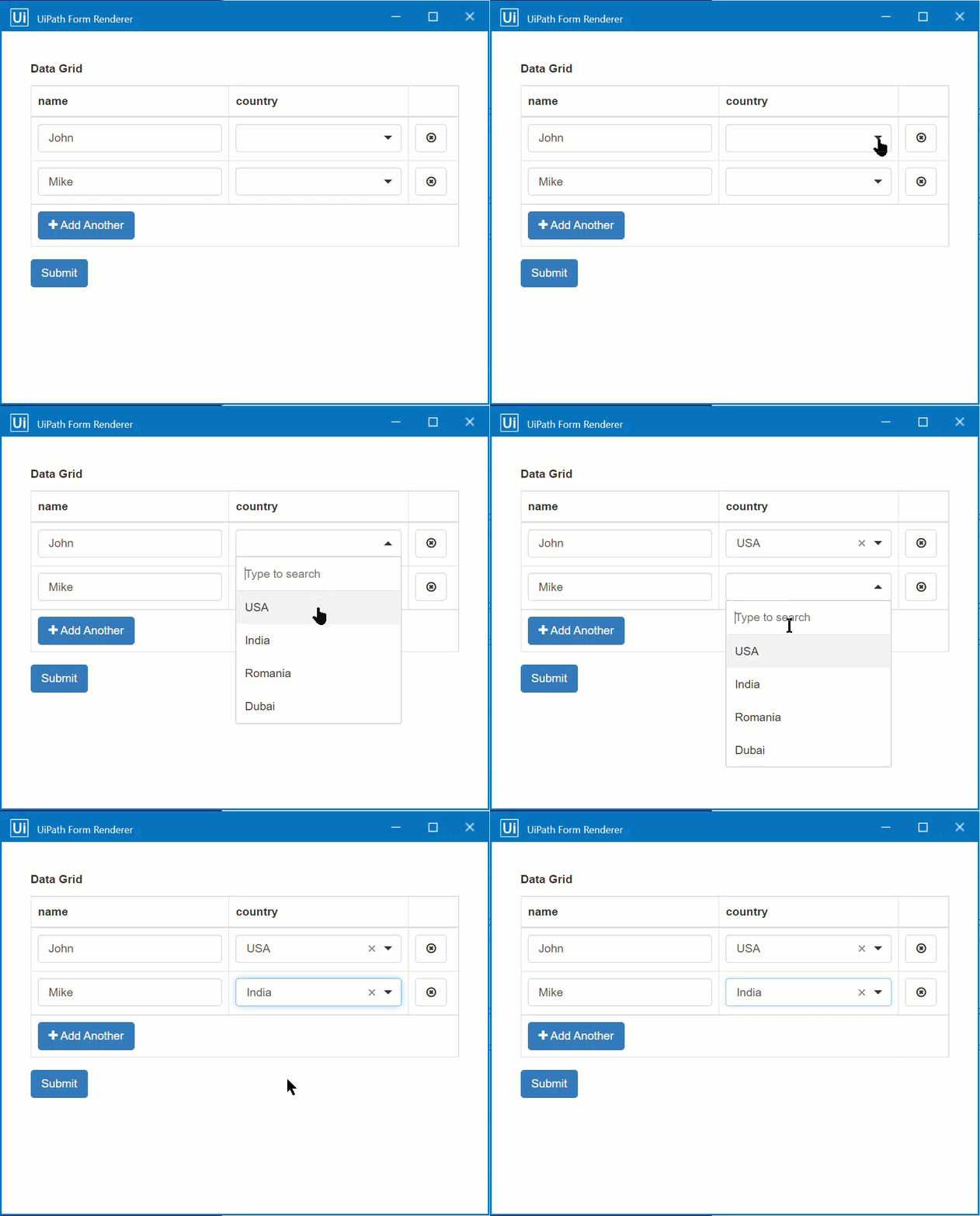
Sample workflow
To check the complete workflow or to have a future reference, download the XAML example