Extract Data From Website
The example below explains how to open a web page and display a drop-down list from which to extract the data and display it in a message box. It used activities such as Open Browser, Find Element, Find Children, For Each, or Message Box. You can find these activities in the UiPath.System.Activities and UiPath.UIAutomation.Activities packages.
This is how the automation process can be built:
-
Open Studio and create a new Process named by default Main.
-
Drag a Sequence container in the Workflow Designer.
-
Place an Open Browser activity inside the Sequence container.
- In the Properties panel, select the IE option from the BrowserType drop-down list.
- Add the value
"https://www.w3schools.com/tags/tryit.asp?filename=tryhtml_select"in the Url field. - Select the check box for the NewSession option. This starts a new session of the selected browser.
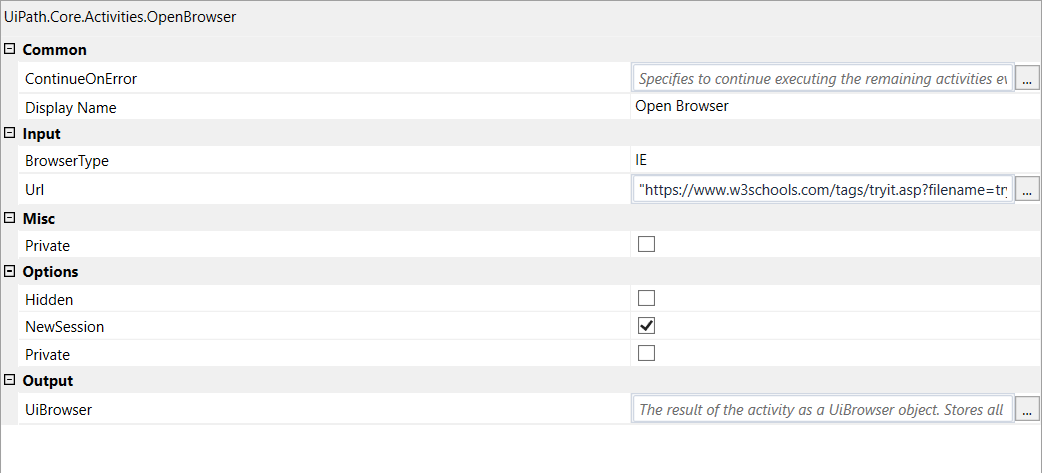
-
Select the Do container inside the Open Browser activity and create the following variables:
Variable Name Variable Type Default Value elementUiPath.Core.UiElement strvalUiPath.Core.GenericValue childrenIEnumerable<UiElement> -
Drag a Find Element activity inside the Do container.
- In the Properties panel, select the Target option from the Target drop-down list.
- Add the value
"<webctrl tag='SELECT' />"in the Selector field. - Select the Complete option from the WaitForReady drop-down list.
- Add the variable
elementin the FoundElement field.

-
Drag a Find Children activity below the Find Element activity.
- In the Properties panel, add the value
"<webctrl />"in the Filter field. - Select the Target option from the Target drop-down list.
- Add the value
"<webctrl tag='SELECT' />"in the Selector field. - Select the INTERACTIVE option from the WaitForReady drop-down list.
- Select the FIND_CHILDREN option from the Scope drop-down list.
- Add the variable
childrenin the Children field.

- In the Properties panel, add the value
-
Place a For Each activity below the Find Children activity.
- Add the variable
childrenin the Values field.
- Add the variable
-
Drag a Message Box activity inside the Body container of the For Each activity.
- In the Properties panel, select the Ok option from the Buttons drop-down list.
- Add the expression
"Value: " + item.Get("value").ToStringin the Text field. - Select the check box for the TopMost option for always having the message displayed in the foreground.
-
Drag another Message Box activity and place it below the first one.
- In the Properties panel, select the Ok option from the Buttons drop-down list.
- Add the expression
"Text: " + item.Get("text").ToStringin the Text field. - Select the check box for the TopMost option for always having the message displayed in the foreground.
-
Run the process. The specified web page is opened, displaying a drop-down list. All values from the drop-down list are extracted and displayed in message boxes.
Here you can download an example.