Format Value
UiPath.Core.Activities.FormatValue
Associates a specific format to a generic value that can be used with .ToString and Parse operations. The available formats are Number, DateTime, Currency, and Percentage.
Properties
To
- Value - The value to be formatted. This field supports only GenericValue variables.
Input
- Format - Specifies the format to be applied to the value.
Common
- DisplayName - The display name of the activity.
Misc
- Private - If selected, the values of variables and arguments are no longer logged at Verbose level.
Example of Using the Format Value Activity
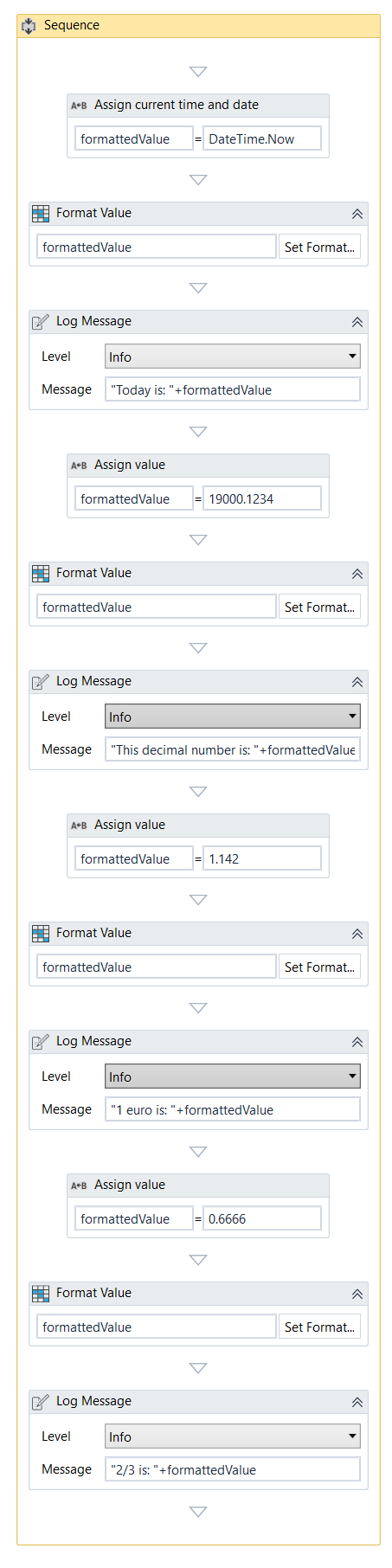
The example below explains how to use the Format Value by processing assigned values and formatting them as desired.
This is how the automation process can be built:
-
Open Studio and create a new Process.
-
Drag a Sequence container in the Workflow Designer.
-
Create the following variable:
Variable Name Variable Type Default Value formattedValueGenericValue
-
-
Drag an Assign activity inside the Sequence container.
- Add the variable
formattedValuein the To field. - Add the expression
DateTime.Nowin the Value field in order to receive the actual date.
- Add the variable
-
Drag a Format Value activity below the Assign activity.
- Add the variable
formattedValuein the Value field.
- Add the variable
-
Click the Set Format button from the Format Value activity to configure the data format.
- Select the DateTime option from the Format Type drop-down list.
- Select the desired display date style from the Pattern drop-down list.
- Click the OK button for closing the configurator.
-
Place a Log Message activity under the Format Value activity.
- Select the Info option from the Level drop-down button.
- Add the expression
"Today is: "+formattedValuein the Message field. This displays the message Today is and the actual date, using the previously selected format.
-
Drag an Assign activity below the Log Message activity
- Add the variable
formattedValuein the To field. - Add the value
19000.1234in the Value field. This represents the actual value used for formatting.
- Add the variable
-
Drag a Format Value activity below the Assign activity.
- Add the variable
formattedValuein the Value field.
- Add the variable
-
Click the Set Format button from the Format Value activity to configure the data format. This formats the value added in the previous Assign activity and determines the used number of decimals.
- Select the Number option from the Format Type drop-down list.
- Add the value
2in the Decimal Digits field. - Select the . option from the Decimal Separator drop-down list.
- Add the value
,in the Group Separator field. - Click the OK button for closing the configurator.
-
Place a Log Message activity under the Format Value activity.
- Select the Info option from the Level drop-down list.
- Add the expression
"This decimal number is: "+formattedValuein the Message field. This displays the message This decimal number is and the actual number.
-
Drag an Assign activity below the Log Message activity.
- Add the variable
formattedValuein the To field. - Add the value
1.142in the Value field. This value represents the today's parity between euro - dollar.
- Add the variable
-
Drag a Format Value activity below the Assign activity.
- Add the variable
formattedValuein the Value field.
- Add the variable
-
Click the Set Format button from the Format Value activity to configure the data format.
- Select the Currency option from the Format Type drop-down list.
- Add the value
3in the Decimal Digits field. - Select the . option from the Decimal Separator drop-down list.
- Select the $ option from the Symbol drop-down list.
- Add the value
,in the Group Separator field. - Click the OK button for closing the configurator.
-
Place a Log Message activity under the Format Value activity.
- Select the Info option from the Level drop-down button.
- Add the expression
"1 euro is: "+formattedValuein the Message field. This displays the message 1 euro is and the actual value of one euro converted in dollars.
-
Drag an Assign activity below the Log Message activity.
- Add the variable
formattedValuein the To field. - Add the value
0.6666in the Value field. This value is used to display the percentage after the data is formatted.
- Add the variable
-
Drag a Format Value activity below the Assign activity.
- Add the variable
formattedValuein the Value field.
- Add the variable
-
Click the Set Format button from the Format Value activity to configure the data format.
- Select the Percentage option from the Format Type drop-down list.
- Add the value
2in the Decimal Digits field. - Select the . option from the Decimal Separator drop-down list.
- Add the expression
%in the Symbol field. - Add the expression
,in the Group Separator field. - Click the OK button for closing the configurator.
-
Place a Log Message activity under the Format Value activity.
- Select the Info option from the Level drop-down list.
- Add the expression
"2/3 is: "+formattedValuein the Message field. This displays the message 2/3 is and its percentage equivalent. - This is how your workflow should look:
-
Run the automation process. The provided data is processed and displayed, as per the specifications, in the Output panel.