Sample Workflows
The Snippets panel in UiPath Studio stores XAML files added by users. The sample XAML files are stored in folders. The folder that stores XAML files used in long-running workflows is called Orchestration.
The sample XAML files are read-only. You need to create a separate Process in Studio, where you replicate the activities and configurations found in the snippets.
These snippets represent sample workflows created with the activities available in the Persistence activity package.
Prerequisites
- To develop long-running workflows, based on the workflows in the Snippets panel, you need to have the UiPath.Persistence.Activities package installed.
- We recommend using the Orchestration Process template to start building long-running workflows.
Add Queue Item and Wait till completion
This snippet creates a Queue Item and suspends the workflow until the processing of that Queue Item is completed.
-
Drag an Add Queue Item And Get Reference activity into your workflow.
This activity adds a Queue Item into a Queue container located in Orchestrator, using In/Out parameters. Then it retrieves the corresponding data about the newly created Queue Item Object into a
QueueItemDatatype variable, in order to suspend the workflow, until the Queue Item is added into the Queue. See the Add Queue Item And Get Reference page for more information about the activity.When the Queue Items are added to the Orchestrator Queue, all
QueueItemDatatype variables will be populated with the data retrieved from Orchestrator.- In the Item Information collection, create a parameter with the Direction In/Out and set the value as a variable that you want to pass as a Queue Item. For this example, pass a String variable named
Test. - In the QueueItemObject(Output) property field, press
CTRL + kon your keyboard and create aQueueItemDatatype variable, to store the data about the queue item, after it was created in Orchestrator. For this example, create aQueueItemDatavariable namedQueueItemObject.

- In the Item Information collection, create a parameter with the Direction In/Out and set the value as a variable that you want to pass as a Queue Item. For this example, pass a String variable named
-
Drag any activities that you want to run before the workflow is suspended to retrieve data about the queue item. In this snippet, the Any steps to be executed before suspending the workflow section is commented out, acting as a container inside which you can place activities that won't be executed at runtime.
-
Drag a Wait For Queue Item And Resume activity into your workflow. This activity waits for a Queue Item to be added and processed in Orchestrator, in order to retrieve data about it and map it back into the workflow, inside the
QueueItemDatatype variables. See the Wait For Queue Item And Resume page for more information about the activity.- In the Queue Item Object (Input) property field, pass the
QueueItemObjectvariable, to reference the exact queue item that you wanted to add to Orchestrator. - In the Queue Item Object (Output) property field, press
CTRL + kon your keyboard and create aQueueItemDatatype variable to store the data about the queue item after it was processed and retrieved.
- In the Queue Item Object (Input) property field, pass the
-
Add a Write Line activity into your workflow, to print out the Queue Item that you added in Orchestrator. For this example, in the Text property field, pass the
Testvariable.
Create External Task and Suspend till completion
This snippet creates an External Action and suspends the workflow until the user completes the action.
-
Drag a Create External Task activity into your workflow. This activity creates an External Action in Action Center with the given Task Title, Task Priority, Task Catalog (now called Action Catalog) and Task Data. See the Create External Task page for more information about the activity.
-
Populate the TaskDataCollection property window with arguments that pass information In, Out, or In/Out. For this example, create three arguments, each of them with a different Direction:
In,Out, andIn/Out. Set the Type asString. For the Value field, pressCTRL + Kon you keyboard and create three variables, that either give information (forIntype arguments), or extract information ( forOuttype arguments).For this example, create three String type variables:
- InVariable - the Value of the argument of type
In. - OutVariable - the Value of the argument of type
Out. - InOutVariable - the Value of the argument of type
In/Out.

In the Task Object (Output) property field, press
CTRL + kon your keyboard and create anExternalTaskDatatype variable. For this example, name the variableTaskPersistData. ThisExternalTaskDataobject is used to pass data from Orchestrator, in order to let the Robot know that until a specific Action task is completed, the workflow is suspended. - InVariable - the Value of the argument of type
-
Add any activities that you want to run before the workflow is suspended to retrieve data about the
ExternalTaskDataobject.- For this example, drag and drop a Sequence activity into your workflow and populate with three Write Line activities. Each Write Line activity is meant to output the data of the three variables passed in the External Task. Pass the following values in the Text property fields:
InVariable,OutVariable,InOutVariable.
- For this example, drag and drop a Sequence activity into your workflow and populate with three Write Line activities. Each Write Line activity is meant to output the data of the three variables passed in the External Task. Pass the following values in the Text property fields:
-
Drag a Wait For External Task and Resume activity into your workflow. This activity suspends the workflow until an External Task is completed, and then maps it back into the workflow, inside the
ExternalTaskDatatype variables. See the Wait For External Task And Resume page to learn more about this activity.- In the Task Object (Input) property field, pass the
ExternalTaskDatavariable, to reference the exact External Task that you created. For this example, pass theTaskPersistDatavariable. - In the Task Action property field, press
CTRL + kon your keyboard and create a String type variable and name itTaskAction. This stores the action taken by the user to complete the task. - In the Task Object (Output) property field, press
CTRL+ kon your keyboard and create anExternalTaskData type variable and name itTaskData. This variable stores the updated Task object retrieved from Orchestrator after the completion of the External Action.
- In the Task Object (Input) property field, pass the
-
Add any activities that you want to run after the workflow is resumed. For this example, print in the Output panel all the values retrieved after the completion of the External Action, using four Write Line activities. Pass the following variables in the Text fields:
TaskAction,InVariable,OutVariable,InOutVariable.
Create Form Task and Suspend till completion
This snippet creates a Form Action and suspends the workflow until the user completes the Action.
-
Drag a Create Form Task activity into your workflow. This activity creates a Form Action in Action Center with the given Task Title, Task Priority, Task Catalog (now called Action Catalog) and Task Data. See the Create Form Task page for more information about the activity.
-
Populate the Task Data Collection property window with arguments that pass information In, Out, or In/Out. For this example, create three arguments, each of them with a different Direction:
In,Out, andIn/Out. Set the Type asString. For the Value field, pressCTRL + Kon you keyboard and create three variables that either give information (forIntype arguments) or extract information ( forOuttype arguments).For this example, create three String type variables:
- InVariable - the Value of the argument of type
In. - OutVariable - the Value of the argument of type
Out. - InOutVariable - the Value of the argument of type
In/Out.

In the Task Object (Output) property field, press
CTRL + kon your keyboard and create aFormTaskDatatype variable. For this example, name the variableTaskPersistData. ThisFormTaskDataobject is used to pass data from Orchestrator, in order to let the Robot know that until a specific Action task is completed, the workflow is suspended. - InVariable - the Value of the argument of type
-
Add any activities that you want to run before the workflow is suspended to retrieve data about the
FormTaskDataobject. For this example, drag and drop a Sequence activity into your workflow and populate it with three Write Line activities. Each Write Line activity is meant to output the data of the three variables passed in the External Action. Pass the following values in the Text property fields:InVariable,OutVariable,InOutVariable. -
Drag a Wait For External Task and Resume activity into your workflow. This activity suspends the workflow until a Form Action is completed, and then maps it back into the workflow, inside the
FormTaskDatatype variables.- In the Task Object (Input) property field, pass the
FormTaskDatavariable, to reference the exact Form Task that you created in Action Center. For this example, pass theTaskPersistDatavariable. - In the Task Action property field, press
CTRL + kon your keyboard and create a String type variable and name itTaskAction. This stores the action taken by the user to complete the task. - In the Task Object (Output) property field, press
CTRL + kon your keyboard and create a FormTaskData type variable and name itTaskData. This variable stores the updated Task object retrieved from Orchestrator after the completion of the task.
- In the Task Object (Input) property field, pass the
-
Drag any activities that you want to run after the workflow is resumed. For this example, pass in the Output panel all the values retrieved after the completion of the External Action, using four Write Line activities. Pass the following variables in the Text fields:
TaskAction,InVariable,OutVariable,InOutVariable.
Create Task and Assign to User
This snippet creates two External Actions, assigns them to a user, and displays a list of the failed action assignments.
-
Drag two Create External Task activities into your workflow.
-
For the first activity, give the action a title and set its priority. In the TaskObject(Output) property field, press
CTRL + kon your keyboard and create anExternalTaskDatatype variable. For this example, name itTask1PersistData. -
For the second activity, give the action a title and set its priority. In the TaskObject(Output) property field, press
CTRL + kon your keyboard and create anExternalTaskDatatype variable. For this example, name itTask2PersistData.
-
-
Drag two Add To Collection activities into your workflow.
noteThe Add To Collection activity is a Classic activity. To make the Add To Collection activity available in your project:
- Have System.Activities package 22.4.1 or lower installed.
- Go to the Activities panel.
- Click the View Options
 icon.
icon. - Click Show Classic. The activity can be found under Default Activities > Programming > Collection.
-
In the Collection property fields, press
CTRL + kon your keyboard and create aList<TaskUserAssignment>type variable and name itTaskAssignementsInput. Go to the Variables panel and initialize the variable in the Default field asnew List(Of TaskUserAssignment. -
In the Item property field, create an instance of
TaskUserAssignment, that has the following parameters: the ExternalTaskData variable and the email address of the user you want to assign the task to. For this example, type in the following:- The
new TaskUserAssignment(Task1PersistData.Id, "emailaddress")expression for the first Add To Collection activity - The
new TaskUserAssignment(Task2PersistData.Id, "emailaddress")expression for the second Add To Collection activity.

- The
-
Set the TypeArgument property as
System.Collections.Generic.List<UiPath.Persistence.Activities.Tasks.TaskUserAssignment>.
-
Drag an Assign Tasks activity into your workflow.
-
In the TaskUserAssignments (Input) property field, pass the
List<TaskUserAssignment>variable. For this example, pass theTaskAssignmentsInputvariable. -
In the Task Assignment Type property field, type in the exact assignment operation that you want to perform: Assign or Reassign. For this example, type in
Assign. -
In the FailedTaskAssignments (Output) property field, press
CTRL + kon your keyboard and create aList<TaskAssignmentResponse>type variable and name itFailedTaskAssignmentsOutput.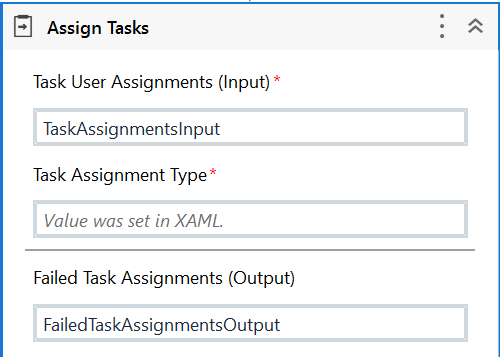
-
-
Drag a Write Line activity, to output the number of failed task assignments. In the Text property field, pass the
List<TaskAssignmentResponse>type variable, then use the.Countand.ToStringproperties. For this example, pass the following expression:FailedTaskAssignemntsOutput.Count.ToString.
Start Job and Resume After Completion
Starts an unattended process and suspends the workflow until a particular job is completed.
- Drag a Start Job And Get Reference activity into your workflow. This activity starts a Job in Orchestrator, based on the arguments inputted, and then retrieves the corresponding Job Object. See the Start Job And Get Reference page for more information about the activity.
-
In the ProcessName property field, pass the Display name of the Process that you want to use for the Job. For this example, store the name inside a variable. Press
CTRL +kon your keyboard and create aStringtype variable and name itProcessName. In the Value field, pass the Display name of the Process, for example,TestProcess_test.noteThe Display name needs to be written in the following format:
packageName _environment.
-
In the Job Arguments (Collection) property, create the arguments that you want to use when invoking the job in Orchestrator. This property modifies the
OutandIn/Outtype of arguments based on the input received from the Job in Orchestrator, and then maps them back into the workflow. For this example, create aStringType argument, namedTest, of DirectionIn/Out. In the Value field, pressCTRL + kon your keyboard and create aStringtype variable. Name the variableTest.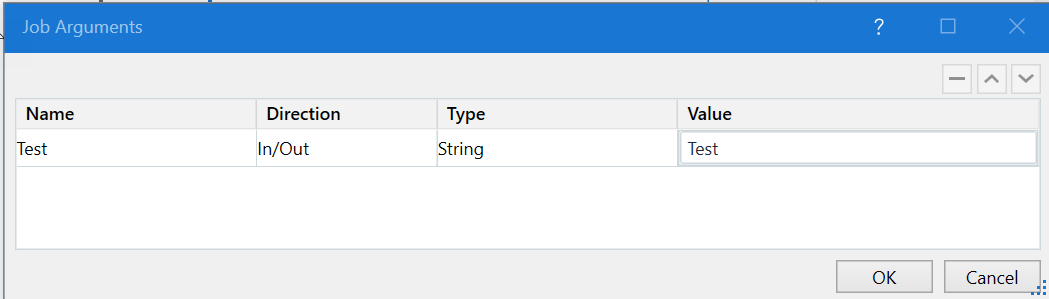
-
In the Job Object (Output) property field, press
CTRL + kon your keyboard and create aJobDatatype variable, namedJobPersistenceData. This variable stores the Job Data Object created when the Job in Orchestrator is invoked, in order to use it for the Wait for Job and Resume activity.
-
- Add any activities that you want to run before the workflow is suspended to retrieve data about the
JobDataobject. - Drag a Wait for Job and Resume activity into your workflow. This activity suspends the workflow until a specific Job in Orchestrator is completed. After the Job is completed, the workflow is resumed.
- In the Job Object (Input) property field, pass the
JobDatatype variable, created for the Start Job And Get Reference activity. For this example, pass theJobPersistenceDatavariable. This points the Robot to the exact Job that needs to be completed until the workflow is resumed. - In the Job Object (Output) property field, press
CTRL + kon your keyboard and create aJobDatatype variable. For this example, name itJobDataObject.
- In the Job Object (Input) property field, pass the
- Drag a Write Line activity, in order to print out the argument that has been mapped back into the workflow. In the Text property field, pass the variable used as the Value for the argument created in the Job Arguments (Collection). For this example, pass the
Testvariable.
Suspend and Resume after 1 hour
This snippet suspends the given workflow and resumes it after one hour.
-
Add any activities that you want to run before the workflow is suspended.
-
Drag a Resume After Delay activity into your workflow. This activity suspends the given workflow and resumes it at a specified date and time. See the Resume After Delay page to learn more about this activity.
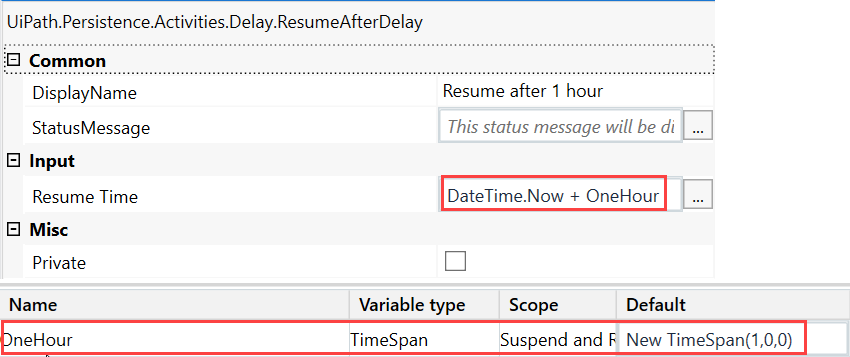
- In the Variables panel, create a
System.TimeSpantype variable. For this example, name the variableOneHour. Set the Default value of theTimeSpanvariable asNew TimeSpan(1,0,0). - In the Resume Time property field of the activity, pass the
DateTime.Nowexpression and theTimeSpanvariable. For this example, pass the following expression:DateTime.Now + OneHour.
- In the Variables panel, create a
-
Add any activities that you want to run after the workflow is resumed.
Suspend and Resume After 5 Minutes
This snippet suspends the given workflow and resumes it after five minutes.
-
Drag any activities that you want to run before the workflow is suspended.
-
Drag a Resume After Delay activity into your workflow. This activity suspends the given workflow and resumes it at a specified date and time.
- In the Variables panel, create a
System.TimeSpantype variable. For this example, name the variableFiveMinute. Set the Default value of theTimeSpanvariable asNew TimeSpan(0,5,0). - In the Resume Time property field of the activity, pass the
DateTime.Nowexpression and theTimeSpanvariable. For this example, pass the following expression:DateTime.Now + FiveMinute.

- In the Variables panel, create a
-
Drag any activities that you want to run after the workflow is resumed.
Suspend and Resume After 90 Seconds
This snippet suspends the given workflow and resumes it after ninety seconds.
-
Add any activities that you want to run before the workflow is suspended.
-
Drag a Resume After Delay activity into your workflow. This activity suspends the given workflow and resumes it at a specified date and time.
- In the Variables panel, create a
System.TimeSpantype variable. For this example, name the variableNinetySeconds. Set the Default value of theTimeSpanvariable asNew TimeSpan(0,0,90). - In the Resume Time property field of the activity, pass the
DateTime.Nowexpression and theTimeSpanvariable. For this example, pass the following expression:DateTime.Now + NinetySeconds.

- In the Variables panel, create a
-
Drag any activities that you want to run after the workflow is resumed.
Wait For All Form Tasks Completion
This snippet creates multiple Form Actions in a loop, based on the number of invoices in a data table, and suspends the workflow until all the actions are completed.
-
Drag a BuildDataTable activity into your workflow.
- In the Output property field, press
CTRL + kon your keyboard and create aDataTabletype variable, to store the data table that you are building. For this example, name theDataTablevariable asHighValueInvoices. - Click
 . The Build Data Table window opens.
 - Rename
Column1asInvoiceNumberandColumn2asInvoiceAmount. - Add data inside the rows of the table and press OK.

- In the Output property field, press
-
Drag an Assign activity into your workflow. This activity assigns a name for the Data Table, stored in a
Stringvariable.- In the To property field, pass the
DataTablevariable. For this example, pass theHighValueInvoicesvariable. - In the Value property field, press
CTRL + kon your keyboard and create aStringtype variable. For this example, name itDataTableName. Set the Default value of theDataTableNamevariable as ``"invoices"`.
- In the To property field, pass the
-
Drag a For Each activity into your workflow. In the List of items property field, pass an expression with the following format:
DataTableVariable.Rows. For this example, passHighValueInvoices.Rows. This iterates through every row in the data table. -
Drag a Create Form Task activity inside the Body of the For Each activity.
- In the Task Title property field, input the Invoice Number value that the For Each activity retrieves and convert it to String. For this example, input the following expression:
item("InvoiceNumber").ToString, whereInvoiceNumberis the name of the column holding the respective number for each invoice. - In the Form Data (Collection), create an argument that passes each invoice amount inside the Form Action. Create a
StringType argument and set the Direction asIn. In the Value field, input each invoice amount and convert them to String. For this example, input the following expression:item("InvoiceAmount").ToString, whereInvoiceAmountis the name of the column holding the respective amount for each invoice. - In the TaskObject(Output) property field, press
CTRL + kon your keyboard and create aFormTaskDatatype variable. For this example, name the variable asTaskPersistData.

- In the Task Title property field, input the Invoice Number value that the For Each activity retrieves and convert it to String. For this example, input the following expression:
-
Drag an Add To Collection activity inside the Body of the For Each activity.
- In the Collection property field, press
CTRL + kon your keyboard and create aList<FormTaskData>variable and name itTaskList. Go to the Variables panel and initialize the variable in the Default field asNew List(Of UiPath.Persistence.Activities.FormTask.FormTaskData. - In the Item property field pass the
FormTaskDatavariable, created to store the data on the Form Actions created. For this example, pass theTaskPersistDatavariable. - For the TypeArgument property, choose
UiPath.Persistence.Activities.FormTask.FormTaskData.
- In the Collection property field, press
-
Drag a Parallel For Each activity into your workflow.
- For the TypeArgument property, choose
UiPath.Persistence.Activities.FormTask.FormTaskData. - In the Values property field, pass the
List<FormTaskData>variable. For this example, pass theTaskListvariable.
- For the TypeArgument property, choose
-
Drag a Wait for Form Task and Resume activity into the body of the Parallel For Each activity.
- In the TaskObject(Input) property field, input the
itemobject, referenced in the Parallel For Each activity. In this case, theitemobject represents the Form Actions stored in theTaskListvariable. - In the TaskAction property field, press
CTRL + kon your keyboard and create aStringvariable. For this example, name itTaskAction. - In the TaskObject(Output) property field, press
CTRL + kon your keyboard and create aFormTaskDatavariable. For this example, name itTaskData.

- In the TaskObject(Input) property field, input the
-
Drag a Write Line activity into your workflow. This activity displays in the Output panel the action taken by the user to complete the Form Action. In the Text value, input the
TaskActionvariable.
Wait for Any Form Task Completion
This snippet creates multiple Form Actions in sequence and suspends the workflow until any of the Form Actions is completed.
-
Drag a Create Form Task activity into your sequence workflow.
- In the TaskTitle property field, press
CTRL + kon your keyboard and create aStringvariable. Name itTaskTitle1. In the Variables panel, set the Default value as"Task - " + "Approver 1". - In the FormData(Collection) property, create an argument of Type
Stringand DirectionIn. Name the argumentApproverand set the Value as"Approver1". - In the TaskObject(Output) property field, press
CTRL + kon your keyboard and create aFormTaskDatavariable. For this example, name the variableTaskPersistData1.
- In the TaskTitle property field, press
-
Drag a second Create Form Task activity into your workflow.
- In the TaskTitle property field, press
CTRL + kon your keyboard and create aStringvariable. Name itTaskTitle2. In the Variables panel, set the Default value as"Task - " + "Approver 2". - In the FormData(Collection) property, create an argument of Type
Stringand DirectionIn. Name the argumentApproverand set the Value as"Approver2". - In the TaskObject(Output) property field, press
CTRL + kon your keyboard and create aFormTaskDatavariable. For this example, name the variableTaskPersistData2.
- In the TaskTitle property field, press
-
Drag a third Create Form Task activity into your workflow.
- In the TaskTitle property field, press
CTRL + kon your keyboard and create aStringvariable. Name itTaskTitle3. In the Variables panel, set the Default value as"Task - " + "Approver 3". - In the FormData(Collection) property, create an argument of Type
Stringand DirectionIn. Name the argumentApproverand set the Value as"Approver3". - In the TaskObject(Output) property field, press
CTRL + kon your keyboard and create aFormTaskDatavariable. For this example, name the variableTaskPersistData3.
- In the TaskTitle property field, press
-
Drag a Pick activity into your workflow.
-
Drag a Pick Branch activity into the body of the Pick activity. Rename the activity as
Pick Branch (Task1). -
Drag a Wait For Form Task And Resume activity into the Trigger body of the
Pick Branch (Task1)activity.- In the TaskObject (Input) property field, pass the
FormTaskDatavariable created to store data about the Form Action. For this example, pass theTaskPersistData1variable. - In the TaskAction property field, press
CTRL + kand create aStringvariable. Name itTaskAction1. - In the TaskObject(Output) property field, press
CTRL+ kon your keyboard and create aFormTaskDatavariable. Name itTaskData1.
- In the TaskObject (Input) property field, pass the
-
Drag a Write Line activity into the Action body of the
Pick Branch (Task1)activity. This activity is meant to display in the Output panel the action taken by the user to complete the Form Action. In the Text value, input theTaskAction1variable.
-
Drag a Pick Branch activity into the body of the Pick activity. Rename the activity as
Pick Branch (Task2). -
Drag a Wait For Form Task And Resume activity into the Trigger body of the
Pick Branch (Task2)activity.- In the TaskObject (Input) property field, pass the
FormTaskDatavariable created to store data about the Form Action. For this example, pass theTaskPersistData2variable. - In the TaskAction property field, press
CTRL + kand create aStringvariable. Name itTaskAction2. - In the TaskObject(Output) property field, press
CTRL+ kon your keyboard and create aFormTaskDatavariable. Name itTaskData2.
- In the TaskObject (Input) property field, pass the
-
Drag a Write Line activity into the Action body of the
Pick Branch (Task2)activity. This activity displays in the Output panel the action taken by the user to complete the Form Action. In the Text value, input theTaskAction2variable. -
Drag a Pick Branch activity into the body of the Pick activity. Rename the activity as
Pick Branch (Task3). -
Drag a Wait For Form Task And Resume activity into the Trigger body of the
Pick Branch (Task3)activity.- In the TaskObject (Input) property field, pass the
FormTaskDatavariable created to store data about the Form Action. For this example, pass theTaskPersistData3variable. - In the TaskAction property field, press
CTRL + kand create aStringvariable. Name itTaskAction3. - In the TaskObject(Output) property field, press
CTRL+ kon your keyboard and create aFormTaskDatavariable. Name itTaskData3.
- In the TaskObject (Input) property field, pass the
-
Drag a Write Line activity into the Action body of the
Pick Branch (Task3)activity. This activity displays in the Output panel the action taken by the user to complete the Form Action. In the Text value, input theTaskAction3variable.
Wait For Some Form Tasks Completion in Loop
This snippet creates multiple Form Actions, based on input from a Data Table, and suspends the workflow until a certain set of Form Actions are completed.
-
Drag a Build Data Table activity into your workflow.
- In the DataTable property field, press
CTRL + kon your keyboard and create aSystem.DataTablevariable. For this example, name itCodeReviews. - Click . The Build Data Table window opens.
- Rename
Column1asReviewerNameandColumn2asReviewerType. Set the Type of theReviewerTypecolumn toString. - Add data inside the rows of the table. For the
ReviewerTypecolumn, this example uses two types of reviewers: code owners and reviewers.

- In the DataTable property field, press
-
Drag an Assign activity into your workflow. This assigns a name to the data table you created. In the To property field, pass the
System.DataTablevariable and add.TableNameproperty to it. In the Value field, pressCTRL + kon your keyboard and create aStringvariable. For this example, name itDataTableName. -
Drag a Parallel For Each activity into your workflow. For this example, name it
Create Tasks for PR Review.- In the Values property field, pass the
System.DataTablevariable and add the property.AsEnumerable. For this example, pass the following expression:CodeReviews.AsEnumerable.
- In the Values property field, pass the
-
Drag an Assign activity in the Body of the Parallel For Each activity.
- In the To property field, press
CTRL + kon your keyboard and create aStringvariable, that holds the data retrieved from theReviewerTypecolumn in theCodeReviewsdata table. For this example, name the variableReviewerType. - In the Value property field, pass an expression that retrieves each row item from the
ReviewerTypecolumn and stores it in the variable created inside the To field. For this example, pass the following expression:ìtem("ReviewerType").toString.

- In the To property field, press
-
Drag a Create Form Task activity into the Body of the Parallel For Each activity.
- In the TaskTitle property field, pass the following expression:
"Code Review - " + InPullRequestName. TheInPullRequestNameis aStringvariable, that has the Default value"#1". - In the FormData(Collection) property, create four arguments of Type
String: - 'PR Number' - with the Direction
In, and the Value set as theInPullRequestName. Reviewer Name- with the DirectionIn, and the Value set asitem("ReviewerName").toString.Reviewer Type- with the DirectionIn/Out, and the value set as theReviewerTypevariable.Reviewer Comment- with the DirectionOut. In the Value field, pressCTRL + kon your keyboard and create aStringvariable. Name itReviewerComments. This argument maps into the workflow whatever comments are made in the Action.- In the TaskObject(Output) property field, press
CTRL + kon your keyboard and create aFormTaskDatavariable. Name itTaskPersistData.

- In the TaskTitle property field, pass the following expression:
-
Drag an Add To Collection activity into the body of the Parallel For Each activity. This activity stores all the Form Actions created into a list.
- In the Collection property field, press
CTRL + kon your keyboard and create aList<FormTaskData>variable. Name itTaskDataList. Go to the Variables panel and set the Default value of the variable asNew List(of UiPath.Persistence.Activities.FormTask.FormTaskData). - In the Item property field, pass the
FormTaskDatavariable. For this example, pass theTaskPersistDatavariable. - For the TypeArgument property, choose
UiPath.Persistence.Activities.FormTask.FormTaskData.
- In the Collection property field, press
-
In the Variables panel, create two variables of type
Int32and set their Default value to0:OwnersApprovalsandReviewersApprovals. -
Drag another Parallel For Each activity. For this example, name it
Wait for Conditional Task(s) Completion.- In the Condition property field, pass the following expression:
OwnersApprovals>=2 Or (OwnersApprovals = 1 And ReviewersApprovals>=2). This conditions the workflow to resume only when the condition is met. - For the TypeArgument property, choose
UiPath.Persistence.Activities.FormTask.FormTaskData. - In the Value property field, pass the list where the Form Actions are stored. For this example, pass the
TaskDataListvariable.

- In the Condition property field, pass the following expression:
-
Drag a Sequence activity into the Body of the Wait For Conditional Task(s) Completion activity. Rename it
Wait for Task and Resume. -
Drag a Wait For Form Task And Resume activity into the Wait for Task and Resume sequence activity.
- In the TaskObject(Input) property field, pass the
itemvariable. - In the TaskAction property field press
CTRL + kon your keyboard and create aStringvariable. For this example, name itTaskAction. - In the TaskObject(Output) property field, press
CTRL + kon your keyboard and create aFormTaskDatavariable. For this example, name itTaskData.
- In the TaskObject(Input) property field, pass the
-
Drag an If activity into the Wait for Task and Resume sequence activity. This activity is meant to count the number of Form Actions that have been approved by code owners.
- In the Condition property field pass the following expression:
TaskAction="approve" And ReviewerType="code owner". - Drag and drop an Assign activity in the Then block. In the To property field, pass the
OwnersApprovalsvariable. In the Value property field pass theOwnersApprovals + 1expression.

- In the Condition property field pass the following expression:
-
Drag another If activity into the Wait for Task and Resume sequence activity. This activity is meant to count the number of Form Actions that have been approved by reviewers.
- In the Condition property field pass the following expression:
TaskAction="approve" And ReviewerType="reviewer". - Drag an Assign activity in the Then block. In the To property field, pass the
ReviewersApprovalsvariable. In the Value property field pass theReviewersApprovals + 1expression.

- In the Condition property field pass the following expression:
-
Drag three Write Line activity into the Wait for Task and Resume sequence activity. This activity displays the given values in the Output panel.
- In the first activity, pass the
ReviewCommentsvariable. - In the second activity, pass the
OwnersApprovalsvariable and add the.toStringproperty. - In the third activity, pass the
ReviewersApprovalsvariable and add the.toStringproperty.
- In the first activity, pass the
Wait For Some Form Tasks Completion
This snippet creates three Form Actions and suspends the workflow until two Actions are completed.
-
Drag a Create Form Task activity into your sequence workflow.
- In the TaskTitle property field, press
CTRL + kon your keyboard and create aStringvariable. Name itTaskTitle1. In the Variables panel, set the Default value as"Task - " + "Approver 1". - In the FormData(Collection) property, create an argument of Type
Stringand DirectionIn. Name the argumentApproverand set the Value as"Approver1". - In the TaskObject(Output) property field, press
CTRL + kon your keyboard and create aFormTaskDatavariable. For this example, name the variableTaskPersistData1.
- In the TaskTitle property field, press
-
Drag a Create Form Activity into your sequence workflow.
- In the TaskTitle property field, press
CTRL + kon your keyboard and create aStringvariable. Name itTaskTitle2. In the Variables panel, set the Default value as"Task - " + "Approver 2". - In the FormData(Collection) property, create an argument of Type
Stringand DirectionIn. Name the argumentApproverand set the Value as"Approver2". - In the TaskObject(Output) property field, press
CTRL + kon your keyboard and create aFormTaskDatavariable. For this example, name the variableTaskPersistData2.
- In the TaskTitle property field, press
-
Drag a Create Form Activity into your sequence workflow.
- In the TaskTitle property field, press
CTRL + kon your keyboard and create aStringvariable. Name itTaskTitle3. In the Variables panel, set the Default value as"Task - " + "Approver 3". - In the FormData(Collection) property, create an argument of Type
Stringand DirectionIn. Name the argumentApproverand set the Value as"Approver3". - In the TaskObject(Output) property field, press
CTRL + kon your keyboard and create aFormTaskDatavariable. For this example, name the variableTaskPersistData3.
- In the TaskTitle property field, press
-
Drag a Parallel activity into your workflow.
- In the Condition property field, press
CTRL + kon your keyboard and create aInt32variable. For this example, name the variableCompleteTasksCountand set the Default value to0. - In the Expression Editor inside the Condition property, set the condition as
CompleteTasksCount=2. This conditions the Parallel activity to complete when two out of the three actions are completed.

- In the Condition property field, press
-
Drag a Sequence activity into the body of the Parallel activity. Rename the activity as
Sequence Task1. -
In the
Sequence Task1activity, drag a Wait For Form Task and Resume activity. Rename it asWait for Form Task and Resume(Task1).- In the TaskObject (Input) property field, pass the
FormTaskDatavariable created to store data about the Form Action. For this example, pass theTaskPersistData1variable. - In the TaskAction property field, press
CTRL + kand create aStringvariable. Name itTaskAction1. - In the TaskObject(Output) property field, press
CTRL+ kon your keyboard and create aFormTaskDatavariable. Name itTaskData1.

- In the TaskObject (Input) property field, pass the
-
Drag a Write Line activity into the Action body of the
Sequence Task1activity. This activity is meant to display in the Output panel the action taken by the user to complete the Form Action. In the Text value, input theTaskAction1variable. -
Drag an Assign activity in the
Wait for Form Task and Resume(Task1)activity. Pass theCompleteTaskCountin the To field and theCompleteTaskCount+ 1 expression in the Valuefield. If the action is completed and the workflow is resumed, then a new iteration is added to theCompleteTaskCountvariable.
-
Drag a Sequence activity into the body of the Parallel activity. Rename the activity as
Sequence Task2. -
In the
Sequence Task2activity, drag and drop a Wait For Form Task and Resume activity. Rename it asWait for Form Task and Resume(Task2)- In the TaskObject (Input) property field, pass the FormTaskData variable created to store data about the Form Action. For this example, pass the
TaskPersistData2variable. - In the TaskAction property field, press
CTRL + kand create a String variable. Name it TaskAction2 - In the TaskObject(Output) property field, press CTRL+ k on your keyboard and create a
FormTaskDatavariable. Name itTaskData2.
- In the TaskObject (Input) property field, pass the FormTaskData variable created to store data about the Form Action. For this example, pass the
-
Drag a Write Line activity into the body of the
Sequence Task2activity. This activity displays in the Output panel the action taken by the user to complete the Form Action. In the Text value, input theTaskAction2variable. -
Drag an Assign activity in the
Wait for Form Task and Resume(Task2)activity. Pass theCompleteTaskCountin the To field and theCompleteTaskCount + 1expression in the Value field. If the action is completed and the workflow is resumed, then a new iteration is added to theCompleteTaskCountvariable. -
Drag a Sequence activity into the body of the Parallel activity. Rename the activity as
Sequence Task3. -
In the
Sequence Task3activity, drag and drop a Wait For Form Task and Resume activity. Rename it asWait for Form Task and Resume(Task3).- In the TaskObject (Input) property field, pass the
FormTaskDatavariable created to store data about the Form Action. For this example, pass theTaskPersistData3variable. - In the TaskAction property field, press
CTRL + kand create aStringvariable. Name itTaskAction3. - In the TaskObject(Output) property field, press
CTRL+ kon your keyboard and create aFormTaskDatavariable. Name itTaskData3.
- In the TaskObject (Input) property field, pass the
-
Drag a Write Line activity into the Action body of the
Sequence Task3activity. This activity is meant to display in the Output panel the action taken by the user to complete the Form Action. In the Text value, input theTaskAction3variable. -
Drag an Assign activity in the
Wait for Form Task and Resume(Task3)activity. Pass theCompleteTaskCountin the To field and theCompleteTaskCount + 1expression in the Value field. If the action is completed and the workflow is resumed, then a new iteration is added to theCompleteTaskCountvariable.