Connecting to the server
Once the server is deployed, to connect to it when using the Computer Vision activities, you must change the endpoints for the CV Screen Scope and UiPath Screen OCR activities.
Changing the endpoints on activity level
On activity level in your UiPath Studio project, you need to change:
- the URL property value of the CV Screen Scope activity, and
- the Endpoint property value of the UiPath Screen OCR activity
to http://[MACHINE_URL]:[PORT], where [MACHINE_URL] is the address of the machine where the server is deployed, and [PORT] is the unique port on which the Computer Vision Server is set up.
For example, if the URL of your machine is k80-windows.azure.com, and the port you have chosen to work with is 8501, then the value of the property should look like http://k80-windows.azure.com:8501.
The API key property inside the CV Screen Scope can be left blank for on-premises deployment.
Changing the endpoints on project level
The default URLs can also be changed from the Project Settings page.
Changing the endpoint for CV Screen Scope
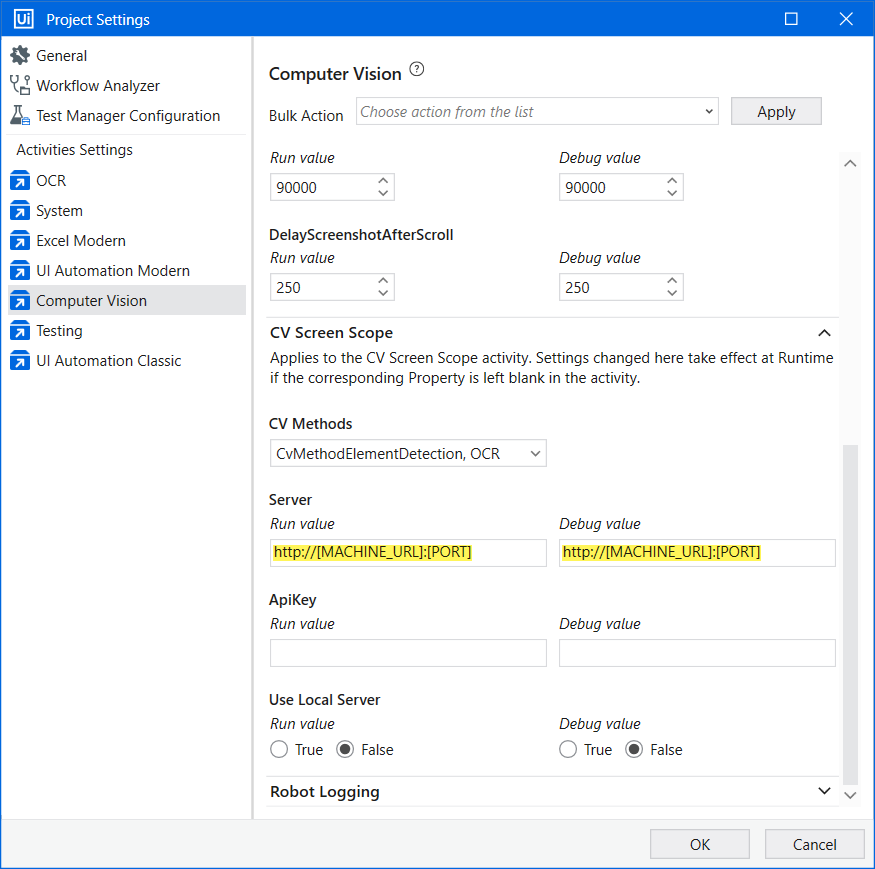
To change the endpoint for CV Screen Scope, go to UiPath Studio > your project > Project Settings > Computer Vision > CV Screen Scope > Server > Run value/Debug value > change https://cv.uipath.com to http://[MACHINE_URL]:[PORT], where [MACHINE_URL] is the address of the machine where the server is deployed, and [PORT] is the unique port on which the Computer Vision Server is set up.
Changing the endpoint for UiPath Screen OCR
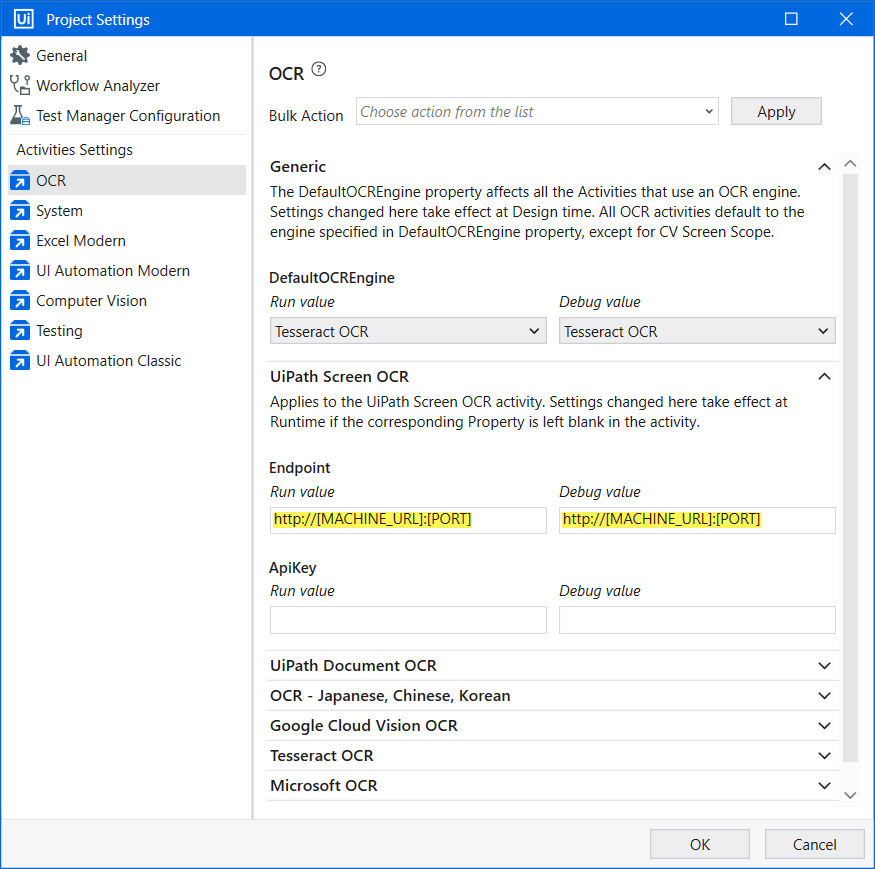
To change the endpoint for UiPath Screen OCR, go to UiPath Studio > your project > Project Settings > OCR > UiPath Screen OCR > Endpoint > Run value/Debug value > change https://ocr.uipath.com to http://[MACHINE_URL]:[PORT], where [MACHINE_URL] is the address of the machine where the server is deployed, and [PORT] is the unique port on which the Computer Vision Server is set up.
Enabling HTTPS
To encrypt communication, you can add a reverse proxy (for example, NGINX) in front of the container and configure TLS or SSL on this layer.
After enabling HTTPS communication, you need to change the endpoint for CV Screen Scope and for UiPath Screen OCR from https://cv.uipath.com to https://[MACHINE_URL]:[PORT], where [MACHINE_URL] is the address of the machine where the server is deployed, and [PORT] is the unique port on which the Computer Vision Server is set up.
Opening the default port
Make sure you have the port that is used by the Computer Vision activities (default 8501) open on the machine the model is deployed on. For client machines outside of the domain, the DNS is used instead.
To open the port on the server machine, you have to run the following console commands, replacing [PORT] with the actual port you want to use and [your-default-zone] with your system's zone (by default public):
apt install firewalld
            systemctl enable firewalld
            firewall-cmd --zone=[your-default-zone] --permanent --add-port=[PORT]/tcp
            firewall-cmd --reload
Changing the default port
The default port exposed by the server is 8501.
To change the default port, you must start the server with a different command.
Change the -p 8501:5000 flag to -p [NEW_PORT]:5000, where [NEW_PORT] is the port you want to use.
Restarting the server
To change the port to 5000, the restarting server command for Linux looks like this:
podman run -d
-p 8501:5000
--hooks-dir=/usr/share/containers/oci/hooks.d/ \--security-opt=label=disable --device=nvidia.com/gpu=all
--restart unless-stopped
--name controls_detection
container controls_detection eula=accept