Use DataTable with Table and Edit Grid controls
Make sure you already have a DataTable object in your app.
DataTables objects can be defined as input, output, or input/output arguments of a process. To use these DataTable objects, you need to reference the process where they are used as arguments.
DataTable only supports primitives in a column. Complex type arguments in a column do not function in DataTable.
Say you have a process named "Process_A", which has the DataTable objects as arguments:
| Input arguments | in_dt1 |
| Output arguments | out_dt1 |
| Input/Output arguments | inout_dt |
Table
-
Navigate to the General tab of your Table control.
-
In the Data source field of the control, open the expression editor, and write the following expression:
Processes.<process_name>.<datatable_output_argument>.ToListSourceFor example:
Processes.Process_A.out_dt1.ToListSource
The table columns should reflect the columns of the DataTable object.
Edit Grid
-
Navigate to the General tab of your Edit Grid control.
-
In the Data source field of the control, open the expression editor, and write the following expression:
Processes.<process_name>.<datatable_output_argument>.ToListSourceFor example:
Processes.Process_A.out_dt1.ToListSource -
To perform operations on the DataTable rows, such as adding, editing, or deleting:
-
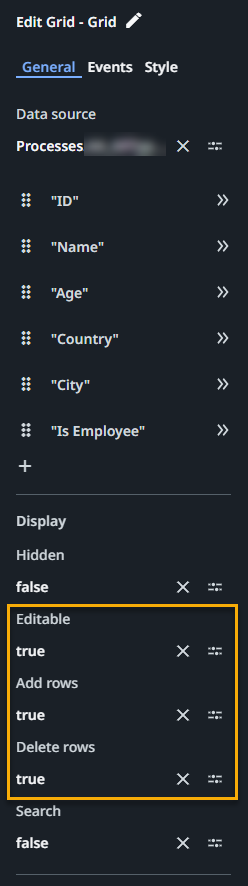
Make sure the Editable, Add rows, and Delete rows properties are set to true.
-
Switch to the Events tab of the Edit Grid control, then configure the corresponding rules:
-
To add rows, click Create rule for Row added, then use the Set Value rule:
Item To Set
Processes.<process_name>.<datatable_output_parameter>
For example:
Processes.Process_A.out_dt1Value
Processes.<process_name>.<datatable_output_parameter>.AddRow(MainPage.EditGrid.NewItem)
For example:
Processes.Process_A.out_dt1.AddRow(MainPage.EditGrid.NewItem) -
To delete rows, click Create rule for Row deleted, then use the Set Value rule:
Item To Set
Processes.<process_name>.<datatable_output_parameter>
For example:
Processes.Process_A.out_dt1Value
Processes.<process_name>.<datatable_output_parameter>.DeleteRowAt(MainPage.EditGrid.RowIndex)
For example:
Processes.Process_A.out_dt1.DeleteRowAt(MainPage.EditGrid.RowIndex) -
To modify rows, click Create rule for Row modified, then use the Set Value rule:
Item To Set
Processes.<process_name>.<datatable_output_parameter>
For example:
Processes.Process_A.out_dt1Value
Processes.<process_name>.<datatable_output_parameter>.UpdateRowAt(MainPage.EditGrid.RowIndex, MainPage.EditGrid.SelectedItem)
For example:
Processes.Process_A.out_dt1.UpdateRowAt(MainPage.EditGrid.RowIndex, MainPage.EditGrid.SelectedItem)
-
-