Google Text-to-Speech authentication
Prerequisites
To create a connection to the UiPath Google Text-to-Speech connector, you can choose between two authentication methods: API Key or OAuth 2.0 Authorization code.
Depending on the authentication type you select, you need one of the following credentials:
- API Key
- Client ID and Client secret
Refer to the Google Cloud Authentication documentation for more details on choosing the right authentication method for your use case.
Retrieve your credentials
API Key
-
Log in to your Google Cloud Console.
-
Create a new project or select an existing project which you want to use.

-
On your project dashboard, navigate to Quick access and select API & Services.

-
Select Enable APIs and Services.

-
Search for the API you want to enable. In this case, Text-to-Speech. Select it from the list, then select Enable.
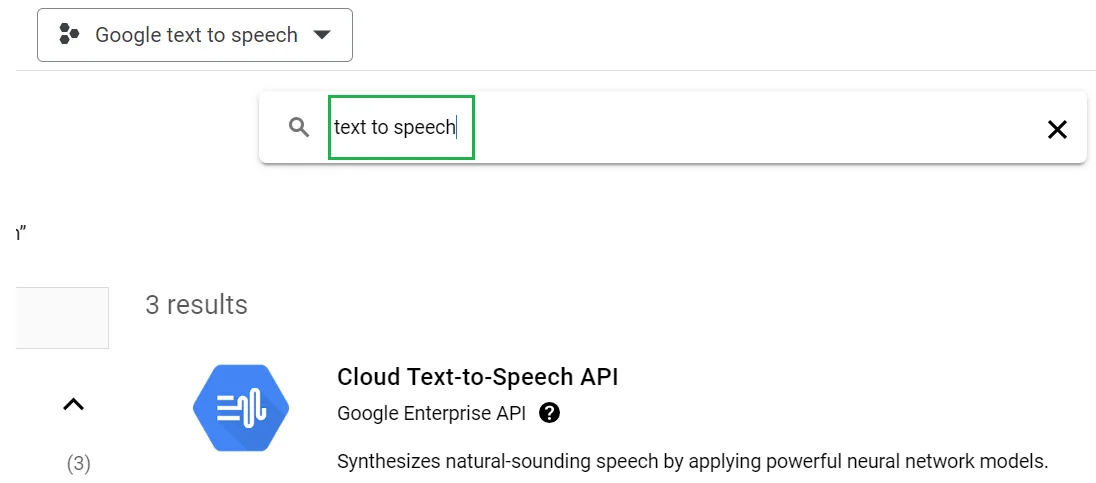
-
An API Enabled confirmation message will be displayed on the API page.

Note: You might be required to add a Billing Account.
-
Go back to the APIs & Services screen and select Credentials from the left-side panel.

-
Select Create Credentials. You can choose from several options: API key, OAuth client ID, or Service account.

-
Select API key. A key will be generated shortly.
-
Copy the API key and use it to create the connection in Integration Service. Note: We recommend you do not share the API key. API calls are billed.
OAuth Client ID and Client secret
-
Follow steps 1-8 from the previous section.
-
At the Create credentials step, select OAuth client ID.
-
Configure the application:
- Set Application type to Web application.
- Give your application a name.

-
Next, set the Redirect URI to:
https://{baseURL}/provisioning_/callback, then select Create. -
Once your application is created, copy the Client ID and Client secret or download the JSON file storing the credentials.

Add the Google Text-to-Speech connection
-
Select Orchestrator from the product launcher.
-
Select a folder, and then navigate to the Connections tab.
-
Select Add connection.
-
To open the connection creation page, select the connector from the list. You can use the search bar to find the connector.
-
Select the Add connection button.
-
You can choose between two authentication methods: OAuth 2.0 Authorization code or API Key.

-
Enter the required credentials and select Connect.
For any secret-type field, you can select the menu next to the field and choose Use credential asset to reference an Orchestrator credential asset linked to an external vault instead of entering the value directly. For more information, see Use credential assets for connections.