SAP Concur authentication
Prerequisites
To create a connection, you must provide the following credentials:
- Client ID
- Client Secret
- Scope
The Authorization Code grant is used for allowing users to connect to their Concur accounts.
Scopes
Concur administrators must provision the Client ID and Client secret so that not all users can access all scopes. Follow these Scope guidelines when provisioning the OAuth Client.
For the activities and objects supported in the UiPath.SapConcur.IntegrationService.Activities package, the following scopes are required:
openid EXPRPT IMAGE user.read CONFIG quickexpense.writeonly
Administrators can provision the Client ID and Client secret as they choose to, either for their use or a non-admin user’s use. Alternatively, organization administrators can create connections and share it with other users with limited scopes.
- The
openidscope is required to be able create a connection successfully. - Connections can't be created if one or more scopes requested during authentication are not among the allowed scopes for the OAuth client.
For SSO-enabled organizations, the authentication might fail. This is a known issue and will be fixed in a future release.
For more information regarding authentication, refer to the Concur documentation.
Add the SAP Concur connection
To create a connection to your Concur instance, you need to perform the following steps:
-
Select Orchestrator from the product launcher.
-
Select a folder, and then navigate to the Connections tab.
-
Select Add connection.
-
To open the connection creation page, select the connector from the list. You can use the search bar to find the connector.
-
Enter the Client ID, Client secret, and Scope, and select Connect.
For any secret-type field, you can select the menu next to the field and choose Use credential asset to reference an Orchestrator credential asset linked to an external vault instead of entering the value directly. For more information, see Use credential assets for connections.
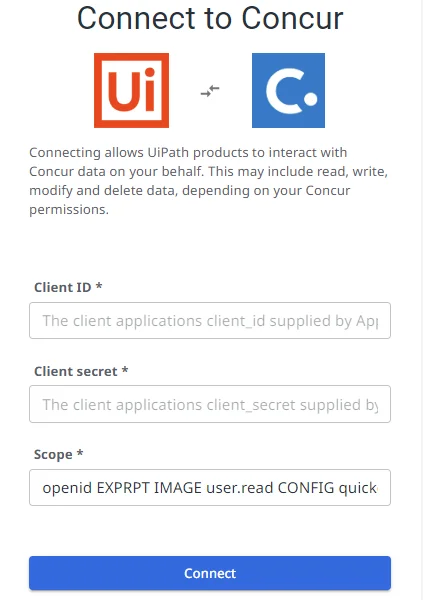
-
Next, you are prompted to enter your Concur login credentials. Enter either your email address (to receive a verification link; required for SSO users) or your username. If you select Username, select Continue and enter your password in the next window.
