SendGrid authentication
Prerequisites
To be able to create a connection, you need to provide the following credentials:
- API Key
Generate your API key
To generate an API key in your SendGrid account:
-
Access your account from the SendGrid sign in page.
-
Select your account name in the upper-left corner and then choose Account Details.

-
From left-side menu, select API Keys.

-
Select the Create API Key button in the upper-left corner.

-
Enter a name, choose Full Access, and then select Create & View.

-
Your API key is displayed on the screen. For security reasons, SendGrid cannot show you the API key again. Select on the API key to copy it and save it somewhere safe.

-
Select Done.
Add the SendGrid connection
To create a connection to your SendGrid instance, you need to perform the following steps:
-
Select Orchestrator from the product launcher.
-
Select a folder, and then navigate to the Connections tab.
-
Select Add connection.
-
To open the connection creation page, select the connector from the list. You can use the search bar to find the connector.
-
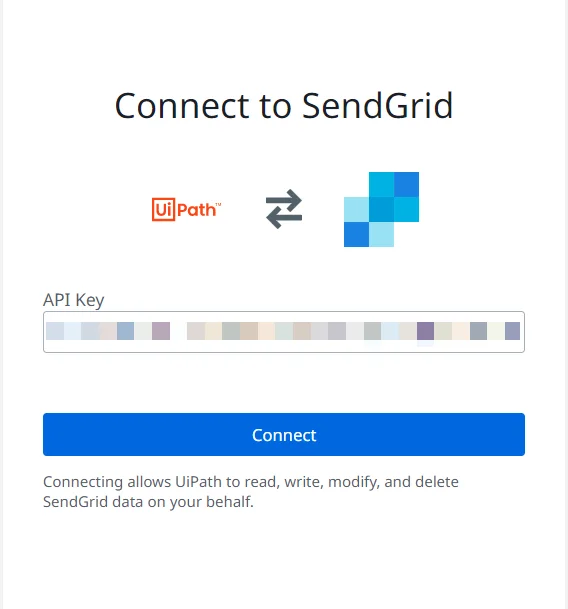
Enter your API Key and select Connect.
For any secret-type field, you can select the menu next to the field and choose Use credential asset to reference an Orchestrator credential asset linked to an external vault instead of entering the value directly. For more information, see Use credential assets for connections.