Icon
Activity Creator
COMING SOON! Icons will be added to the next version of the activity creator!

Generated Code
Until icon generation is added to the Activity Creator, you may use the Themes/Icons.xaml file in the Design Project (i.e. MyCompany.MyProject.Activities.Design) as reference.
We recommend using a tool like SharpVectors to convert SVG icons into XAML and pasting them in this file. Give the DrawingBrush a key in the form <Activity Name>Icon (e.g. AdditionIcon) and it will automatically be applied to the activity with that name.
<ResourceDictionary xmlns="http://schemas.microsoft.com/winfx/2006/xaml/presentation" xmlns:x="http://schemas.microsoft.com/winfx/2006/xaml">
<?comment-start?>
Simple Activity Icon
<?comment-end?>
    <Geometry x:Key="SimpleGeometry">F1 M50,50z M0,0z M25,2C12.318,2 2,12.317 2,25 2,37.683 12.318,48 25,48 37.682,48 48,37.683 48,25 48,12.317 37.682,2 25,2z M18.042,36.034L17.959,14.038 37,24.964 18.042,36.034z</Geometry>
    <DrawingGroup x:Key="SimpleDrawingGroup" ClipGeometry="M0,0 V50 H50 V0 H0 Z">
        <GeometryDrawing Brush="#FFFA4616" Geometry="{StaticResource SimpleGeometry}" />
    </DrawingGroup>
    <DrawingBrush x:Key="AdditionIcon" Drawing="{StaticResource SimpleDrawingGroup}" />SimpleDrawingGroup}" />
</ResourceDictionary>
Effect in UiPath Studio
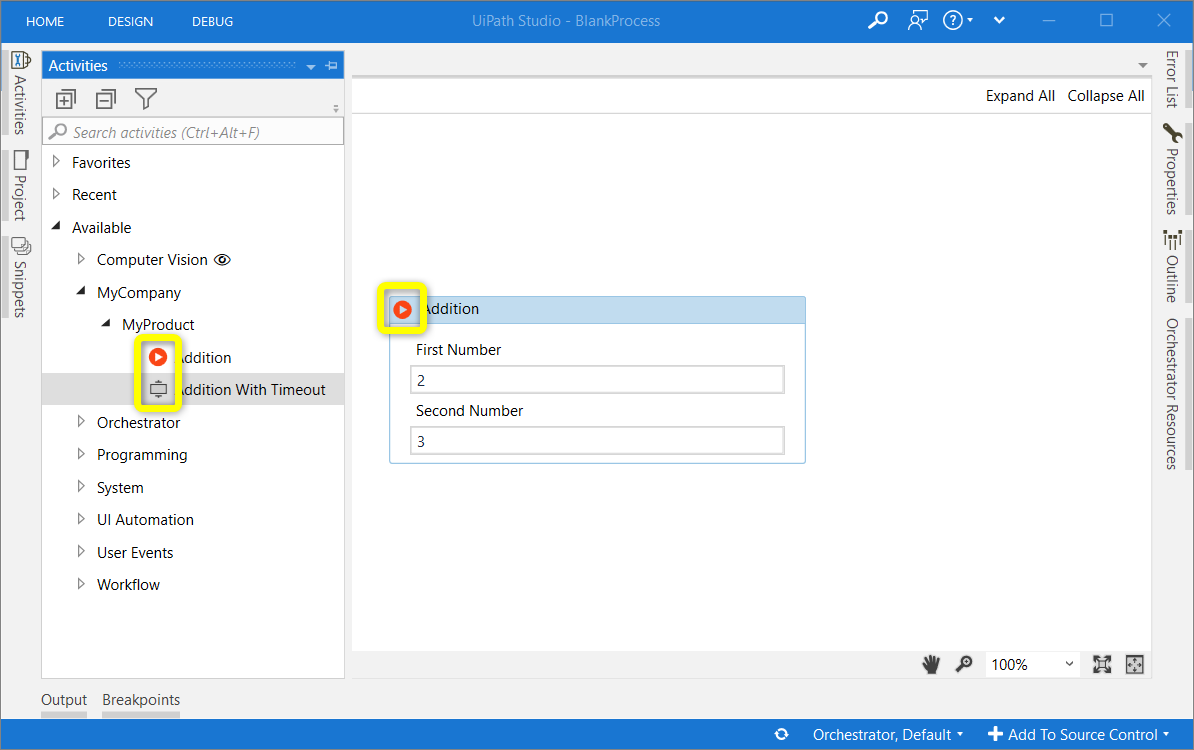
Icons are shown in the Activities pane and on the designer. If no icon is provided, a default is used (see the Addition With Timeout activity below).