Solution deployments
The Solution deployments page provides a centralized, cross-folder view of all deployed solutions in your Orchestrator environment. From here, you can monitor deployment status, access details, and manage your solutions.
Viewing solution deployments
The page displays a list of solution deployments in a table with the following columns:
- Name: the name of the deployed solution.
- Activated: indicates whether the deployment is active or inactive.
- Version: the version of the deployed solution.
- Location: the location where the solution is deployed (for example, a folder or personal workspace).
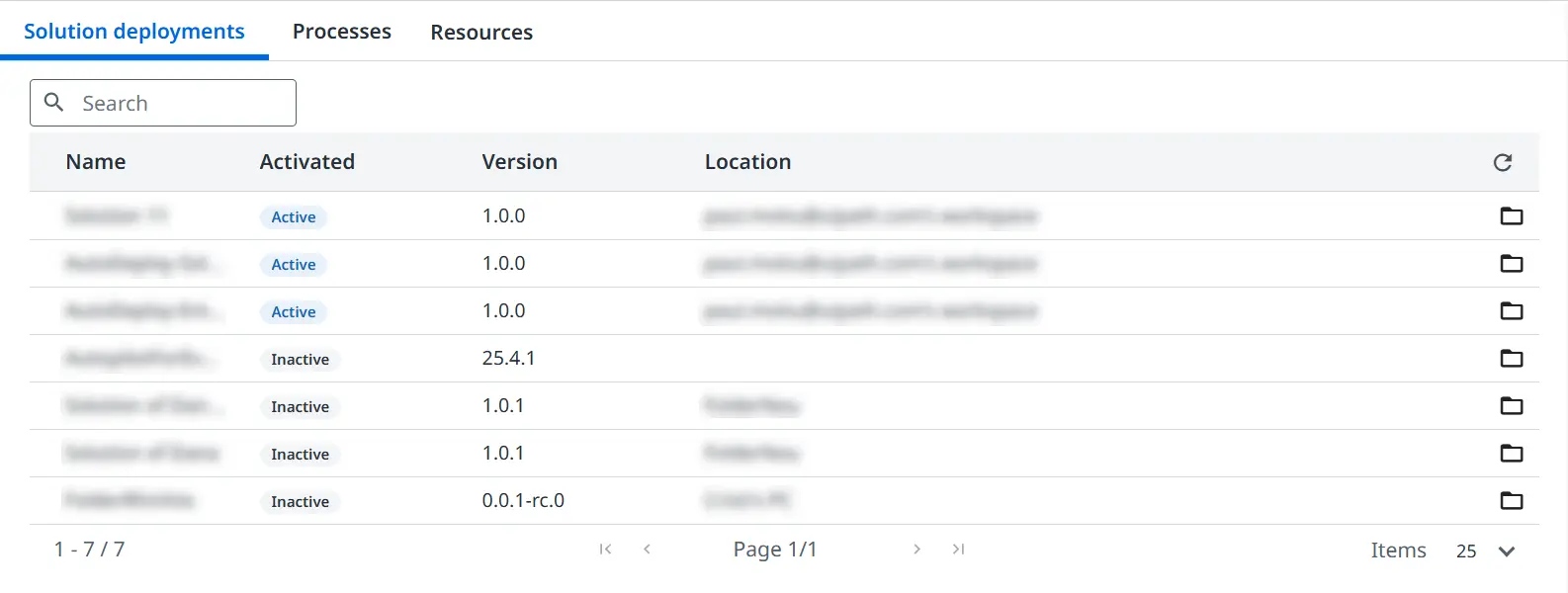
Use the Search field at the top of the page to quickly find a specific solution by name. For each solution, you can use the Go to solution folder button to navigate directly to the folder where the solution is deployed.
Viewing solution details
Selecting a solution opens a side panel that provides additional details and actions for that deployment.
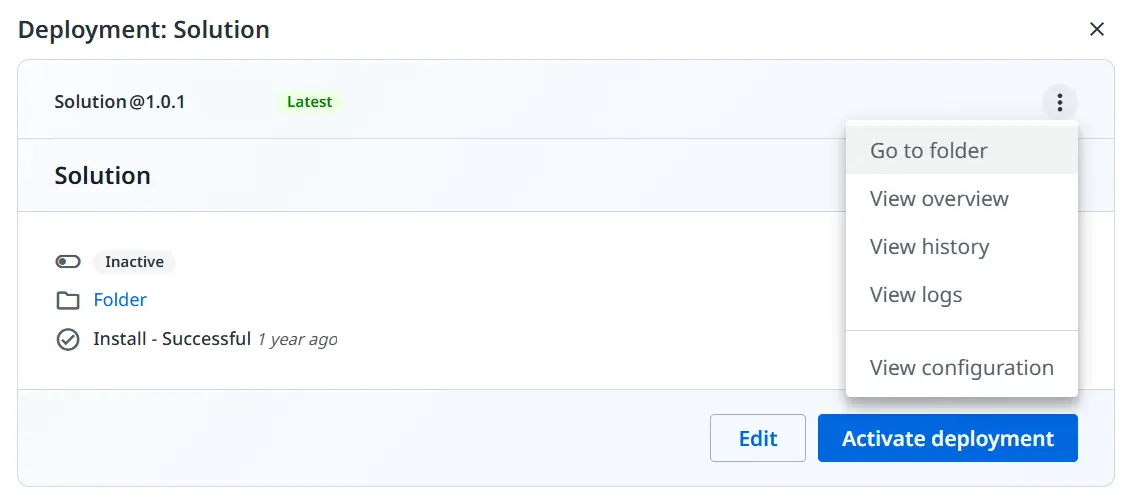
From this panel, you can:
- Access the following views:
- Overview
- History
- Logs
- Configuration
- Use the Edit option to modify the deployment configuration.
- Use Activate deployment to activate the selected solution.
Exploring resources and history
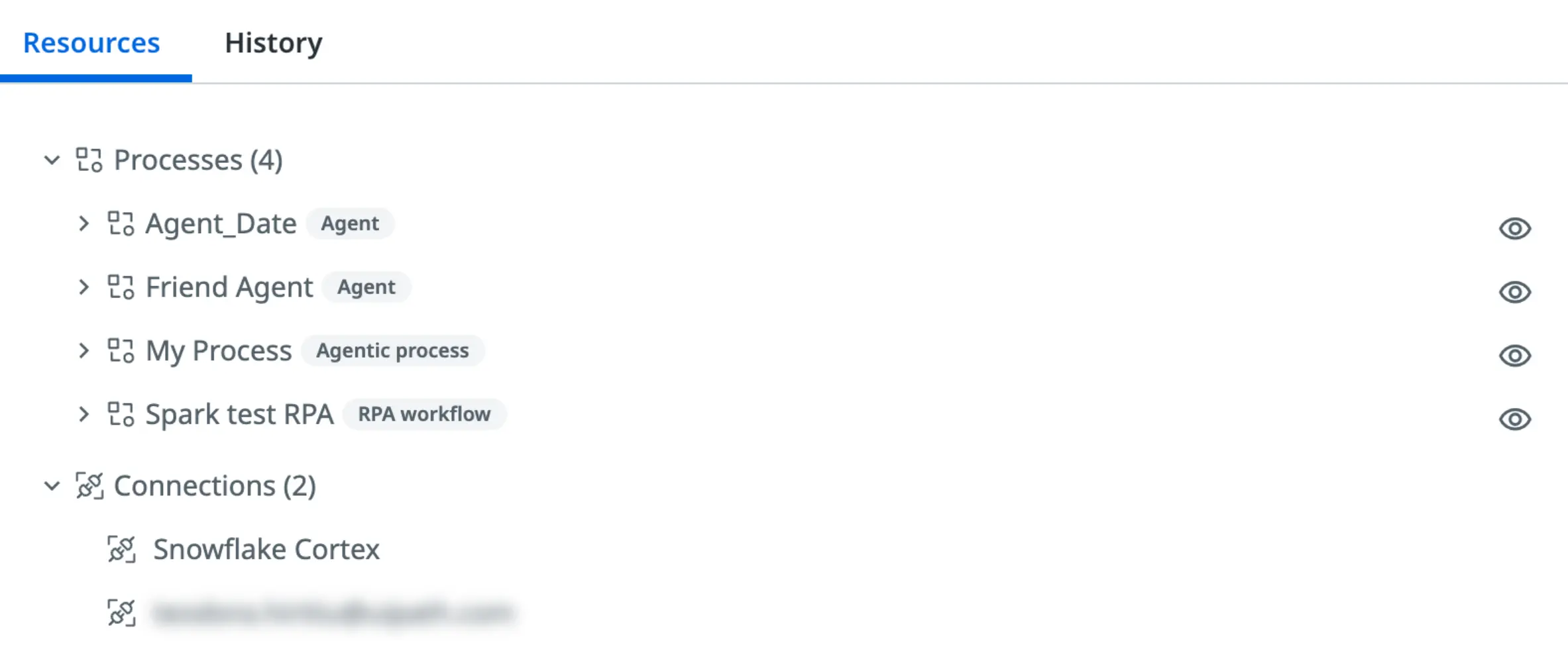
The side panel also includes the following tabs:
- Resources: displays the resources associated with the deployment, such as processes, connections, and assets.
- History: shows the deployment history, including previous versions and actions performed.