Self-signed Certificates
Self-signed certificates are a way to secure your data by encrypting the SAML response when using single-sign on authentication. The following section serves as an example of generating and using self-signed certificates in OKTA.
Generating a Self-Signed Certificate
There are multiple software applications which allow you to generate self-signed certificates, such as OpenSSL, MakeCert, IIS, Pluralsight or SelfSSL. For this example, we use MakeCert. In order to make a self-signed certificate with a private key, run the following commands from the Command Prompt:
makecert -r -pe -n “CN=UiPath” -e 01/01/2019 -sky exchange -sv makecert.pvk makecert.cerC:\Program Files (x86)\Microsoft SDKs\Windows\v7.1A\Bin\pvk2pfx.exe” -pvk makecert.pvk -spc makecert.cer -pfx makecert.pfx
Add the Certificate to Okta
-
Log in to Okta. The following setup is made in Classic UI view. You can change it from the drop-down on the top-right corner of the window.

-
On the Application tab, select your previously defined application.
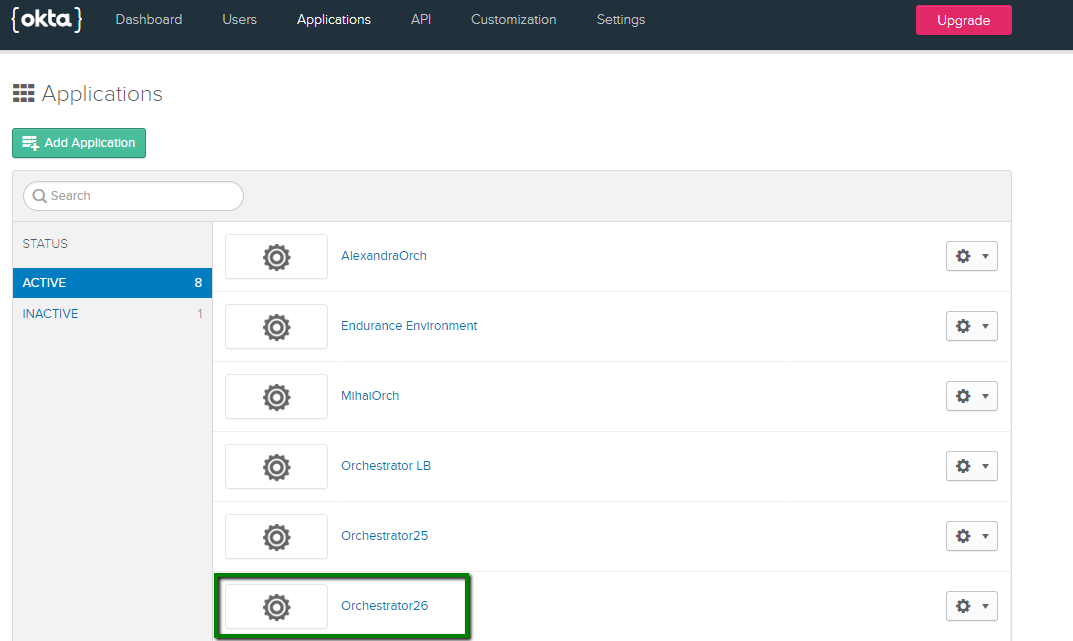
-
On the General tab, in the SAML Settings section, select Edit.
-
On the Configure SAML tab, select Show Advanced Settings.
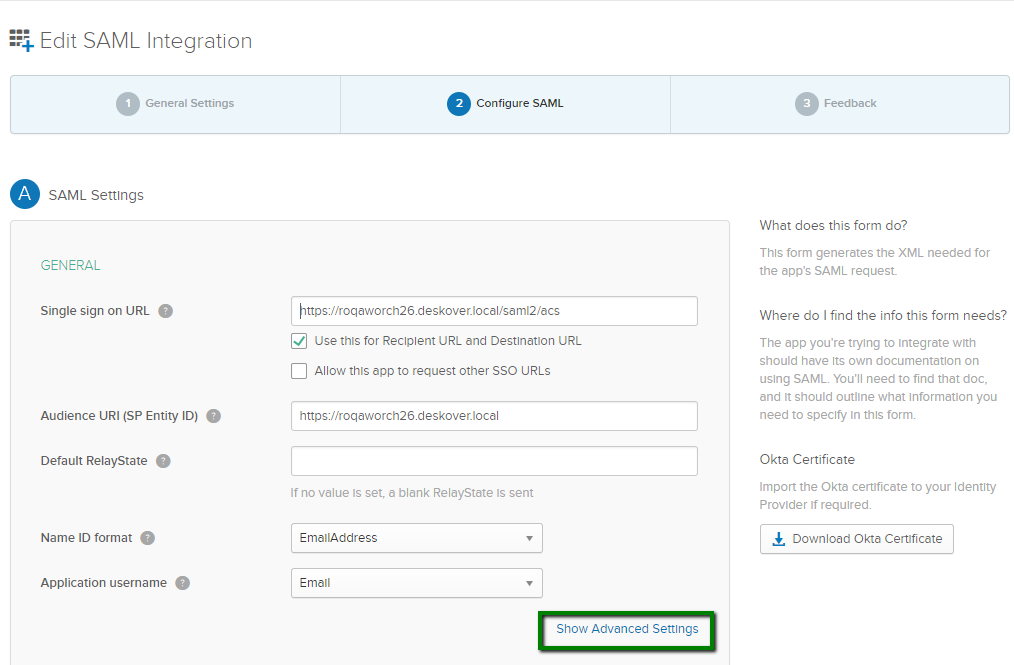
-
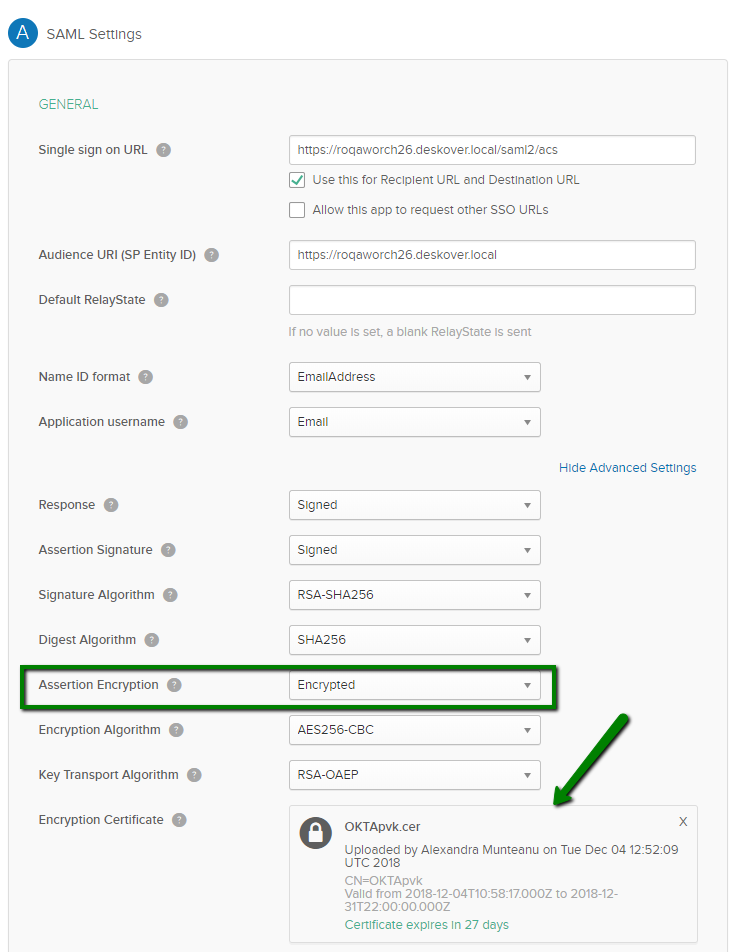
For the Assertion Encryption drop-down, select the Encrypted option.
-
The certificate is displayed in the Encryption Certificate field.
Set Orchestrator/Identity Server to Use the Certificate
-
Import the makecert.pfx certificate to the Windows certificate store using Microsoft Management Console. Refer to Private Key Certificates.
-
Log in to the host Management portal as a system administrator.
-
Select Security.
noteIf you are still using the old Admin experience, go to Users instead of Security.
-
Select Configure under SAML SSO:
The SAML SSO configuration page opens.
-
Under the Signing Certificate section, set the following:
- Store name - select
My - Store location - select
LocalMachine - Thumbprint - enter the thumbprint value you've previously prepared.
- Store name - select
-
Select Save at the bottom to save you changes and close the panel.
-
Restart the IIS server.