Uploading data
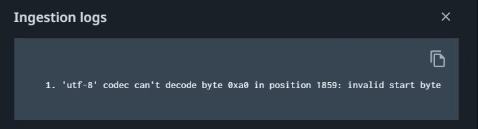
Message: utf-8 codec can't decode byte <byte> in position <position>: Invalid start byte
The following message is displayed in the data run log.
Possible cause
One or more input files you uploaded have an unexpected encoding.
Solution
Set the encoding to UTF-8 and set CR/LF end of line characters (Windows style).
You can change these settings in a file editor. For example in Notepad++.
- Open the datasource file in Notepad++.
- Go to Edit -> EOL Conversion and select Windows CR LF.
- Go to Encoding and select Convert to UTF-8.
- Save the file.
Message: File upload failed due to the following error: Network error
When uploading data using .csv or .tsv files, the following error message can occur:

Possible cause
Incorrect or missing HTTPS certificate.
Solution
The HTTPS certificate used by the BLOB store must be valid in your browser. Check the error and make sure to get the appropriate certificates.
- Go the Process Mining portal and press F12 to open the Developer tools.
Check the Console and Network tabs for the ERR: CERT_AUTHORITY_INVALID error. This indicates an error with the trust of the HTTPS certificate. The following illustration shows an example.

- Contact your IT department to install the certificate chain of the authority listed in the error and to add it to the trusted certificate store in operating system for all user that will be using the system. For example, pmcprddatawesa.blob.core.windows.net.