Exporting and importing transformations
Exporting transformations
Follow these steps to export the transformations from the process app.
| Steps | Action |
|---|---|
| 1 | Go to the Transformations panel and select the Import or export transformations icon to open the menu. icon to open the menu. |
| 2 | Select the Export transformations option. |
The transformations are that are used for the last full data run are exported and downloaded to your default download folder as a .zip file.
Importing transformations
Follow these steps to import the customized transformations in the process app.
| Step |
Action |
|---|---|
| 1 |
Go to the Transformations panel and select the Import or export transformations |
| 2 |
Note: If you have added new input tables or new input fields for existing tables to the data transformations, you must upload a new dataset before importing the data transformations. Select the Import transformations option. |
 icon to open the menu.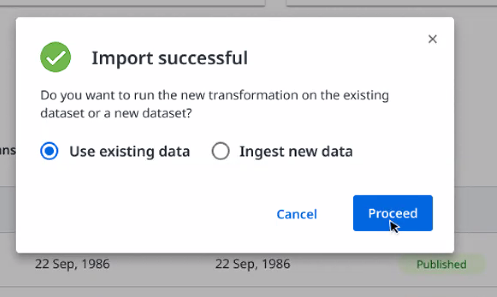
The transformations are imported and run, and the new data is displayed in the process app.
When the transformations are imported, the new transformations are automatically run. This will immediately affect the data displayed in the published process app. It is strongly recommended to test the new transformations in a separate test process app to prevent any errors. Running an erroneous transformation will result in the published app not being visible for end users.
If you select Cancel in the Import successful message dialog, the imported transformations will be available in the Data transformations editor, but the transformations are not run.