Scheduling Data Runs
In production environments, typically data for process apps is refreshed at regular intervals. For example, every day, or every week. To make sure this happens, the extraction process can be scheduled which has to trigger the app to start data transformation and refresh the data in the Process Mining process app. Refer to Retrieving the credentials for the Azure blob storage
In most cases Windows Task Scheduler is used to schedule the extraction script or process at regular intervals.
CData Sync Scheduler
If data extractions are done with CData Sync, you can use the CData Sync Scheduler to define a schedule to run the extraction job on a regular interval, check out Run the job - Scheduling jobs.
Running a Powershell script for Theobald Xtract Universal with Windows Task Scheduler
- Make sure you have installed PowerShell version 6 or higher. Check out the official Microsoft documentation on Installing Powershell on Windows.
- Make sure you have saved the DataUploader in the same folder as the
extract_theobald.ps1script and theconfig.jsonfile. For exampleC:\Scripts\SAP P2P.
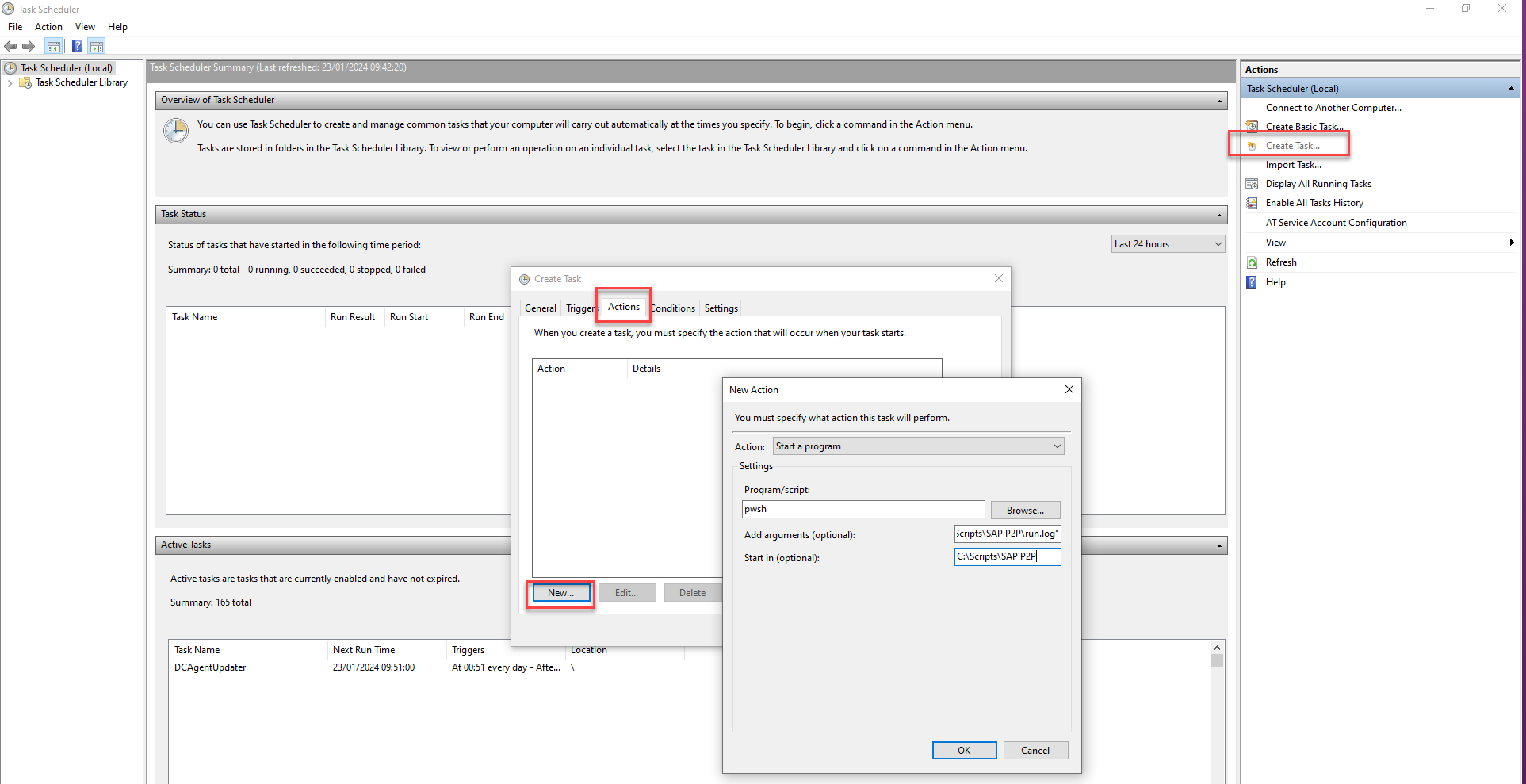
Refer to Configuring the extraction script and Setting up DataUploader. 3. Use the following parameters when defining an action for a task in Windows Task Scheduler.
| Parameter | Description | Example |
|---|---|---|
| Program | The program you use to run the script. For example, PowerShell. | pwsh |
| Arguments | The input arguments needed to run the script. | "C:\Scripts\SAP P2P\extract_theobald.ps1" >> "C:\Scripts\SAP P2P\run.log" |
| Start in | The name of the folder where the DataUploader, the extract_theobald.ps1 script, and the config.json are saved. | C:\Scripts\SAP P2P |