Table charts
Introduction
Table charts can be used to display values of different fields related to an object as a table with rows and columns. The following illustration shows an example of a table chart.
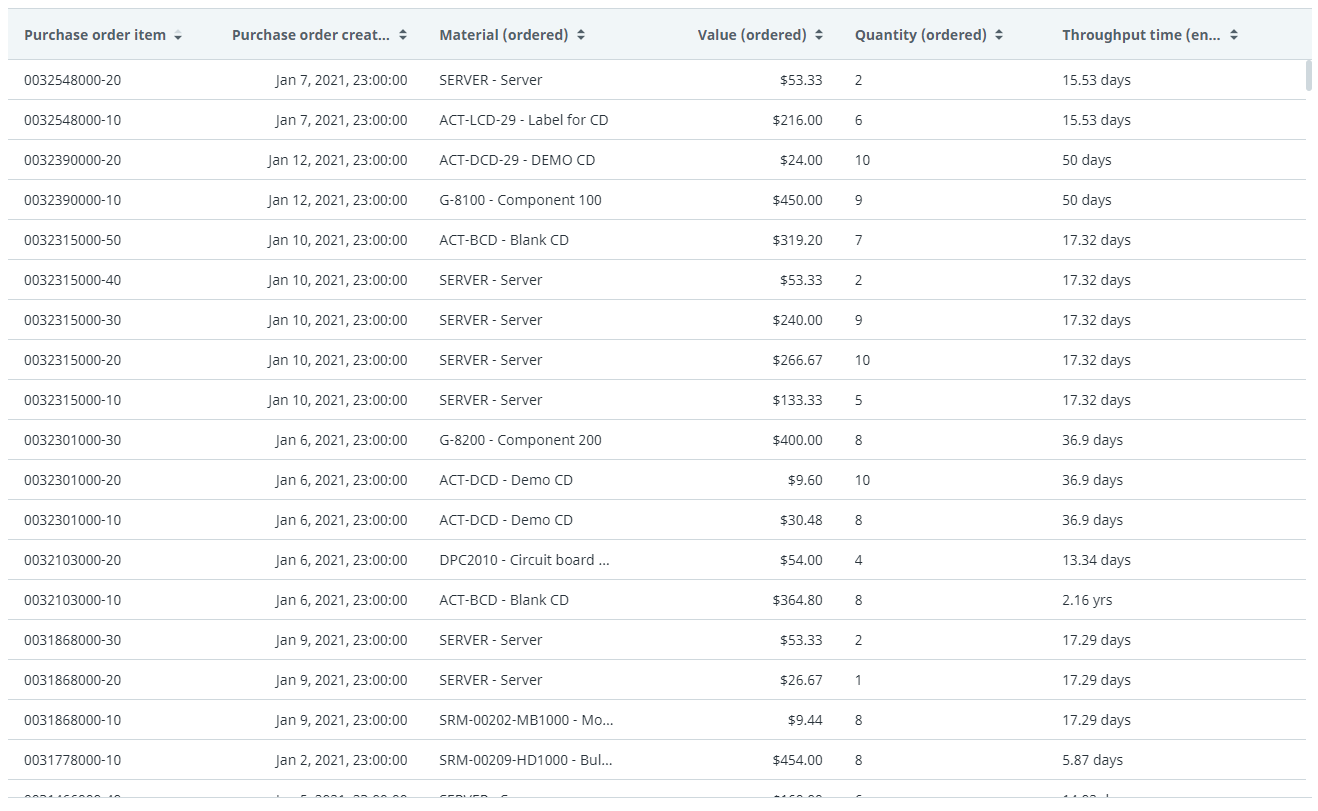
For a table chart, you select the columns you want to display.
Properties
You can edit the properties of a table chart in the Edit table chart panel.
The following table describes the properties of the Table chart.
| Element | Description |
|---|---|
| Title | Text box that enables you to edit the title of the table chart. |
| Tooltip | Text box that enables you add a text that will be displayed as tooltip when the user hovers the mouse over the chart title in the published process app. |
| Columns | List of columns to be available for the table chart. Use the Add columns option to select one or more columns. Drag and drop the columns in the list to arrange the columns as desired. Note: You must at least select one column for the table chart. If you select multiple columns, the first column will be displayed by default. |