Aggregates
Aggregates are only applicable for use in metric expressions. You can not use aggregates for field expressions.
With Aggregates you can compute a single result value from a set of input values. An aggregate metric expression is defined by the aggregation type and the field used for the aggreagation.
| Element | Description |
|---|---|
| Aggregation type | The type of the function that is used to calculate the metric. For example, SUM is used to calculate a Total value, AVERAGE is used to calculate an Average value. |
| Field used for aggregation | The field that is used to calculate the metric. |
Applying filters to an aggregation
You can add a filter to an aggregation to create a subset of the data that is used for the aggregation, by only selecting the relevant data. Filtering can reduce the amount of data that an aggregate function needs to process, which can speed up the calculation.
Follow these steps to apply filters to an aggregation.
- Select the aggregation for which to you want to apply filters.
- Select Filter icon in the logic block. The Filters panel is displayed.
- Define the filters as desired**.**
The Filter icon indicates that filters are applied for the aggregation.
SUM
Description
Returns the sum of all values for the selected field.
Syntax
SUM of <Field>
Supported values
Can be used for fields of number, duration, and currency data kinds.
NULL handling
NULL values are ignored. If all field values are NULL, the result is NULL.
Example
SUM of Value
AVERAGE
Description
Returns the sum of all values for the selected field divided by the number of records in the table of the selected field.
Syntax
AVERAGE of <Field>
Supported values
Can be used for fields of number and duration data kinds.
NULL handling
NULL values are ignored. If all field values are NULL, the result is NULL.
Example
AVERAGE of Discount captured
COUNT
Description
Returns the number of values for the selected field.
Syntax
COUNT of <Field>
Supported values
Can be used for fields of all data kinds.
NULL handling
Counts all values, whether field value is NULL or not. If all the values are NULL, the result is 0.
Example
COUNT of Invoice ID
MINIMUM
Description
Returns the smallest value for the selected field.
Syntax
MINIMUM of <Field>
Supported values
Can be used for fields of number, duration, and currency data kinds.
NULL handling
NULL values are ignored. If all field values are NULL, the result is NULL.
Example
MINIMUM of Price
DISTINCT COUNT
Description
Returns the number of unique (distinct) values for the selected field.
Syntax
DISTINCT COUNT of <Field>
Supported values
Can be used for fields of all data kinds.
NULL handling
NULL values are ignored. Only distinct, non-NULL values are counted. If all field values are NULL, the result is 0.
Example
DISTINCT COUNT of Invoice ID
PERCENTAGE
Description
Returns the percentage of records in which the field is TRUE.
Syntax
PERCENTAGE of <Field>
Supported values
Can be used for boolean fields.
NULL handling
Ignores NULL values. If all values are NULL, the result is NULL
Example
PERCENTAGE of Is Automated
MAXIMUM
Description
Returns the largest value for the selected field.
Syntax
MAXIMUM of <Field>
Supported values
Can be used for fields of number, duration, and currency data kinds.
NULL handling
NULL values are ignored. If all field values are NULL, the result is NULL.
Example
MAXIMUM of Amount
MEDIAN
Description
Returns the median of the values for the given field.
Syntax
MEDIAN of <Field>
Supported values
Can be used for fields of number, duration, and currency data kinds.
NULL handling
NULL values are ignored. If all field values are NULL, the result is NULL.
Example
MEDIAN of Value
PERCENTILE
Description
Returns the specified percentile of the values for the given field, which is the value below which that percentage of the data falls.
Syntax
PERCENTILE of <Field> <percentile>
Supported values
Can be used for fields of number, duration, and currency data kinds.
NULL handling
NULL values are ignored. If all field values are NULL, the result is NULL.
Example
PERCENTILE of Value 0.05
The PERCENTILE of function uses an approximate version, which may result in a small deviation from the actual percentile.
ANY is TRUE
Description
Returns TRUE if at least one value in the selected field evaluates to TRUE. Otherwise, returns FALSE.
Syntax
ANY of <Field> is TRUE
Supported values
Only boolean fields can be used.
NULL handling
NULL values are ignored. If all field values are NULL, the result is FALSE.
Example
ANY of On time is TRUE
ALL are TRUE
Description
Returns TRUE if all values in the selected field evaluate to TRUE. Otherwise, returns FALSE.
Syntax
ALL of <Field> are TRUE
Supported values
Only boolean fields can be used.
NULL handling
NULL values are ignored. If all field values are NULL, the result is TRUE. If at least one value is FALSE, the result is FALSE.
Example
ALL of On time are TRUE
GROUPED by
Description
Groups the field values or expression results by the values of the specified fields. Each unique value (or combination of values) forms a group.
Use aggregate functions, such as COUNT of, SUM of, AVERAGE of, MINIMUM of, MAXIMUM of.
Syntax
<Expression> GROUPED by <groupings>
Supported values
Can be used for fields of all data kinds.
The GROUPED by function cannot be nested inside another GROUPED by expression. However, it can be used as part of other expressions, and does not necessarily need to appear at the beginning of the expression.
NULL handling
Rows with NULL values in the grouping field are treated as a separate group.
Examples
-
(COUNT of Event ID) GROUPED by Case ID- Events grouped by Case ID, with a count of Event IDs per case.(COUNT of Event ID)- Counts the number ofEvent IDs.GROUPED by Case IDdefines that the counting is done separately for each uniqueCase ID.
-
(ALL of Automated are TRUE) GROUPED by Case ID- checks all the values of theAutomatedfield within eachCase IDgroup.(ALL of Automated are TRUE)checks whether every event in the group hasAutomated = TRUE.GROUPED by Case IDdefines that the check is performed separately for each uniqueCase ID.
-
(COUNT of (IF Activity = Final check of invoice THEN Process event ID)) GROUPED by Case ID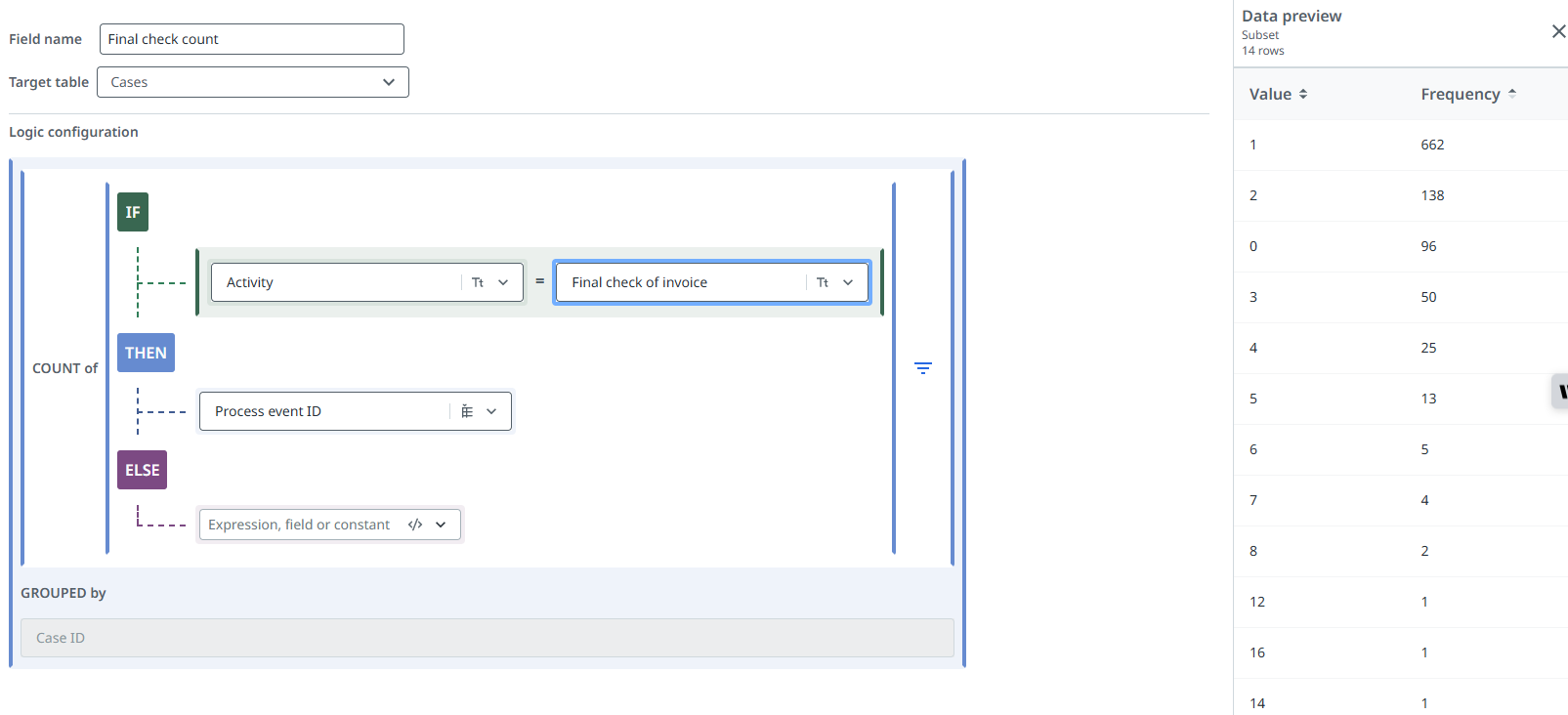
(IF Activity = Final check of invoice THEN Process event ID)checks theActivityfield for each record. If the has the valueFinal check of invoicethe correspodingProcess event IDis returned.COUNTthen counts the number of returnedProcess event IDs— which is the number of times the activityFinal check of invoiceoccurred.GROUPED by Case IDdefines that the checks are performed separately for each uniqueCase ID.
-
COUNT(Case ID) GROUPED by Team, User- Counts the number of cases for each Team-User combination. -
SUM(Automated) / COUNT(Event ID) GROUPED by Activity, User- Calculates the Automation rate for each combination ofActivityandUser.