Editing data transformations
Viewing and editing files
SQL files and input files are displayed in tabs. When you open a SQL file or an input file, a new tab is opened in the Data transformations editor. This enables you to open and work with multiple files simultaneously. If there are any unsaved changes in a SQL file, this is indicated with a blue dot in the tab.
You can open a file in a pinned tab. This allows you to quickly access files without having to reopen them repeatedly. Once a file is pinned, it stays visible in the editor even when you open other files. You can either double-click the file, or select Pin from the tab context menu to pin a tab.
If there are any unsaved changes in the currently opened SQL file, those changes will remain in their own tab when the new file is opened. When there are no unsaved changes, the new SQL file is opened in the currently displayed tab.
Closing files
You can quickly close the current tab, all tabs, or all other tabs from the tab context menu.
Right-click on a tab name to open the tab context menu.
Running the queries
Run all and Run file are limited to one hour. Therefore, it is strongly recommended to use a small dataset for the development and testing of data transformations, to make sure your transformations do not exceed this time limit. Refer to Process Mining portal for more information.
When you are editing transformations, you can select Run all to test your changes and see a preview. It runs the queries that were modified queries and all related queries. For example, if cases_input.sql has been modified. The Run all command would run cases_input.sql and cases.sql, which uses the results of cases_input.sql.
The resulting data will only be available in the Data Transformations editor, not in the dashboard editor.
There are two types of runs:
- Run all: starts a data run, recalculating all modified queries, and their dependencies.
- Run file: starts a run to recalculate only the currently selected SQL file and its parent queries. This option enables you to test and debug customizations to specific SQL files.
tip
You can select Cancel run at any time to cancel the transformations run.
The results are displayed in the Preview panel.
Run all does not affect the data in the published process app.
Viewing compiled SQL
You can view a compiled version of the SQL code after running the queries by enabling the Compiled SQL toggle option. This is useful when debugging SQL errors, as the reported line numbers correspond to the line numbers in the compiled SQL.
Only SQL files that have just run will show the Compiled SQL toggle.
Adding folders and files
You can create new folders and add new files in your transformations.
Naming conventions
- For names of files, folders, fields, and tables:
- you can only use lowercase (a-z) characters, uppercase (A-Z) characters, and numbers (0-9);
- you cannot use special characters
|*:?"<>\/for names of files, folders, fields, and tables.
- For file names, you can only use
_:.as special characters. - A file name cannot start with an
_(underscore).
Creating a new folder or file from the transformations menu
Follow these steps to create new folder or file.
| Steps | Action |
|---|---|
| 1 | Navigate to the location in the transformations where you want to add a new file or folder. |
| 2 | Go to the Transformations panel and select the menu icon to open the transformations menu. icon to open the transformations menu. |
| 3 | Select the applicable option from the menu. |
| 4 | Enter a descriptive name for the new folder or file and select Enter. |
The new folder or file is created in the selected folder.
Creating a new folder or file from the context menu
Follow these steps to create new folder or file from the context menu.
| Steps | Action |
|---|---|
| 1 | Open the More actions menu for the folder in the transformations where you want to add a new file or folder. menu for the folder in the transformations where you want to add a new file or folder. |
| 2 | Select the applicable option from the menu. |
| 3 | Enter a descriptive name for the new folder or file and select Enter. |
The new folder or file is created in the selected folder.
Unsaved changes in files
When you edit a .sql file, a blue dot indicates in the Transformations folder structure that there are unsaved changes.
Moving files
You can easily drag and drop files to move them to a different folder or to reorder them within a folder. A confirmation message is displayed to help prevent accidental file moves.
Renaming a folder or file
Follow these steps to create new folder or file.
| Steps | Action |
|---|---|
| 1 | Open the More actions menu for the folder or file you want to rename to open the context menu. |
| 2 | Select Rename. |
| 3 | Edit the name as desired and select Enter. |
The folder or file is renamed.
Deleting a folder or file
Follow these steps to create new folder or file.
| Steps | Action |
|---|---|
| 1 | Open the More actions menu for the folder or file you want to delete to open the context menu. |
| 2 | Select Delete. A confirmation message is displayed. |
| 3 | Select Delete to confirm the deletion. |
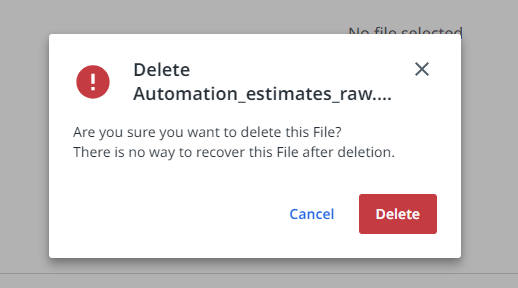
The folder or file is deleted.
Duplicating a file
Duplicating a SQL file allows you to re-use your queries and make modifications without the need to create a complete new file. It can also help you to make modifications to your queries without changing or damaging the original queries.
Duplicating a file creates a copy of the original file in the same folder directly underneath the duplicated file.
Follow these steps to duplicate of a SQL file.
| Steps | Action |
|---|---|
| 1 | Open the More actions menu for the file you want to duplicate to open the context menu. |
| 2 | Select Duplicate. The duplicated file is inserted in the same location as the original file. |
Copy and paste a file
You can copy a SQL file and paste it in a different location. Copying and pasting a SQL file allows you to re-use your queries and make modifications to your queries without the need to create a complete new file.
Follow these steps to copy and paste a SQL file.
| Steps | Action |
|---|---|
| 1 | Open the More actions menu for the file you want to copy to open the menu. |
| 2 | Select Copy. |
| 3 | Open the More actions menu select Paste from the menu. The copied file is inserted. |
| 4 | Drag and drop the file to move it to the desired location. |
Find / replace in files
In the Data Transformations editor, you can find and replace texts in Data transformations.
Find text
To find a text in the data transformations editor:
- Enter the text to search for.
- In the Search field, type the text you want to find. The number of occurrences of the searched text is displayed in the content structure.
- Select the relevant file.
- Choose the file in which you want to check for the searched text. All occurrences of the text in the selected file are highlighted.
Find and replace
To find a text in the data transformations editor:
- Enter the text to search for.
- In the Search field, type the text you want to find. The number of occurrences of the searched text is displayed in the content structure.
- Select the relevant file.
- Choose the file in which you want to check for the searched text. All occurrences of the text in the selected file are highlighted.
To find a text in the data transformations editor:
- Click on the code editor.
- Press
CTRL+H. - Enter the test you want to search for Find field and enter the new test in the Replace field. All occurrences of the text in the current file are highlighted.
- Press
Crtl+Alt+Enter.
Adding comments in files
If you want to include comments in your SQL transformations files, or comment-out parts of the file, it is strongly recommended to use the Jinja comment syntax which is by default set to {# ... #}. This also enables you to comment macros.
SQL
{# {{ pm_utils.optional(ref('Cases_base'), '"Case_status"') }} as "Case_status", #}

{# case
    when {{ pm_utils.optional(ref('Cases_base'), '"Case_value"', 'double') }} >= 1000000
      then {{ pm_utils.as_varchar('>= 1M') }}
    when {{ pm_utils.optional(ref('Cases_base'), '"Case_value"', 'double') }} >= 0
     then {{ pm_utils.as_varchar('0 - 1M') }}
   when {{ pm_utils.optional(ref('Cases_base'), '"Case_value"', 'double') }} is not null
     then {{ pm_utils.as_varchar('< 0') }}
  end as "Case_value_group", #}
Editing dbt project configuration files
You can also open dbt project configuration files in the Data Transformations editor, for example dbt_project.yml.
It is strongly advised to only edit the vars section, if required. The other parts of the dbt_project.yml should not be changed to ensure the transformations keep working properly.
For detailed information on dbt, refer to the official dbt documentation.