Editing app settings
Introduction
If you have edit permission for an app, you can edit the app settings. For example, you can change the name of the app and/or the description in the General settings page.
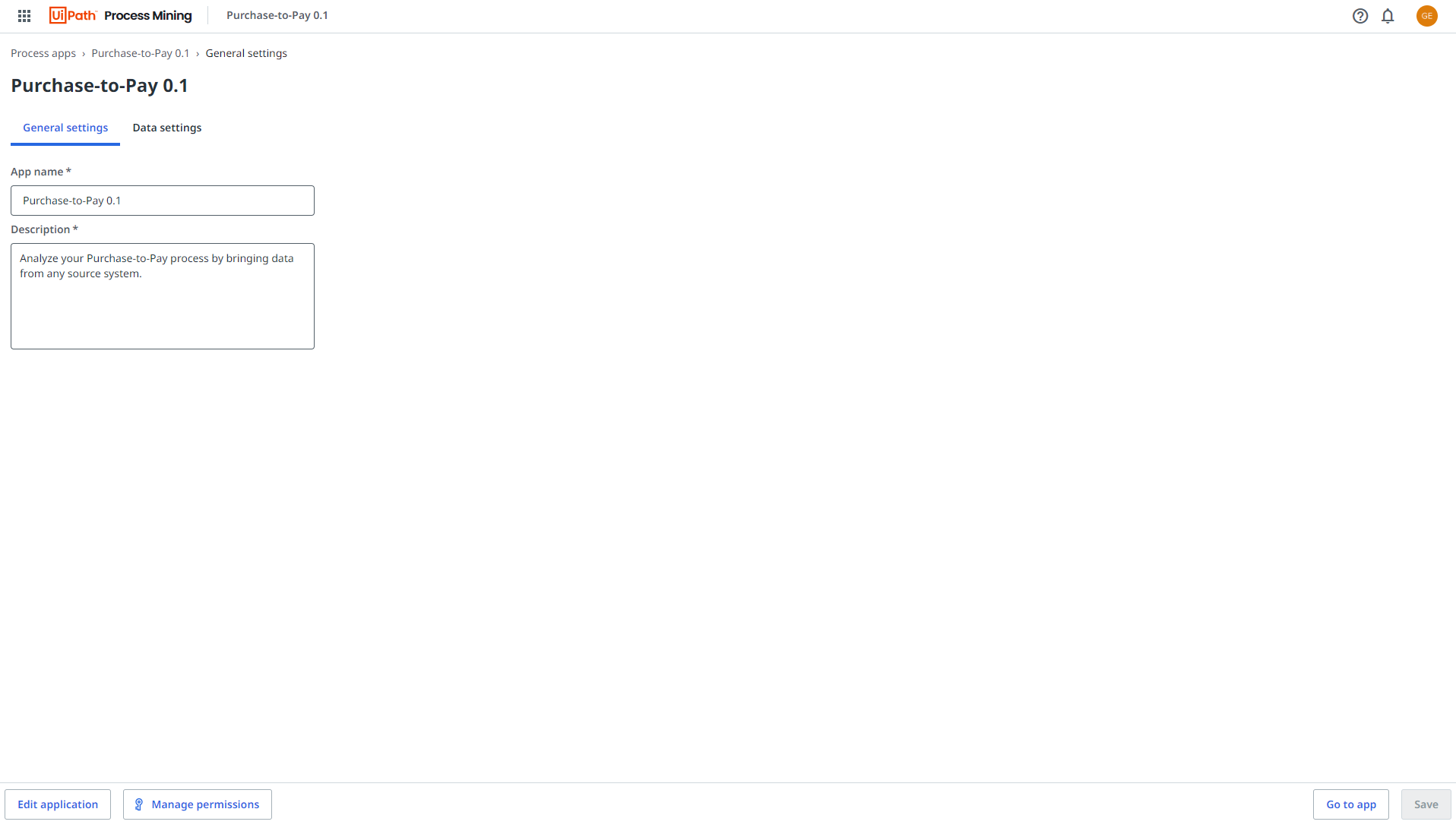
Editing a process app from the Published process apps
Follow these steps to edit the process app details from the Published process apps.
- Open the Process Mining portal.
- Locate the app you want to edit in the Published process apps list.
- Select the
 icon in the on the process app card and select Settings. The General settings are displayed.
 - Edit the app details and select Save.
Editing a process app from the Process apps in development list
Follow these steps to edit the process app details from the Process apps in development list.
- Open the Process Mining portal.
- Go to the Development tab and locate the app you want to edit in the Process apps in development list.
- Select the icon in the actions column of the process app you want to edit and select Settings. The General settings are displayed.
- Edit the app details and select Save.
Editing a process app from a dashboard in the published process app
Follow these steps to edit the process app details from an open process app.
- Select the Settings
 icon at the top of the dashboard page. The General settings page is displayed.
 - Edit the app details and select Save.
Editing dashboards
You can edit the dashboards of the open process app to customize the process app to your business needs. You can directly open the Dashboard editor which provides various options to create different views, and to organize, group, and filter data.
Follow these steps to open the dashboard editor.
- Go to the Development tab and locate the app you want to delete in the Process apps in development list.
- Select the edit application icon in the actions column. The Dashboard editor is displayed.
Check out Working with the dashboard editor.
You can also select the Edit in dev mode option from the published process app menu to open the Dashboard editor.