Export
Introduction
The information on dashboards can be exported to use for reporting.
Exporting a chart as PNG
The Export as.png option is available in dashboard charts and process graphs. Follow these steps to export a chart.
- Go to the chart, or process graph, you want to export.
- Select Export -> Export as .png from the menu.
The chart or process graph is downloaded and saved as a .PNG file to your computer. The exported .PNG file contains an image of the chart or process graph as displayed.
Exporting a chart as CSV
The Export as.csv option is available in all dashboard charts. Follow these steps to export a chart to csv.
Export to .csv is not available for process graphs.
- Go to the chart you want to export.
- Select Export -> Export as .csv from the menu.
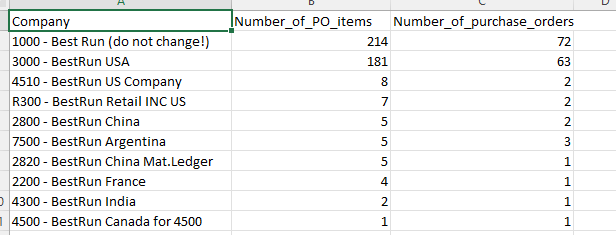
The chart is downloaded and saved as a .CSV file to your computer. It contains all the data rows used in the chart. The following illustration shows an example.
The export is limited to 1000 rows.
Exporting a process graph as BPMN
You can export a process graph as a Business Process Model Notation (BPMN) 2.0 file. You can import the file in a BPMN modeler, for example BPMN.iO.
Follow these steps to export a process graph as a BPMN 2.0 diagram.
- Go to the process graph you want to export as BPMN.
- Select Export -> Export as BPMN 2.0 diagram.
The process graph is exported and saved as a .bpmn file.