Adding fields
You can add new fields using Data transformations. Any additional field that is added to the SQL transformations of the output tables will show up in the app.
Prerequisites
- Make sure the input data needed for your new field is available in your app. Check out Loading data.
- Make sure your data model adheres the requirements. Refer to Data model requirements.
- Make sure the new field is defined in table SQL file in the models -> 1_input section of the Transformations for which you want to add a field. Check out Adding new input tables.
Special characters in field names
More special characters are allowed in your names. You can define field names in data transformations with, for example, Japanese characters. These fields will be loaded in the data model and can be used in dashboards.
There is a small set of characters that are not allowed:
] | square bracket close |
() | open/close brackets |
" | double quotes |
, | comma |
; | semicolon |
{} | curly braces |
\n | new line |
\t | tab |
= | equals |
Creating a new output field
For process apps based on Event log, Custom process, generic Purchase-to-Pay, and generic Order-to-Cash app templates, additional fields in your input data will be added automatically to your Process Mining app. As these fields are automatically propagated to the output models, you do not need to edit the transformations. You can just add these fields to relevant charts in the dashboards.
Follow these steps to create a new output field using Data transformations.
-
Go to the Data transformations editor.
-
Select the applicable output table SQL file of the Transformations for which you want to define an output field.
-
Add the field in the
selectstatement.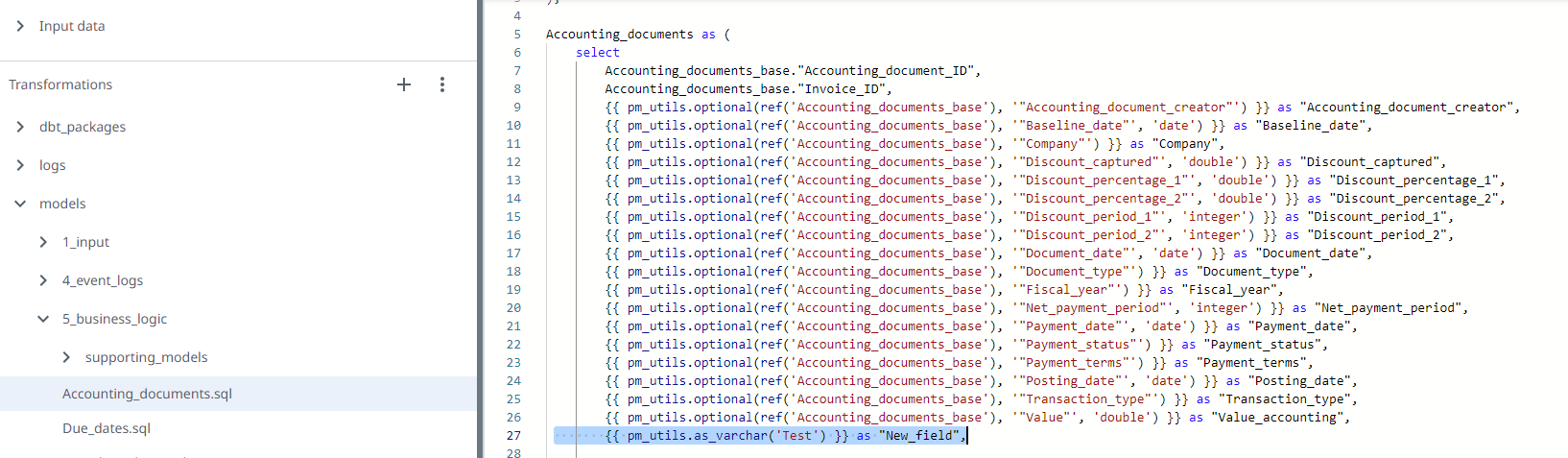
-
Select Apply to dashboards and run the transformations to make the field available for use in dashboards.
noteThis may take several minutes. Only if the run finishes successfully, the new field will show up in the Data Manager.
-
Select Edit dashboards and open the Data Manager.
-
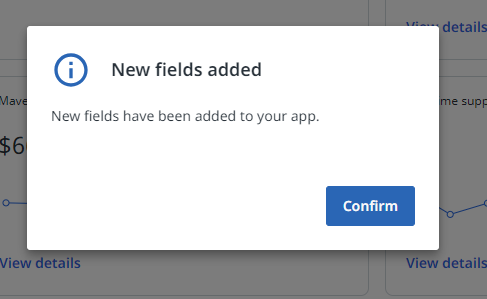
A message is displayed to inform you that new fields have been added. Select Confirm to continue.
-
Locate the new field and check the Source field and the Type for the new field.
The new field is marked with a blue dot.

The new field is now available for use in dashboard charts.
Once the process app is published with the new field, the blue dot is no longer displayed.