Adding custom attributes
Introduction
When your dataset contains attributes that are not present in your app by default, you may want to add these additional attributes.
You can use these attributes inside the attribute selectors of your app or discovery accelerator, or you can add them to the list of available End-user filters.
Getting the new attributes into the app
Follow these steps to add custom attributes to your app.
| Step | Action |
|---|---|
| 1 | Open the app in your development environment with the dataset that contains the new attributes. |
| 2 | Go to the Data tab. |
| 3 | Double-click on the table for which you want to add the new attributes. |
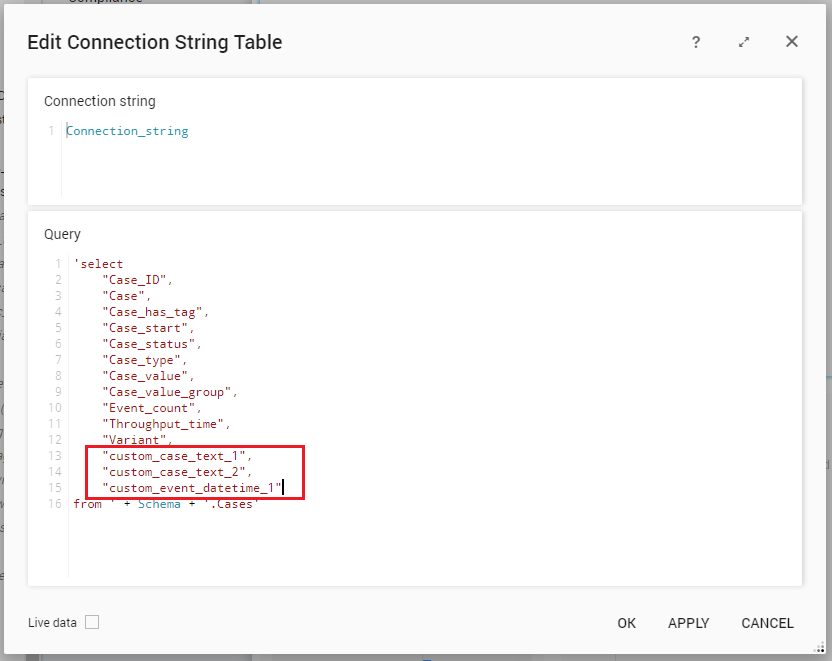
| 4 | Add the custom attributes to the select statement in the Query field and click on OK. See the illustration below for an example. |
| 5 | In the Data tab, right-click on the table and select Reload to reload the data. |
To use the new attributes in the app you can change the display name of the attribute.
These new attributes can now be used in multiple ways inside the app. For example, you can add them to the attribute selectors to slice your data based on them, or you can use the attributes for filtering if you add them to the End-user filters.
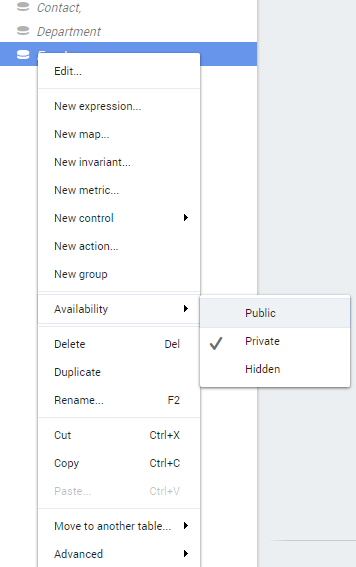
Make sure to set the availability of the attributes you want to use in your app to Public.
To change the availability of a table item, right click on it and select Availability from the context menu. See illustration below.
Next steps
| Step | Details |
|---|---|
| Adding attributes to an attribute selector | Attribute Selectors |
| Adding attributes to the End-user filters | End-user Filters |