Structuring an App or Discovery Accelerator
Introduction
The structure of an app or discovery accelerator is defined by Menus,Tabs, and Dashboards. The structure is created in the Dashboards tab of your development environment.
See illustration below.
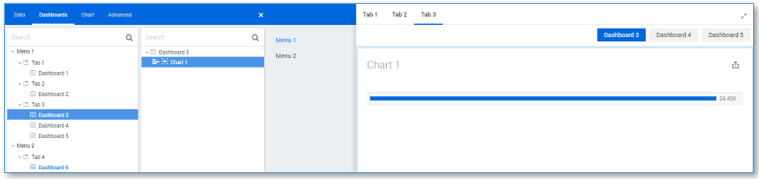
End users can navigate through the different Menus,Tabs and Dashboards.
Creating a menu
A menu is the highest level of grouping dashboards in your app. A menu is a group of tabs and is comparable to the chapters in a book.
Follow these steps to create a new menu.
| Step | Action |
|---|---|
| 1 | Open the app or discovery accelerator in your development environment. |
| 2 | Go to the Dashboards tab. |
| 3 | Right-click in the left tree view and select New menu. A menu called New menu is created. |
Adding a new tab
Tabs are the second level of grouping dashboards in your application. You can compare them to the sections within a book chapter.
Follow this step to create a new tab.
| Step | Action |
|---|---|
| 1 | Right-click on a menu and select New tab. A tab called New tab is created inside the menu. |
Creating a new dashboard
Follow this step to create a new empty dashboard.
| Step | Action |
|---|---|
| 1 | Right-click in the left tree view and select New Dashboard - table name. A new dashboard is created, based on the selected table. |
Deleting a dashboard
If you do not use a dashboard anymore, you can delete it. Follow this step to delete a dashboard.
| Step | Action |
|---|---|
| 1 | Right-click on a dashboard select Delete. The selected dashboard is deleted and will be no longer visible. |
Toggling between dashboards
Each Tab can contain one or more Dashboards. Within a Tab you can toggle between available Dashboards. Compare them to paragraphs within the sections of a book chapter.