Contexts
Introduction
You can define expressions that determine the context of the main metric. Contexts can be used to provide a better understanding of the main metric displayed on the dashboard. Contexts are displayed as tooltips on charts.
Moreover, contexts can be added as additional columns to a bar chart. This enables users to sort on the context values.
If you have a metric selector, the different metrics in the selector can have their own contexts defined.
Useful Contexts
Depending on the calculation of the main metric, different contexts may be useful to explain the main metric. For example, if the main metric is defined as Average amount, a useful context usually is the Number of cases for which the average amount is calculated. This also applies when you main metric is defined as Total amount. In this case, also the Number of cases for which the sum is calculated is a useful context.
When your main metric is defined as a percentage, for example the Cases with tag (%), useful contexts are the Number of cases with tag and the Total number of cases.
| Main metric | Context metric 1 | Context metric 2 | |
|---|---|---|---|
| Count | Number of cases 112 | ||
| Average | Average amount € 61,43 | Cases 112 | |
| Sum | Total amount € 123.555,00 | Cases 112 | |
| Percentage | Cases with tag % 60% | Cases with tag 600 | Total cases 1000 |
Contexts are not supported for Legacy Charts.
Defining contexts
Follow these steps to define contexts.
| Step | Action |
|---|---|
| 1 | Go to he Dashboards tab. |
| 2 | In the table item list, right-click on the metric for which you want to add contexts and select Edit... |
| 4 | Go to the Contexts panel and click on ADD. |
| 5 | Click on Label and enter a display name for the context. |
| 6 | Click on expression and enter the expression that represents the metric that you want to use as context. Click on OK. |
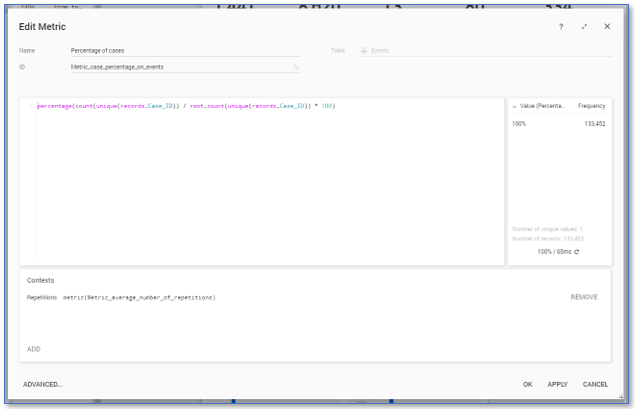
The defined context metric is displayed in the Contexts panel. See illustration below.
In bar charts the contexts are displayed in columns that are added to the chart. Moreover, the context values will be visible in the hint when a user hovers over the chart. See illustration below for an example.
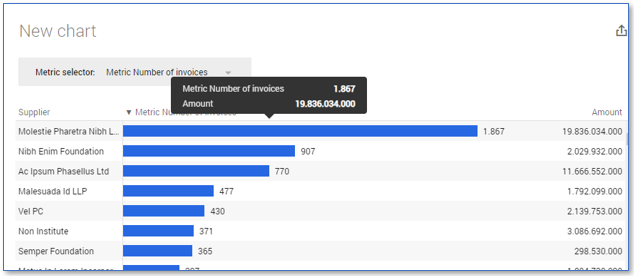
Contexts can be defined for bar charts, history charts, and distribution charts. However, the defined contexts will only be visible as columns in bar charts, since history charts and distribution charts do not support columns. The context values will still be visible in the hints of history charts and distribution charts.
Related information
See Adding charts on a dashboard.
See Bar Charts.