Display format
Introduction
The display format determines how values are displayed to end-users. The default display format can be set for each data type in an app.
Attributes, metrics, and filters can have a specific display format that overrides the default display format.
Default display format
The default display format defines how each data type is displayed by default.
Show the default display format
Follow these steps to show the default Display Format.
| Step | Action |
|---|---|
| 1 | Open the app in your development environment. |
| 2 | Click on the Home icon and select Settings.... |
| 3 | Click on DISPLAY FORMAT.... |
In the Display Format dialog, the default format settings for the application can be configured. See the illustration below.
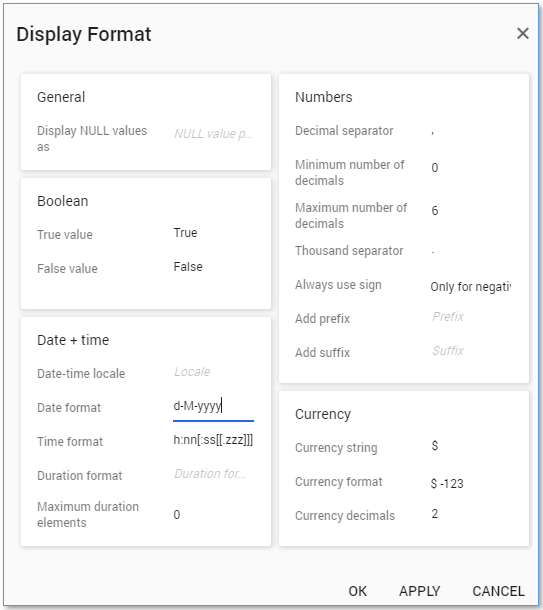
Below is a description of the different settings.
| Element | Description |
|---|---|
| General | Determines what text will be shown when the data is NULL. |
| Boolean | Determines the textual representation of Boolean values. |
| Date + Time | Determines how date and time is displayed. |
| Numbers | Determines the default number format. For example: based on the user’s region, Decimal separator and Thousand separator can be set. |
| Currency | Determines the default currency format. |
Override the default display format
The default format can be overridden for an individual datasource attribute, metric or filter.
Follow these steps to override the default display format.
| Step | Action |
|---|---|
| 1 | Go to the Data tab and click the table that contains the table item for which you want to override the default display format. |
| 2 | Click on ADVANCED…. |
The Advanced Settings dialog is displayed. The Display format tab contains settings to change the display format for the table item which overrides the default display settings.