Editing dashboard item settings
Introduction
The Edit Dashboard Item dialog contains several dashboard item settings to customize your charts.
Follow these steps to display the Edit Dashboard Item dialog.
| Step | Action |
|---|---|
| 1 | Open the app or discovery accelerator in your development environment and go to the Dashboards tab. |
| 2 | In the dashboard item list, double-click on the chart for which you want to edit the Dashboard Item settings. The Edit Dashboard Item dialog is displayed. See the illustration below. |
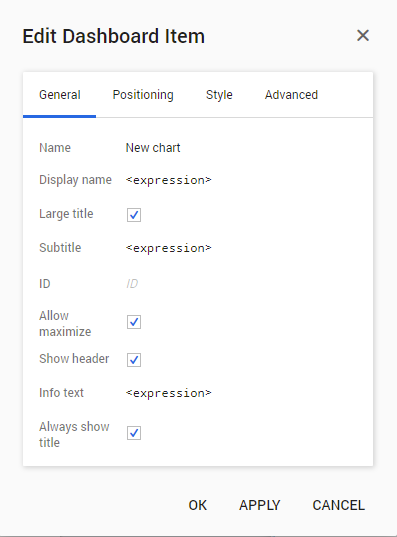
Below is a description of the elements of the General tab.
| Element |
Description |
|---|---|
| Name |
Enables you to change the name that is displayed as the title of the dashboard item. |
| Display name |
Enables you to specify an expression that defines the name that is displayed as the title of the dashboard item. |
| Large title |
Enables you to enlarge the font size of the title of the dashboard item. |
| Subtitle |
Enables you to enter an expression that defines the subtitle for the dashboard item. |
| Allow maximize |
Enables you to specify that the dashboard item can be maximized when the dashboard contains multiple dashboard items. Note: When you select the Allow maximize check box the Resize icon will be visible in the header of the dashboard item. |
| ID |
Enables you to specify a unique identifier for the dashboard item. This ID can be used to reference the dashboard item from actions and expressions. |
| Show header |
Enables you to specify whether the header of the dashboard item is visible or not. Note: If you unselect the Show header check box, any icons that are defined for the header will also become invisible. |
| Info text |
Enables you to enter an expression that defines informational text on a dashboard. Note: When you define an Info text the Information icon will be visible in the header of the dashboard item. |
| Always show title |
If there is only one dashboard item on the dashboard, the title of the dashboard item is not displayed. The Always show title option enables you to specify that the title of the dashboard item should be displayed. Note: If you unselect the Always show title check box, the header of the dashboard item will be invisible. However, any icons that are defined for the header will still be visible. |
Info text
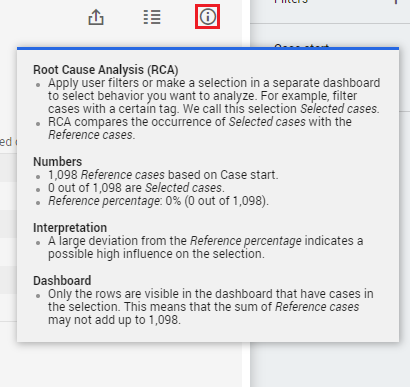
When you want to provide context information on a dashboard item you can use the Info text setting in the Edit Dashboard Item dialog. When you define an Info text the Information icon will be visible in the header of the dashboard item. See the illustration below for an example.
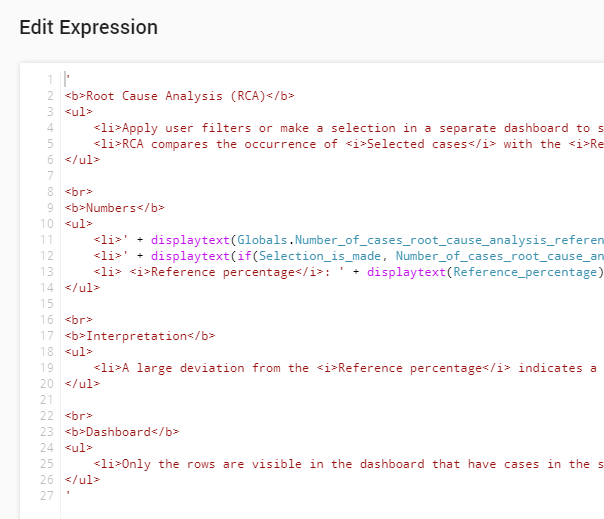
You can use HTML for plain text and combine it with expression to add context-specific information. See the illustration below.