Favorites
Introduction
Favorites are elements that enable you to create snapshots of the current state of your dashboard. When a Favorite is created, all view settings are stored, e.g. created selections and applied filters. Favorites can be stored over user sessions and allow you to always navigate quickly back to the stored state of the application.
Types of Favorites
There are two types of Favorites:
| Favorite type | Description |
|---|---|
| Private | A private Favorite it is only visible to the user who created the Favorite. By default, a Favorite is private. |
| Public | If you have admin rights, you can create public Favorites. These Favorites are accessible for every user. |
Creating Favorites
You can create a new Favorite by clicking on the + icon in the Favoritespanel.
See illustration below.
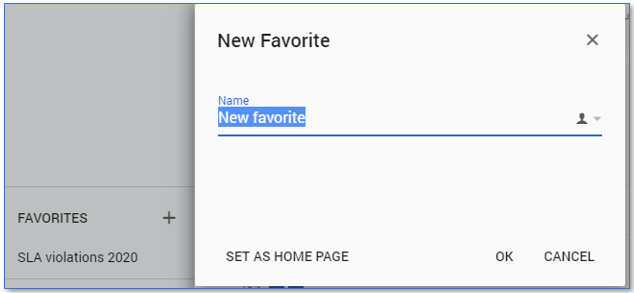
You can also create a Favorite as Home page. The first dashboard that is displayed when you log in, then is your Favorite. The dashboard displays the state of the application as saved in this Favorite.
Sharing Favorites
You can share a Favorite that you have created with others. When sharing you actually share an instantiation of your filters. If the person you share your Favorite with does not have the same permissions for data and dashboards, he or she might have a different result.
Follow these steps to share a Favorite.
| Step | Action |
|---|---|
| 1 | Go to the Favorites panel and right click on the favorite you want to share with others. |
| 2 | Select Get shareable link and click on COPY. |
| 3 | Send the link to the person you would like to share it with. |
When you receive a shared Favorite you must save it first.
Follow these steps to save a shareable Favorite.
| Step | Action |
|---|---|
| 1 | Open the link that has been sent to you. |
| 2 | Create a new favorite based on the one you opened to save. |
If the user that has created the Favorite deletes it, you will no longer have access.
Groups of Favorites
It is possible to create various groups to create a structure for the created favorites.
Follow these steps to create a group of Favorites.
| Step | Action |
|---|---|
| 1 | Right click on a Favorite in the Favorites panel and select New group.... |
| 2 | Enter a name for the group in the New Favorites Group dialog and click on OK. |
| 3 | Drag and drop any Favorites you want onto the new group. |
Updating a Favorite
You can update a Favorite to the current state of your dashboard and filters.
Follow these steps to update a favorite.
| Step | Action |
|---|---|
| 1 | Go to the dashboard you want to set as new Favorite or modify the Favorite as desired. |
| 2 | Right click on the Favorite you want to update and select Update favorite. |
If the original Favorite was shared with others with a shareable link, the link will go to the updated Favorite.