Two-Factor authentication
Introduction
It is possible to enable Two-Factor Authentication (2FA) for Superadmin users to make your UiPath Process Mining application more secure. Two-Factor Authentication is an additional verification check to secure UiPath Process Mining accounts for unauthorized access. When Two-Factor Authentication is enabled, Superadmin users must enter a verification code generated on another device to log in to UiPath Process Mining.
Localhost
Two-Factor-Authentication cannot be used when a Superadmin user logs in via localhost.
Enabling Two-Factor authentication
By default, Two-Factor Authentication is not enabled for your UiPath Process Mining installation. To enable Two-Factor Authentication for Superadmin users, the Server setting SuperadminTotpEnabled must be set to true.
Google Authenticator
Although other authenticator applications may also work, for Two-Factor Authentication with UiPath Process Mining, Google Authenticator is supported by UiPath Process Mining.
Superadmin user log in with Two-Factor authentication
When Superadmin users log in to their UiPath Process Mining application they must enter a verification code generated on another device, for example with Google Authenticator.
See illustration below.
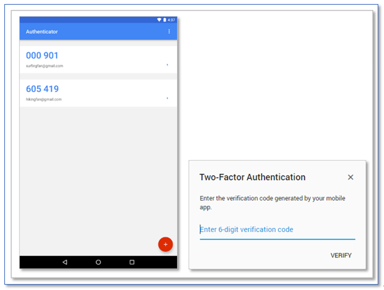
It is possible to edit the label for the code to indicate to which application the code belongs.
Status
If Two-Factor Authentication is enabled, a column is displayed on the UiPath Process Mining Superadmin users page, indicating the status for the defined Superadmin users.
See illustration below.
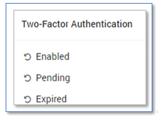
The table below describes the different statuses.
| Status | Description |
|---|---|
| Enabled | The Superadmin user has successfully finished the setup of Two-Factor Authentication for his account and must use verification code with every log in. |
| Pending | The Superadmin user has not finished the set up yet. When pointing your mouse on Pending, the remaining timeframe for this user is displayed. |
| Expired | The period to set up Two-Factor Authentication has expired. The Superadmin user cannot log in to UiPath Process Mining anymore. The activation period for this Superadmin user must be reset. |
Reset activation period
If Two-Factor Authentication is enabled, during a seven-day period Superadmin users can connect their authentication app to their UiPath Process Mining account. If this period expires, the user will be unable to log in. In this case the user should contact the server administrator to reset the activation period.
Follow these steps to reset the activation period for a Superadmin user.
| Step | Action |
|---|---|
| 1 | Go to the Superadmin users tab in the Superadmin page. |
| 2 | Click on the rest icon in the Two-Factor Authentication column for the user for whom you want to reset the activation period. |
If you reset the activation period for a user who has already successfully connected the authentication app, this action will reset the link and the user must setup the authentication again.
External authentication
Two-Factor Authentication in UiPath Process Mining is not supported for external authentication (LDAP). In this case, if you want to use Two-Factor Authentication you must configure this in your external authentication provider.