Running a SQL connector
Introduction
This page contains instructions on how to run a SQL connector using scripts.
Prerequisites
The run.ps1 and load.ps1 need to be run on the same server as the Process Mining installation for production. The extraction_cdata.ps1 and transform.ps1 script can be run from other locations as well.
It is assumed that:
- the development tools described in Setting up a local test environment are installed.
- the SQL connector is set up as described in Setting up a SQL connector.
note
The
scripts/directory of the connector contains a set of standard scripts to run and schedule data extraction, transformation and loading.
Running a Connector
Follow these steps to run a connector, extract, transform, and load the data.
| Step | Action |
|---|---|
| 1 | Start Windows PowerShell as admin. |
| 2 | Go to the scripts/ directory. |
| 3 | Execute run.ps1. |
Running Extraction Only
Follow these steps to only execute the extraction.
| Step | Action |
|---|---|
| 1 | Start Windows PowerShell. |
| 2 | Go to the scripts/ directory. |
| 3 | Execute extraction_cdata.ps1. |
If your connector does not use CData Sync for data extraction, the name of the extraction_ script will be different.
Running Transformations Only
Follow these steps to only execute the transformation steps.
| Step | Action |
|---|---|
| 1 | Start Windows PowerShell. |
| 2 | Go to the scripts/ directory. |
| 3 | Execute transform.ps1. |
Each transformation step can also be run individually.
Running Load Only
Follow these steps to only execute the load steps.
| Step | Action |
|---|---|
| 1 | Start Windows PowerShell as admin. |
| 2 | Go to the scripts/ directory. |
| 3 | Execute load.ps1. |
Debugging Errors
A log file LogFile.log is created, when running the scripts. This log file contains all stages of job execution and the associated time stamps. The log file also returns a minimal set of error codes, that could give further guidance.
Load
For more details on the cache generation, check cache_generation_output.log that is generated in the directory in which your load script is located.
CData Extractions
For more details on the CData Sync job executions, go to your CData Sync instance and check the Logging & History tab of your job. See the illustration below.
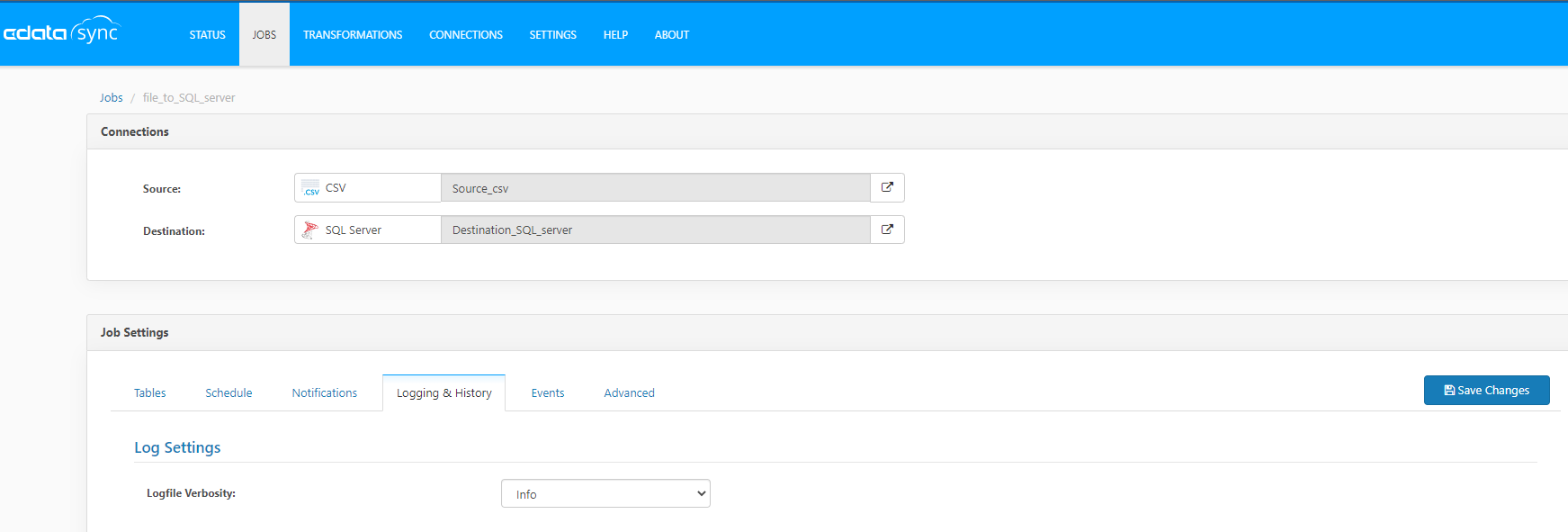
To log more details, set the Logfile Verbosity to Verbose and run the extraction script extraction_cdata.ps1 again.
Below is an overview of the return codes of a CData Sync job.
| Code | Log description |
|---|---|
| 0 | Extraction SUCCESSFUL for job. |
| -1 | Extraction FAILED for job. |
| -2 | Failed to perform the extraction. Check your settings or look into the Logging & History tab for your job. |
Transformations
The log file also returns a set of error codes of the transformation script. Below is an overview of the error codes.
| Code | Log description |
|---|---|
| -1 | General dbt run or dbt test failure. This means that there is an issue with the current setup or the configuration. Check the LogFile.log for more details. |
| 0* | The dbt invocation completed without error. |
| 1* | The dbt invocation completed with at least one handled error (e.g. model syntax error, bad permissions, etc). The run was completed, but some models may have been skipped. LogFile.log contains extra information stating whether the error occurred in the dbt run or in the dbt test phase. |
| 2* | The dbt invocation completed with an unhandled error (e.g. a network interruption). |
- 0, 1, and 2 are dbt-specific return codes. See the official dbt documentation on exit codes.
Debugging Large Dbt Projects
If running the transformation takes a long time, then response.txt in the scripts/ directory can be inspected. This contains the real-time responses from dbt. Once dbt test or dbt run have been completed, the information is appended to the LogFile.log and the temporary file is deleted.
Scheduling Data Extractions
It is also possible to schedule data extractions at a regular interval. See Scheduling data extraction.