The Development Data tab
Introduction
The Development data tab contains the published datasets that can be used in your apps. This can be output datasets from the connector or uploaded datasets.
See the illustration below.
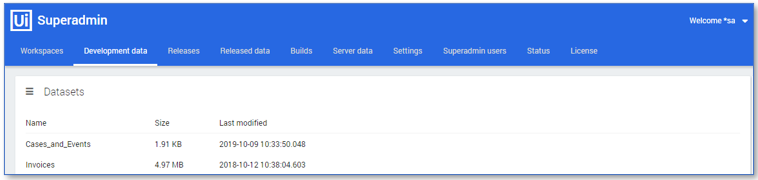
Below is a description of the elements of the Development data tab.
| Element | Description |
|---|---|
| Datasets menu | Enables you to upload a new dataset. |
| Name | The name of the dataset. |
| Size | The size of the dataset. |
| Last modified | The date and time on which the dataset was last modified or updated. |
Datasets context menu
There is also a context menu with options available for the selected dataset. See illustration below.
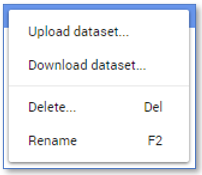
Below is a description of the elements of the Datasets context menu.
| Element | Description |
|---|---|
| Upload dataset... | Enables you to upload a new dataset. |
| Download dataset... | Enables you to download the selected dataset. The dataset will be saved as a .zipfile to your computer. |
| Delete... | Enables you to delete the selected dataset(s). |
| Rename | Enables you to change the name of the selected dataset. |
Uploading a dataset
Follow these steps to upload a dataset.
| Step | Action |
|---|---|
| 1 | Go to the Development data tab of the Superadmin page of your UiPath Process Mining installation. |
| 2 | Click on the Menu icon in the top-left and select Upload dataset…. |
| 3 | Drag the .zip file you downloaded, for example Invoices.UiPathProcessMining.21.4.zip, onto the Upload File dialog or browse for it on your computer and click on OK. |
See illustration below.
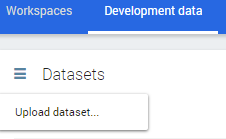
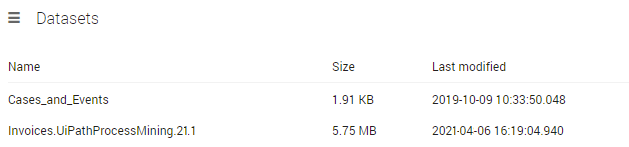
The dataset is uploaded to the Development data tab. See illustration below.
Using the dataset for App development
You can use the datasets in the Development data tab when you are developing apps, or when you want to customize AppOne. Follow the steps below to use a dataset for development.
Follow these steps to use a dataset for app development.
| Step | Action |
|---|---|
| 1 | Go to the Workspaces tab of the Superadmin page of your UiPath Process Mining installation. |
| 2 | Double-click on the app to open the app for development. |
| 3 | Click on the dataset or Workspace in the Dataset field. The datasets that are available on the Development data tab are displayed in the drop-down list. |
| 4 | Select the dataset you want to use for development from the drop-down list. |
| 5 | Click on OPEN. |
See illustration below.
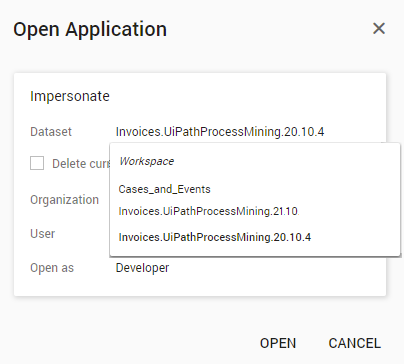
In this way you can also test the dataset you exported from the Connector with your customized version of AppOne.