The Server data tab
Introduction
From the Server data tab you can manage and upload data used by developers. Usually, this will raw data that serves as input for the Connector. This is a shared space with the data sources of all developers working on this server.
See the illustration below.

Below is a description of the elements of the Server data tab.
| Element | Description |
|---|---|
| Server data menu | Enables you to upload a new file. |
| Files | The name of the file or folder in which the file is stored. |
| Size | The size of the file. |
| Date | The date and time on which the file was uploaded. |
Server data context menu
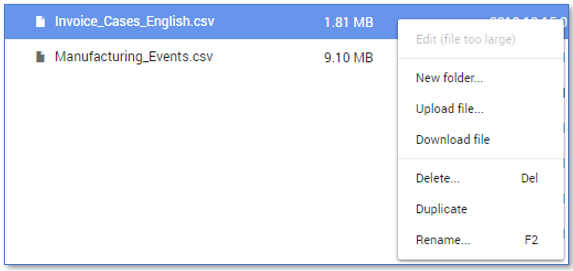
There is also a context menu with several options available for files and folders in the Server data
tab. The context menu contains additional options depending on the place from where the menu is opened.
Below is a description of the options available from the Server data context menu.
| Menu item |
Description |
|---|---|
| Edit... |
Enables you to edit the selected file. Note: Only small files can be edited from the Server data tab. If the file is too large to edit, the Edit option is disable. See illustration below. |
| New folder... |
Enables you to create a new folder. You can drag files in to the folder or you can upload files directly to the folder. |
| Upload file... |
Enables you to upload a new file. |
| Download file |
Enables you to download the selected file to your computer. |
| Delete... |
Enables you to deleted the selected file or folder. Note: if you delete a folder that contains files, these files will also be deleted. |
| Duplicate |
Enables you to duplicate the selected file or folder. |
| Rename... |
Enables you to change the name of the selected file or folder. |
See also Table Scope.